Use rclone to mount a personal cloud (Google Drive, Mega, Dropbox, OneDrive, etc.) as a directory on the Proxmox VE host, register it as a vzdump datastore, and back up VMs / CTs straight to the cloud — no extra script.
Consider Proxmox Backup Server first
Heads up about Proxmox vzdump backups
SSH into the host (or use the Proxmox shell) and create a mount-point directory under /mnt/. The name is arbitrary — use something that identifies the provider:
mkdir -p /mnt/gdriveIn the Proxmox web UI: Datacenter → Storage → Add → Directory.
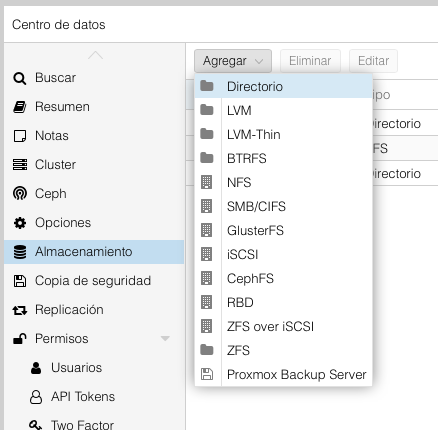
Configure it like this:
gdrive (or whatever you used for the directory name)/mnt/gdrive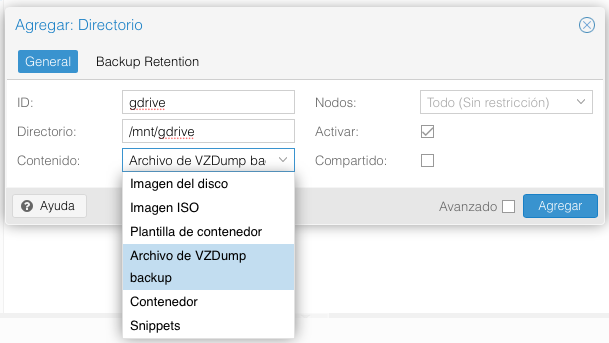
Click Add:
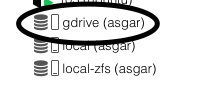
The directory is now registered as a Proxmox datastore — but it's still empty (no cloud is mounted on it yet).
rclone is the tool that talks to cloud storage providers. Install it from Debian repositories:
apt-get update
apt-get install -y rclone
If you need a newer rclone
If you need a newer rclone than what Debian ships, use the official installer:
curl https://rclone.org/install.sh | bashrclone's auth flow opens a local web browser. Since the Proxmox host doesn't have a desktop, rclone's remote-setup procedure routes the auth callback through an SSH tunnel back to your laptop's browser.
From your laptop (replace ip_proxmox with the Proxmox IP):
ssh -L localhost:53682:localhost:53682 root@ip_proxmoxThis SSH session forwards port 53682 from the Proxmox host to your laptop's localhost. Keep it open during the rclone config below.
In the SSH session you just opened, run:
rclone configFollow the prompts to add a new remote. The exact answers depend on your provider — see the rclone provider docs for Google Drive, Mega, Dropbox, OneDrive, etc. The key step is the auth question:
Use web browser to automatically authenticate rclone with remote?
 * Say Y if the machine running rclone has a web browser you can use
 * Say N if running rclone on a (remote) machine without web browser access
If not sure try Y. If Y failed, try N.
y) Yes
n) No
y/n> y
Answer Y — rclone prints a localhost URL. Open it in your laptop's browser (the SSH tunnel routes it correctly), authorise the rclone application in your cloud provider, and the config completes.
When asked for the remote's name, use something matching the directory you created — e.g. gdrive.
Create a folder in your personal cloud to hold the backups. Call it something like PBC (Proxmox Backup Cloud).
Mount it onto the host directory:
rclone mount gdrive:/PBC /mnt/gdrive --allow-other --allow-non-emptygdrive:/PBC — the folder in your cloud./mnt/gdrive — the host directory you registered as a datastore.This command stays in the foreground. For testing, leave it running in a terminal and try a backup. For permanent mounting on every boot, set up a systemd unit (next section).
A systemd unit is more robust than crontab @reboot — it can wait for the network to be ready, restart on failure, and gives you proper logs via journalctl.
Create the unit file:
nano /etc/systemd/system/rclone-gdrive.servicePaste:
[Unit]
Description=rclone mount for Proxmox cloud backups
Wants=network-online.target
After=network-online.target

[Service]
Type=notify
ExecStart=/usr/bin/rclone mount \
    gdrive:/PBC /mnt/gdrive \
    --allow-other \
    --allow-non-empty \
    --vfs-cache-mode writes \
    --log-level INFO \
    --log-file /var/log/rclone-gdrive.log
ExecStop=/bin/fusermount -uz /mnt/gdrive
Restart=on-failure
RestartSec=10

[Install]
WantedBy=multi-user.target
Adjust gdrive:/PBC and /mnt/gdrive if you used different names. Save (Ctrl+X), then enable and start:
systemctl daemon-reload
systemctl enable --now rclone-gdrive.service
Verify:
systemctl status rclone-gdrive.service
mount | grep /mnt/gdrive
If the service ever fails (provider rate-limits, expired auth token, network blip), it'll auto-restart after 10 seconds. Logs are at /var/log/rclone-gdrive.log and via journalctl -u rclone-gdrive.service -f.
Why --vfs-cache-mode writes?
fwrite blocks on a HTTP round-trip to the cloud — backups get slow and providers may rate-limit. The cache buffers writes locally and flushes them in the background.In the Proxmox UI, when scheduling a backup or running an ad-hoc one, pick the storage you registered as the target:
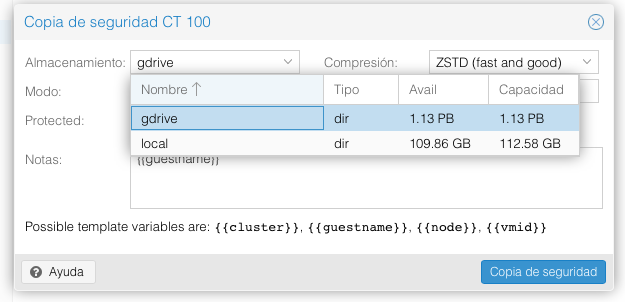
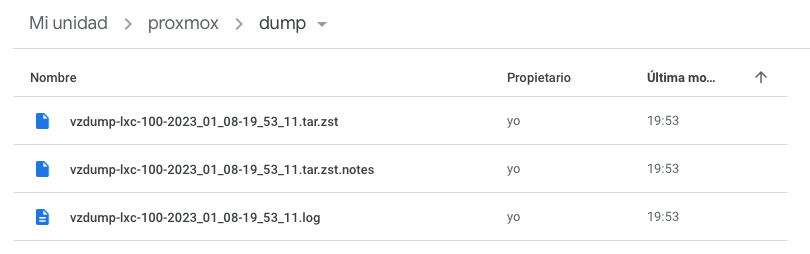
After the backup completes, the file appears in your cloud:
Proxmox vzdump backups are full snapshots, not incremental. A 30 GB VM = 30 GB per backup. Without retention, the cloud fills up.
In the Proxmox UI: Datacenter → Backup → [your job] → Retention:
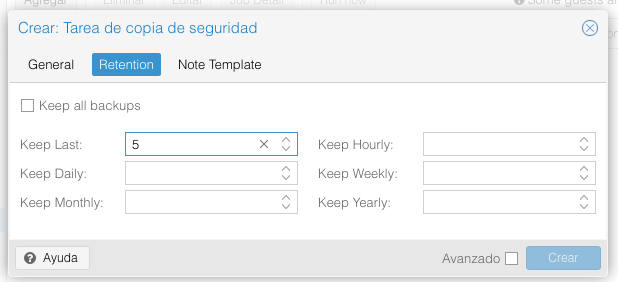
Reasonable starter values for a home / lab setup:
Adjust based on your cloud quota and how often the VMs change.
Mount point /mnt/gdrive is itself on a fuse.rclone filesystem: the previous mount didn't unmount cleanly. Force-unmount: fusermount -uz /mnt/gdrive, then restart the systemd unit.--vfs-cache-mode writes is on the ExecStart line. Without it, every write blocks on the cloud. Also check your upstream bandwidth — vzdump is bound by it.~/.cache/rclone/) filled up before the upload caught up. Move it to a larger filesystem with --cache-dir /var/cache/rclone in the systemd unit.ssh -L localhost:53682:localhost:53682 root@ip_proxmox) and run rclone config reconnect gdrive: to refresh.