Attach a USB hard drive or memory stick to a privileged LXC container on Proxmox VE, install Samba inside the container, and share the contents over the network.
Recommended
ProxMenux now exposes both halves of this workflow as guided menus:
The guided flows handle the unprivileged-CT permission quirks, share-mode presets (read-write / read-only / custom) and the sharedfiles group setup. This guide is the manual equivalent — useful if you want full visibility into each step or prefer to wire things by hand.
Sometimes it's useful to add a hard drive or USB memory stick to a Proxmox host, especially on a mini PC with limited internal expansion. This guide walks through:
Privileged container required
mp0 with a host path) needs a privileged LXC. Unprivileged CTs can't bind-mount block devices directly — for those you need bind mounts of host directories instead (see ProxMenux Storage & Share Manager → LXC Mount Points).Compare the disk list before and after plugging in the USB drive — the new device is your target.
Before:
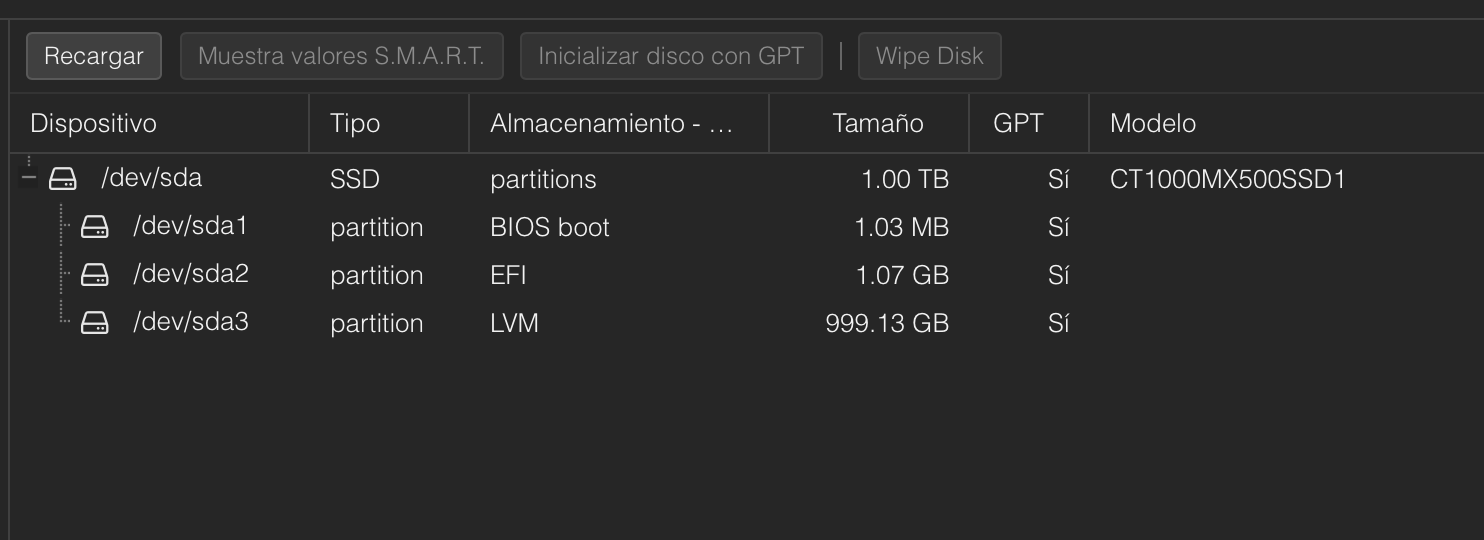
After:
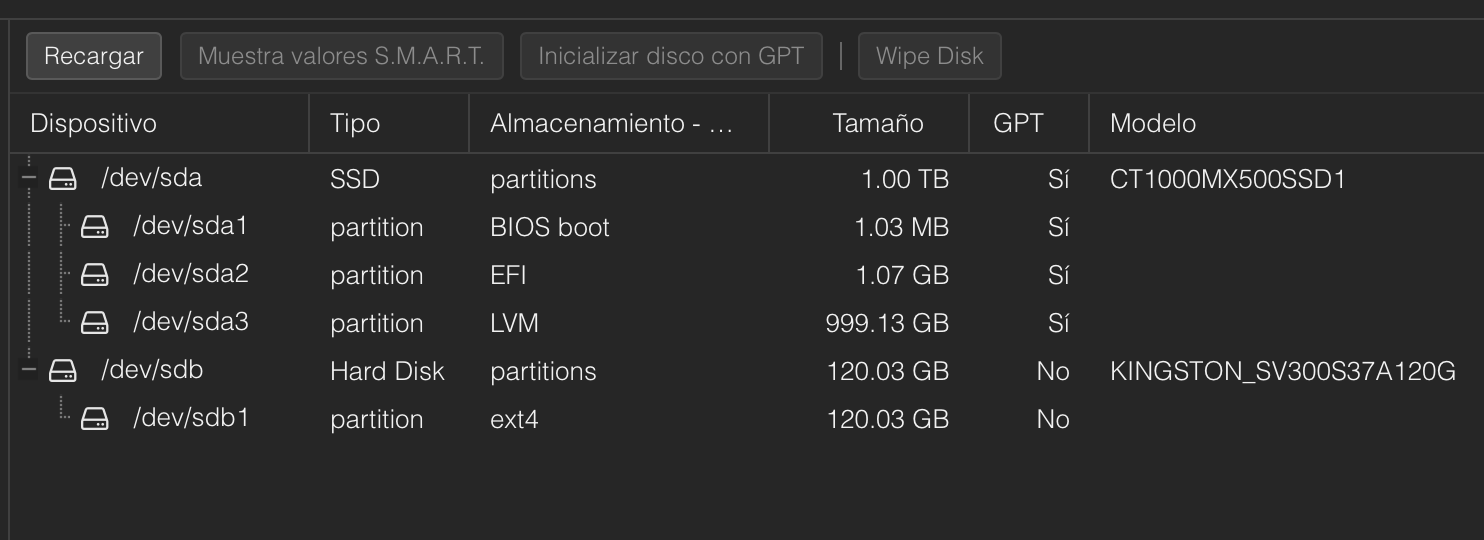
You can also use lsblk -o NAME,SIZE,MODEL,SERIAL to list every block device with model and serial.
Important — use a stable identifier
/dev/sdb1 can change between boots if you have multiple USB disks. Find the persistent identifier:
ls -l /dev/disk/by-id/ | grep -v partUse the /dev/disk/by-id/usb-... path in the LXC config below instead of /dev/sdb1. It survives reboots and re-plugging.
ext4 is a sensible default for Linux-backed shares (case-sensitive, supports POSIX ACLs, no file-size limits). Run from the Proxmox host, not the container:
mkfs.ext4 /dev/sdb1Replace /dev/sdb1 with the actual partition device — or with the persistent /dev/disk/by-id/usb-...-part1 path.
Inside the LXC, create the directory where the disk will appear (any name works):
mkdir /mnt/lxc_USBOn the Proxmox host (not inside the CT), edit the container's config. Replace <CTID> with the container ID:
nano /etc/pve/lxc/'<'CTID'>'.confAdd this line:
mp0: /dev/disk/by-id/usb-VENDOR_MODEL_SERIAL-part1,mp=/mnt/lxc_USB,backup=0(Or, if you accept the risk of the device path changing, the shorter form: mp0: /dev/sdb1,mp=/mnt/lxc_USB,backup=0.)
The backup=0 flag excludes this mount point from vzdump backups — usually the right call for large external drives that are the host's target storage rather than its data.
Restart the CT to apply the mount point:
pct restart '<'CTID'>'Inside the LXC, give the directory permissions appropriate for the user that will own the share:
# Inside the container
mkdir -p /mnt/lxc_USB
chown -R proxmenux:proxmenux /mnt/lxc_USB
chmod 770 /mnt/lxc_USB
Note
proxmenux with the username you'll create in step 2.2 below. 770 gives full access to the user and group, no access to others — safer than the wide-open chmod -R 777 while still letting the share work.apt-get update
apt-get install -y sambaConfirm the service is running:
systemctl status smbd.servicePick a username (here we use proxmenux; substitute your own). Create it as a system user with no shell:
adduser proxmenuxSet the Samba password (separate from the system password — Samba maintains its own credential store):
smbpasswd -a proxmenuxIf the simple chown from step 1.5 is enough for your case, you're done with permissions. For finer-grained control (multiple users sharing the same path with different rights), use ACLs:
apt-get install -y acl
setfacl -R -m "u:proxmenux:rwx" /mnt/lxc_USB
setfacl -d -R -m "u:proxmenux:rwx" /mnt/lxc_USB # default ACL — applies to new filesnano /etc/samba/smb.confAppend a share definition at the end:
[lxc_usb]
    comment = Shared USB storage
    path = /mnt/lxc_USB
    read only = no
    writable = yes
    browseable = yes
    guest ok = no
    valid users = proxmenux
    create mask = 0660
    directory mask = 0770
Note
valid users = proxmenux line restricts access to that single Samba user. For group-based access, use valid users = @samba_users after adding the user(s) to a group named samba_users.systemctl restart smbdFrom any LAN client, browse to \\<CT_IP> (Windows) or smb://<CT_IP> (macOS / Linux file managers). Authenticate with the Samba user (proxmenux) and the password you set with smbpasswd.
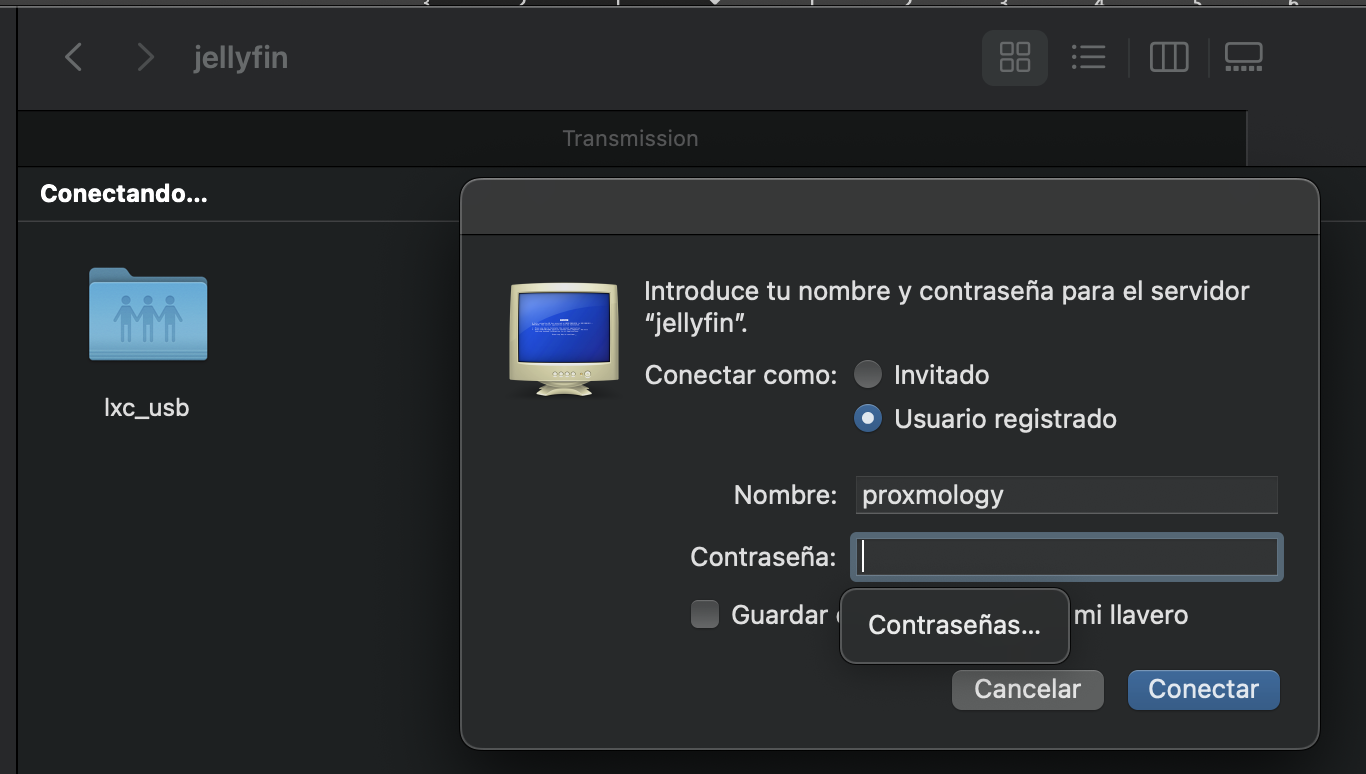
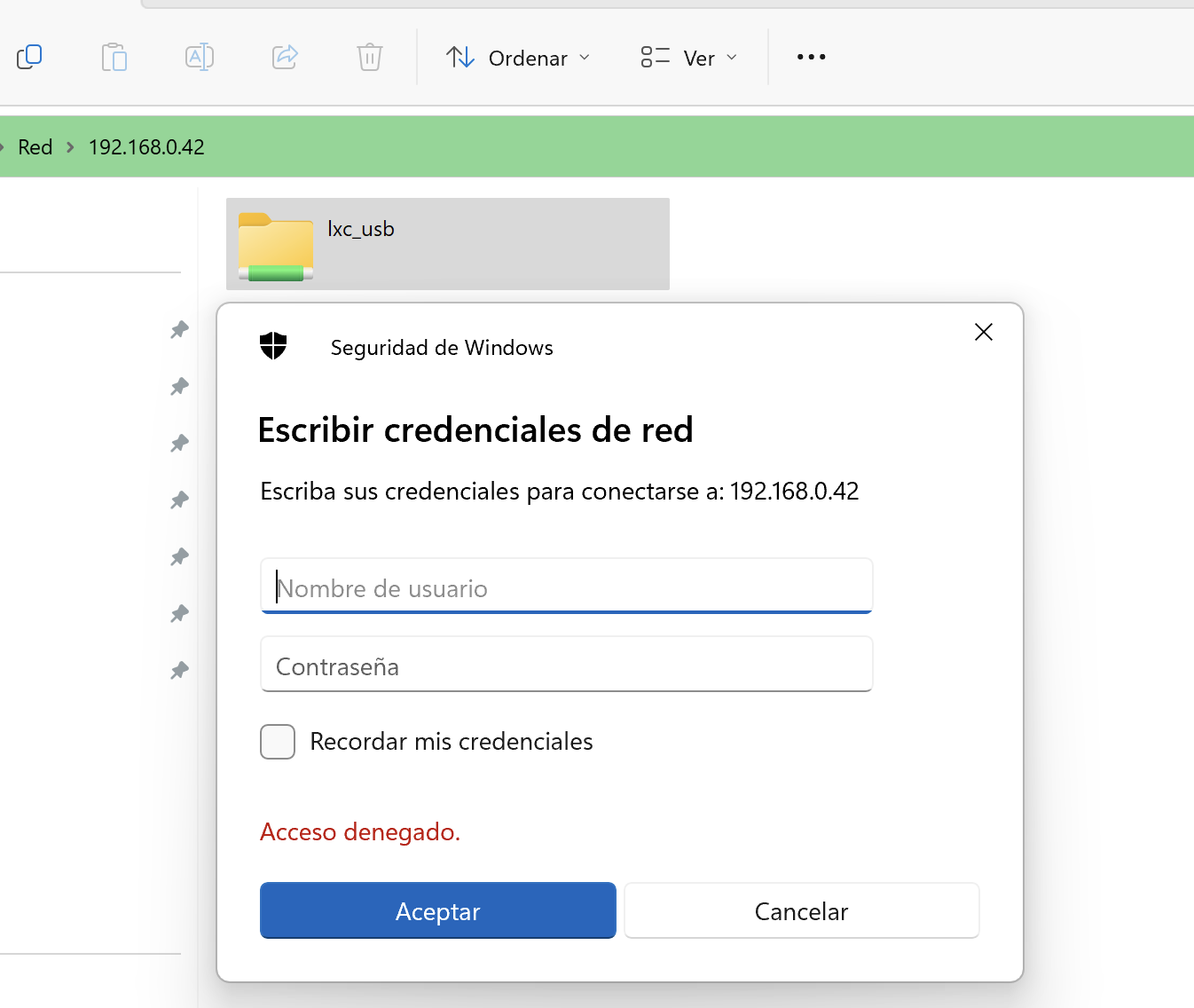
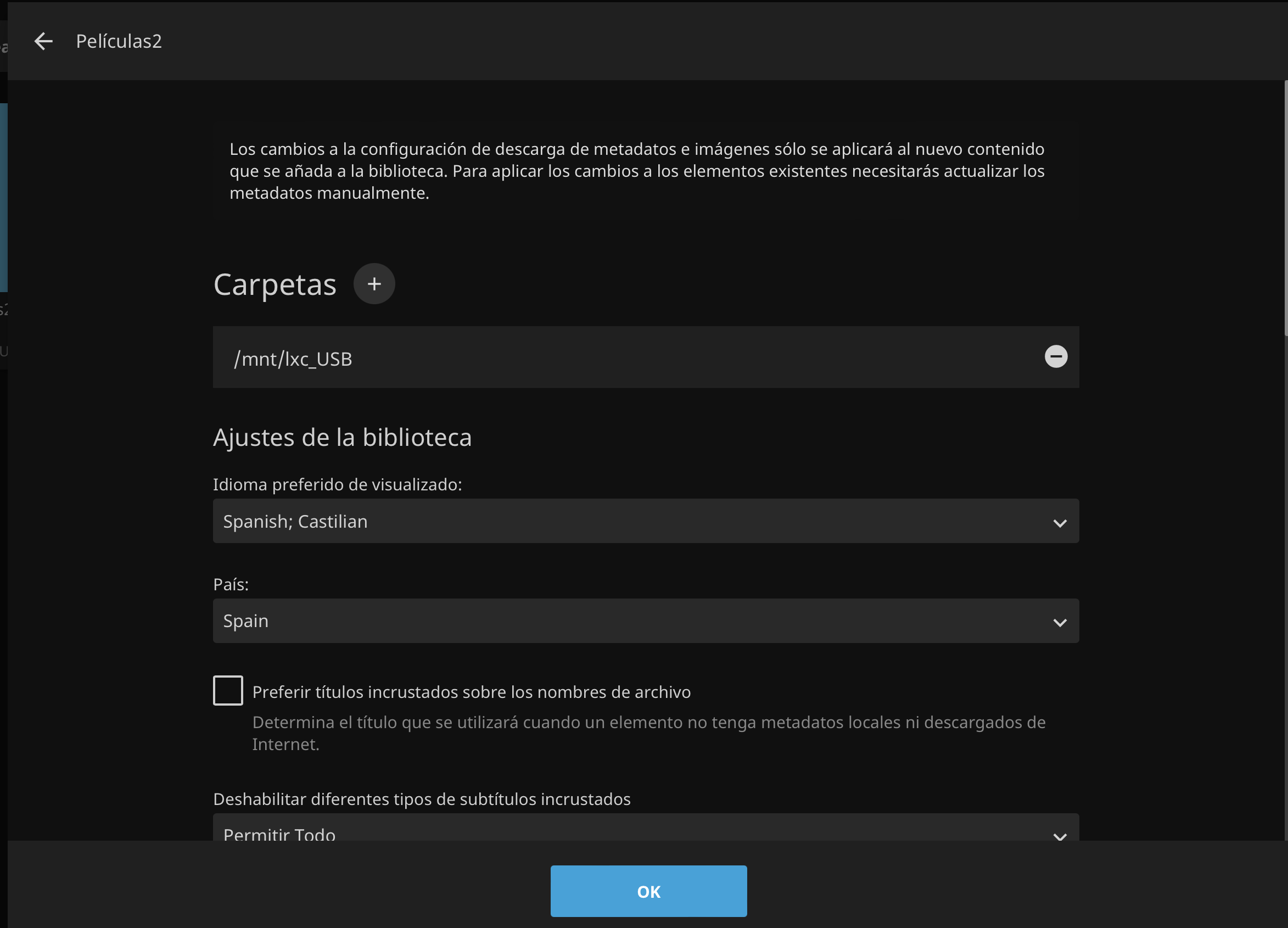
You can use the share both inside the container and across the network:
pct restart fails with "device not found": the device path in mp0 doesn't exist on the host. Check with ls -l /dev/disk/by-id/ and update the path./mnt/lxc_USB is empty: the disk isn't mounted inside the CT. Check from the host: pct exec <CTID> -- mount | grep lxc_USB. If absent, the mount point in the config is wrong.chown / setfacl in section 1.5 / 2.3.smb://<ip>/lxc_usb works: browseability over the LAN depends on NetBIOS / WS-Discovery. Add nmbd: apt-get install -y samba-common-bin and ensure nmbd is enabled.adduser, register with smbpasswd -a, add to the share's valid users = list comma-separated.