
Installing ProxMenux
One-line installer that runs on any Proxmox VE 8+ host. Auto-installs the dependencies it needs, downloads the scripts, sets up the menu launcher and (on first run) prompts you to pick a language. Two install channels: stable (default) and beta.
Install
Run this in your Proxmox host's terminal:
bash -c "$(wget -qLO - https://raw.githubusercontent.com/MacRimi/ProxMenux/main/install_proxmenux.sh)"During installation
ProxMenux automatically installs and configures the dependencies it needs:
| Package | Purpose |
|---|---|
| dialog | Interactive terminal menus |
| curl | Downloads and connectivity checks |
| jq | JSON processing |
| git | Repository cloning and updates |
The installer also pulls down the script tree into /usr/local/share/proxmenux/ and creates the launcher at /usr/local/bin/menu. The ProxMenux Monitor web dashboard is registered as proxmenux-monitor.service.
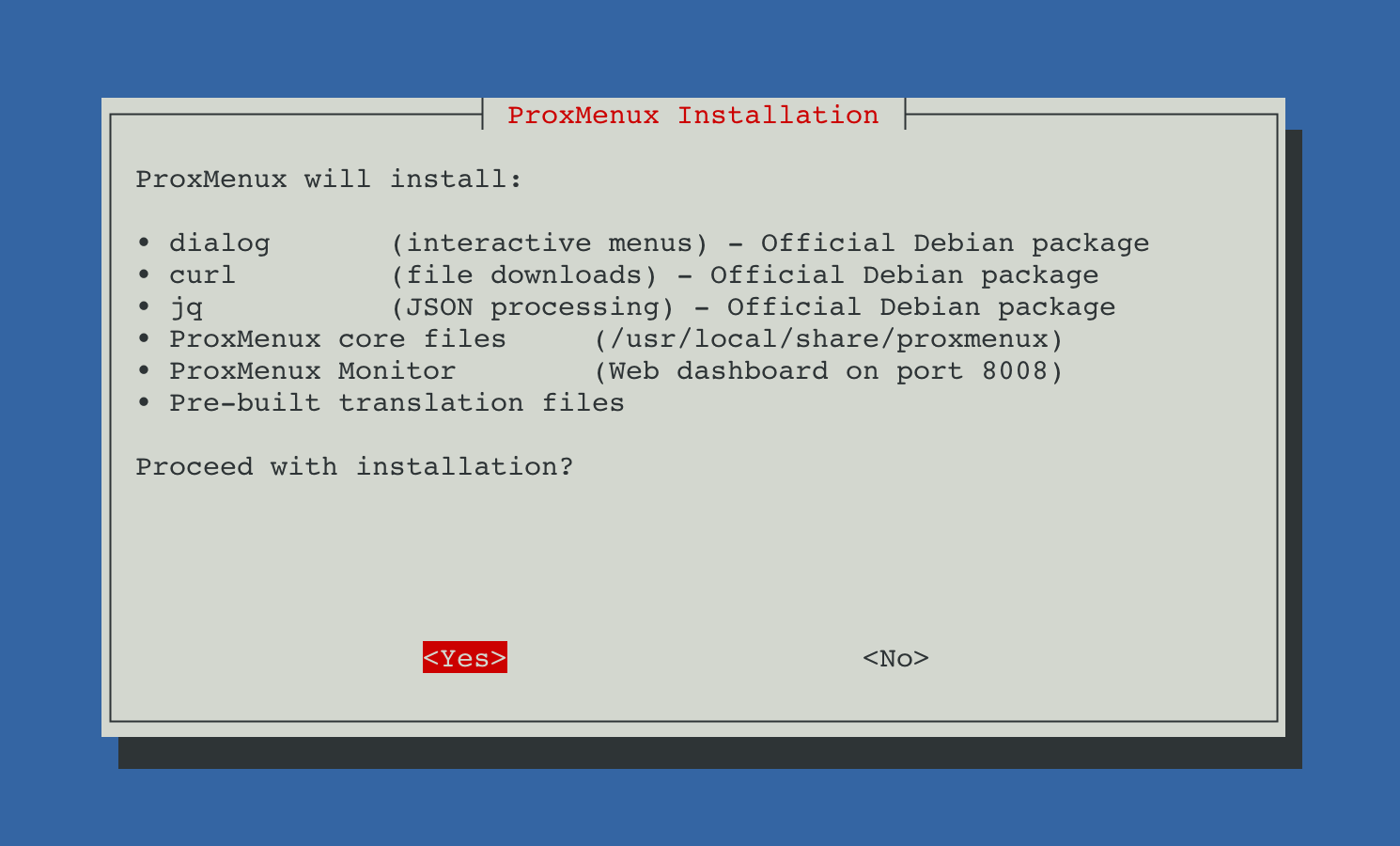
First launch
Once installed, run:
menuProxMenux launches and you land on the main menu. From here you can run any of the workflows documented in this site — Post-Install is a good first stop on a fresh Proxmox host.
Beta channel
What is the Beta Program?
develop branch. Beta builds may contain bugs or incomplete features. Your feedback helps fix them before the stable release.Install the beta version instead of the stable one with:
bash -c "$(wget -qLO - https://raw.githubusercontent.com/MacRimi/ProxMenux/develop/install_proxmenux_beta.sh)"Beta is opt-in — you have to explicitly run the beta installer. When a stable release is published, ProxMenux notifies you on the next menu launch and offers to switch automatically. To opt out earlier, use the Deactivate Beta Program option in Settings.
Updating
ProxMenux self-updates. When a new version is available, the next menu launch offers the update; accepting replaces utility files and configurations in place. No manual download needed. Stable users get stable releases; beta users get beta releases (and the auto-switch prompt above when a stable cuts over). The prompt shape depends on where menu runs: over SSH or the Proxmox console it is a classic yes / no dialog, and accepting applies the update immediately. Inside the WebSocket terminal of ProxMenux Monitor it is replaced by an informational msgbox — that terminal cannot survive a self-update mid-flight, so the msgbox shows the canonical one-line installer (bash -c "$(wget -qLO - https://raw.githubusercontent.com/MacRimi/ProxMenux/main/install_proxmenux.sh)" for stable, or the equivalent install_proxmenux_beta.sh URL for beta) to run from SSH or console.
Uninstalling
From inside ProxMenux: Settings → Uninstall ProxMenux. Removes the script tree, launcher and Monitor service, optionally removes selected dependencies, restores /root/.bashrc and /etc/motd backups taken at install time. Full step-by-step: Uninstall ProxMenux.
Troubleshooting
VirusTotal flags the install URL
curl | bash pattern and downloads legitimate binaries (like jq from its official GitHub release), which aggressive scanners flag based on behaviour rather than actual malicious code. The installer is 100% open source and reviewable. More context in Issue #162.Install fails with apt errors
apt-get update manually first and resolve any errors, then re-run the installer.`menu: command not found` after install
/usr/local/bin/menu. Check it's there: ls -lh /usr/local/bin/menu. If missing, the install ended early — re-run the installer. If present but not found, your PATH doesn't include /usr/local/bin; either fix PATH or invoke the launcher directly: /usr/local/bin/menu.The install hangs or doesn't progress
Other issues
journalctl -u proxmenux-monitor -n 50 if Monitor-related.What's next
- Post-Install Script — tweaks and hardening for a fresh Proxmox host.
- Introduction — the full feature tour.
- ProxMenux Monitor — web dashboard for the host (auto-installed alongside the menu).
Requirements & good practices
Requirements
Always inspect scripts you run from the internet
- Review the installer source before running.
- All executable links follow the ProxMenux Code of Conduct.