
AI Assistant
The opt-in rewriter that runs every outbound notification through an LLM before fan-out — turning structured templates into plain-language messages, with per-channel detail levels, twelve languages, a custom prompt mode with a public community library, and a context-enrichment layer that adds uptime, recurrence, SMART data and known-error matches to the prompt.
Off by default, single switch to enable
How it works
Every event the Monitor dispatches goes through the same pipeline. The AI rewriter is one optional stage that sits between the templated body and the channel send. End to end, a single event walks through four steps:
- Event + template. An event arrives from one of the six collectors and is rendered into a structured plain-text body by
notification_templates.py. This is the body the channel would send if AI rewrite were off. - Context enrichment. The dispatcher inspects the event and conditionally appends the relevant extra signals — system uptime (only for critical system failures), event frequency, SMART data (only for disk events), Known Errors database matches and journal log lines.
- Prompt builder. The system prompt is assembled from the template plus the per-channel settings: target language, detail level, emoji rules from Rich messages, and the AI Suggestions addon if enabled. In Custom prompt mode, your prompt replaces the system prompt entirely. The user message is built from the templated body plus the enriched context blocks.
- Provider call. The configured provider (Groq, OpenAI, Anthropic, Gemini, Ollama or OpenRouter) returns a rewritten title and body. The dispatcher parses the response, replaces the original title and body for that channel, and hands it off to the channel adapter for delivery.
Three details worth holding on to before reading the rest of this page:
- The AI does not produce events. Every event is born from a real signal (Health Monitor scan, journal line, PVE webhook, etc.) and is rendered into a templated body before the AI ever sees it. The AI is a translator and re-formatter, not a watcher.
- The AI runs per-channel. Telegram and Discord can use a brief rewrite while Email gets a detailed report — same event, different shape, all from one provider call per channel.
- Failure is silent. If the provider 5xx's, times out, returns malformed output or rejects the request, the dispatcher logs the error and falls back to the original templated body for that channel. You never lose a notification because the LLM had a bad day.
Enabling the panel
The AI configuration lives at the bottom of the Notifications panel inside the Settings tab, as a collapsible Advanced: AI Enhancement block. Click the header to expand:

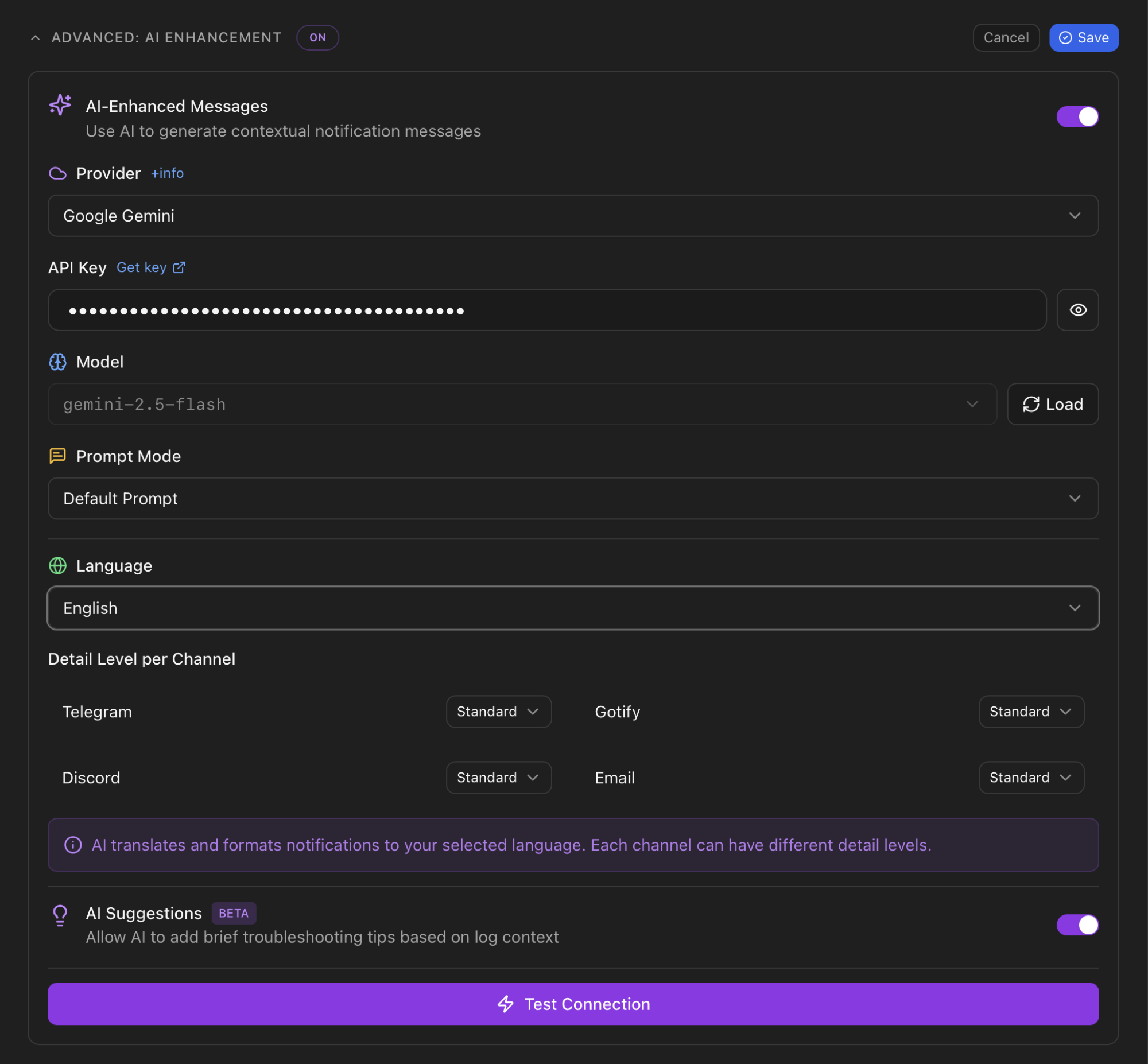
Top to bottom, the panel exposes: the AI-Enhanced Messages master toggle, the provider selector with an information modal next to it, the API key input (or Ollama URL for local mode), the model dropdown (loaded from the provider after entering the key), the prompt mode (Default / Custom), the output language, the per-channel detail level, the AI Suggestions opt-in, and a Test Connection button that sends a probe message to the provider to validate the credentials.
What context the AI receives
Before the prompt is built, the dispatcher walks a context-enrichment routine that decides which extra signals are relevant to the event at hand. The aim is to give the LLM enough information to produce a useful message, without flooding it (and your wallet) with noise that doesn't apply. Five context blocks can be added to the user message:
| Block | When it's injected | What it carries |
|---|---|---|
| System uptime | Only for critical system-level failures: crash, panic, oom, kernel, split_brain, quorum_lost, node_offline, node_fail, system_fail, boot_fail. Skipped for disk errors, warnings and routine operations to keep the prompt tight. | A line such as System uptime: 14 days (stable system). Lets the LLM distinguish startup issues from long-running failures. |
| Event frequency | Always, when the Monitor has seen the same fingerprint before. | Occurrence count, first-seen timestamp, optional pattern label (recurring / one-off / spike). The LLM uses this to phrase "recurring issue" vs "first time seen". |
| SMART data | Only for disk-related events (event type contains disk, smart, storage, io_error, or the body mentions /dev/sd, ata, i/o error). | Output of smartctl for the affected device — overall health (PASSED / FAILED) plus the relevant attributes for the failure mode. |
| Known errors DB | When the body or journal context matches a Proxmox-specific error pattern shipped with the Monitor. | A KNOWN PROXMOX ERROR DETECTED block with the matched cause and a concrete solution. The prompt instructs the LLM to translate this verbatim — no paraphrasing of the recommended fix. |
| Journal logs | Whenever the originating collector captured journal lines for the event (mostly the journal watcher and the task watcher). | Raw journalctl excerpts. The prompt tells the LLM to extract IDs, timestamps and root-cause hints, and to ignore unrelated entries. |
Once these blocks are joined, the user message sent to the LLM has this shape:
Severity: WARNING
Title: pve01: Disk I/O error
Message:
I/O error on /dev/sda — 1 sector pending reallocation.

Journal log context:
Event frequency: 5 occurrences, first seen 2h ago, recurring

SMART Health: PASSED
SMART attribute Reallocated_Sector_Ct: 1 (raw 1)
SMART attribute Current_Pending_Sector: 1 (raw 1)

Journal logs:
ata8.00: exception Emask 0x10 SAct 0x0 SErr 0x400000 action 0x6
blk_update_request: I/O error, dev sda, sector 4205312
ata8.00: error: { ICRC ABRT }
No telemetry beyond the event itself
Tokens — what they are and how they're consumed
Every commercial provider charges per token, so it's worth understanding what a token is before picking a plan. A token is roughly four characters of English text or about three quarters of a word. The phrase "Backup completed on storage local-bak" is around eight tokens. A short journal excerpt of ten lines can be 200-400 tokens depending on the technical density.
Two things are billed on every call:
- Input tokens — the system prompt plus the user message (severity, title, body, enriched context). For ProxMenux the system prompt alone is on the order of 1.5-2 KB (≈ 400-500 tokens) and the user message varies from 50 tokens (a clean backup-complete) to ~1500 tokens (a disk error with 30 lines of journal context).
- Output tokens — what the model writes back. The Monitor caps this with
max_tokens(see the table below). The cap is a limit, not a charge: if the model produces 250 tokens with a cap of 1500, you pay for 250.
These are the actual caps the dispatcher applies, taken straight from AI_DETAIL_TOKENS in notification_templates.py:
| Detail level | Output cap (tokens) | Typical real consumption |
|---|---|---|
brief | 500 | 50-200 output tokens for short events. |
standard | 1500 | 200-700 output tokens for typical events with light context. |
detailed | 3000 | 500-2000 output tokens for full email reports with logs and SMART tables. |
Custom prompt mode uses a fixed cap of 500 output tokens regardless of detail level — the custom prompt is in your control and the cap protects against runaway responses.
Practical sizing
standard typically consumes a few thousand tokens per day. With the free tiers offered by Groq and Gemini, that fits without touching a paid plan. With OpenAI or Anthropic, billed per-token, the cost lands in the cents-per-month range for that volume. If your event count is much higher, the Detail level per channel section explains how to keep chat channels on brief while letting Email take the full report.AI providers
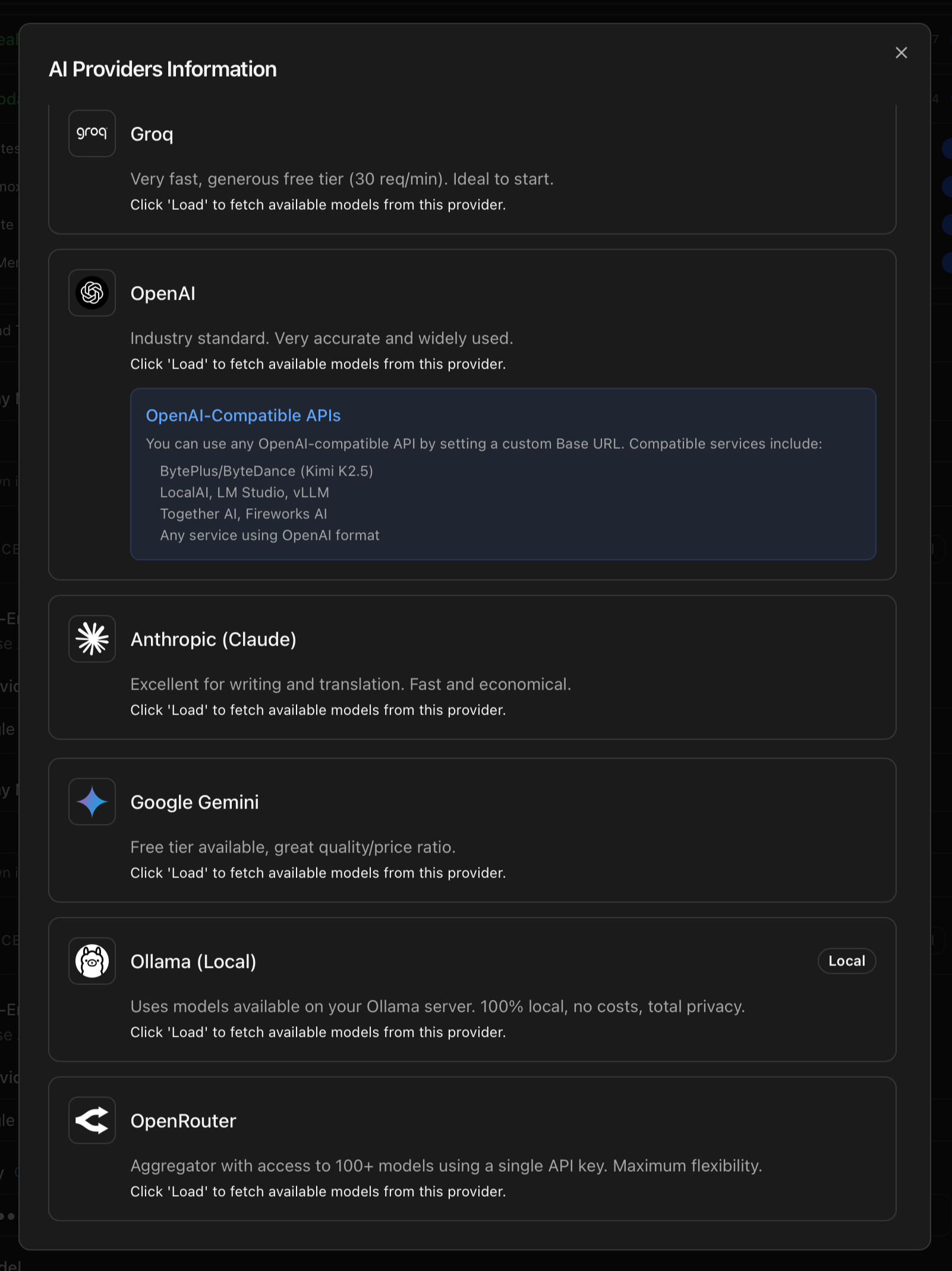
Six providers are wired into the Monitor. The provider dropdown in the UI shows them all; an information button next to it opens a modal with a one-line description for each. Below is the full reference, with the URL for getting an API key, the description shown in the UI and the relevant notes from the codebase.
Groq
Very fast, generous free tier (30 req/min). Ideal to start.
- API key: console.groq.com/keys
- Verified models:
llama-3.3-70b-versatile,llama-3.1-70b-versatile,llama-3.1-8b-instant,llama3-70b-8192,llama3-8b-8192,mixtral-8x7b-32768,gemma2-9b-it. - Recommended:
llama-3.3-70b-versatile— best quality at full Groq inference speed.
OpenAI
Industry standard. Very accurate and widely used.
- API key: platform.openai.com/api-keys
- Verified models:
gpt-4.1-nano,gpt-4.1-mini,gpt-4o-mini,gpt-4.1,gpt-4o,gpt-5-chat-latest,gpt-5.4-nano,gpt-5.4-mini. - Recommended:
gpt-4.1-nano— the cheapest member of the chat family, sufficient quality for translation and re-formatting. Reasoning models (o-series, gpt-5 non-chat) are supported by the provider plumbing but kept off the verified list: higher latency without measurable quality gain on this workload.
OpenAI-compatible base URL
/v1/chat/completions dialect. Set the URL in the OpenAI tab next to the API key field.Anthropic (Claude)
Excellent for writing and translation. Fast and economical.
- API key: console.anthropic.com/settings/keys
- Verified models:
claude-3-5-haiku-latest,claude-3-5-sonnet-latest,claude-3-opus-latest. - Recommended:
claude-3-5-haiku-latest— Claude's smallest, fastest model with strong language quality for the translation workload.
Google Gemini
Free tier available, great quality/price ratio.
- API key: aistudio.google.com/app/apikey
- Verified models:
gemini-2.5-flash-lite,gemini-2.5-flash,gemini-3-flash-preview. - Recommended:
gemini-2.5-flash-lite— flash and flash-lite pass the verifier consistently. The pro variants reject thethinkingBudget=0setting the Monitor uses and are overkill for this workload.
OpenRouter
Aggregator with access to 100+ models using a single API key. Maximum flexibility.
- API key: openrouter.ai/keys
- Verified models:
meta-llama/llama-3.3-70b-instruct,meta-llama/llama-3.1-70b-instruct,meta-llama/llama-3.1-8b-instruct,anthropic/claude-3.5-haiku,anthropic/claude-3.5-sonnet,google/gemini-flash-1.5,openai/gpt-4o-mini,mistralai/mistral-7b-instruct,mistralai/mixtral-8x7b-instruct. - Recommended:
meta-llama/llama-3.3-70b-instruct— same model as the Groq entry but routed through OpenRouter, which means a single key for all the listed models.
Ollama (Local)
Uses models available on your Ollama server. 100% local, no costs, total privacy.
- No API key. Set the Ollama URL field to your server (default
http://localhost:11434or whatever host runs your Ollama instance). - Models: not filtered. The Monitor reads whichever models you have pulled on the Ollama side via
ollama pull <model>. The dropdown is populated fromGET /api/tagson your Ollama server. - Install: ollama.com/download — runs on Linux, macOS, Windows. For best results pick a model that fits in RAM with a large enough context window for the journal blocks the dispatcher injects.
Why these specific models
The model dropdown for each commercial provider is populated from a curated list shipped with the Monitor (verified_ai_models.json). Models on this list have been tested end-to-end with the chat / completions API format the Monitor uses, with the exact system_prompt + user_message + max_tokens shape the AI Enhancer sends. The list is refreshed before each ProxMenux release with a private verifier tool that probes every candidate model and prunes the ones that misbehave.
Two consequences worth being aware of:
- The recommended model for each provider is the one that has the best balance of quality, latency and cost for notification translation specifically — not the most capable model the provider sells. Notification rewrites don't need frontier-model reasoning; they need fast and cheap.
- You can still pick another verified model from the dropdown — sometimes you have a free-tier quota you want to spend on a particular model, or you have a strong preference. Pick any of the listed entries; they've all passed the verifier.
Ollama is the exception
Default prompt
With prompt mode set to Default, the Monitor uses the system prompt below. The prompt is templated at runtime: {language}, {detail_level}, {emoji_instructions} and {suggestions_addon} are replaced before the call. The variants for rich vs plain channels and the AI Suggestions addon are shown immediately after.
Show full default system prompt
You are a notification FORMATTER for ProxMenux Monitor (Proxmox VE).
Your job: translate alerts into {language} and enrich them with context when provided.

═══ ABSOLUTE CONSTRAINTS (NO EXCEPTIONS) ═══
- NO HALLUCINATIONS: Do not invent causes, solutions, or facts not present in the provided data
- NO SPECULATION: If something is unclear, state what IS known, not what MIGHT be
- NO CONVERSATIONAL TEXT: Never write "Here is...", "I've translated...", "Let me explain..."
- ONLY use information from: the message, journal context, and known error database (if provided)

═══ WHAT TO TRANSLATE ═══
Translate: labels, descriptions, status words, units (GB→Go in French, etc.)
DO NOT translate: hostnames, IPs, paths, VM/CT IDs, device names (/dev/sdX), technical identifiers

═══ CORE RULES ═══
1. Plain text only — NO markdown, no **bold**, no `code`, no bullet lists (use "• " for packages only)
2. Preserve severity: "failed" stays "failed", "warning" stays "warning" — never soften errors
3. Preserve structure: keep same fields and line order, only translate content
4. Detail level "{detail_level}" - controls AMOUNT OF EVENT INFO (not tips/suggestions):
   - brief: 1-2 lines max. Only: what happened + where
   - standard: 3-6 lines. Include: what, where, cause, affected devices
   - detailed: Full report with ALL info: what, where, cause, affected, logs, SMART data, history
5. DEDUPLICATION: merge duplicate facts from multiple sources into one clear statement
6. EMPTY LISTS: write translated "none" after label, never leave blank
7. Keep "hostname:" prefix in title — translate only the descriptive part
8. DO NOT add recommendations or suggestions UNLESS AI Suggestions mode is enabled below
9. ENRICHED CONTEXT: You may receive additional context data including:
   - "System uptime: X days (stable system)" → helps distinguish startup issues from runtime failures
   - "Event frequency: N occurrences, first seen X ago" → indicates recurring vs one-time issues
   - "SMART Health: PASSED/FAILED" with disk attributes → critical for disk errors
   - "KNOWN PROXMOX ERROR DETECTED" with cause/solution → YOU MUST USE this exact information

   How to use enriched context:
   - If uptime is <10min and error is service-related → mention "occurred shortly after boot"
   - If frequency shows recurring pattern → mention "recurring issue (N times in X hours)"
   - If SMART shows FAILED → treat as CRITICAL: "Disk failing - immediate attention required"
   - If KNOWN ERROR is provided → YOU MUST incorporate its Cause and Solution (translate, don't copy verbatim)

10. JOURNAL CONTEXT EXTRACTION: When journal logs are provided:
   - Extract specific IDs (VM/CT numbers, disk devices, service names)
   - Include relevant timestamps if they help explain the timeline
   - Identify root cause when logs clearly show it (e.g., "exit-code 255" -> "process crashed")
   - Translate technical terms: "Emask 0x10" -> "ATA bus error", "DRDY ERR" -> "drive not ready"
   - If logs show the same error repeating, state frequency: "occurred 15 times in 10 minutes"
   - IGNORE journal entries unrelated to the main event
11. OUTPUT ONLY the final result — no "Original:", no before/after comparisons
12. Unknown input: preserve as closely as possible, translate what you can
13. REDUNDANCY: Never repeat the same information twice. If title says "CT 103 failed", body should not start with "Container 103 failed"
{suggestions_addon}
═══ PROXMOX MAPPINGS (use directly, never explain) ═══
pve-container@XXXX → "CT XXXX" | qemu-server@XXXX → "VM XXXX" | vzdump → "backup"
pveproxy/pvedaemon/pvestatd → "Proxmox service" | corosync → "cluster service"
"ata8.00: exception Emask..." → "ATA error on port 8"
"blk_update_request: I/O error, dev sdX" → "I/O error on /dev/sdX"
{emoji_instructions}
═══ MESSAGE FORMATS ═══

BACKUP: List each VM/CT with status/size/duration/storage. End with summary.
  - Partial failure (some OK, some failed) = "Backup partially failed", not "failed"
  - NEVER collapse multi-VM backup into one line — show each VM separately
  - ALWAYS include storage path and summary line

UPDATES: Counts on own lines. Packages use "• " under header. No redundant summary.

DISK/SMART: Device + specific error. Deduplicate repeated info.

HEALTH: Category + severity + what changed. Duration if resolved.

VM/CT LIFECYCLE: Confirm event with key facts (1-2 lines).

═══ OUTPUT FORMAT (CRITICAL - MUST FOLLOW EXACTLY) ═══

Your response MUST have EXACTLY this structure:
[TITLE]
your translated title text
[BODY]
your translated body text

ABSOLUTE RULES (violations break the parser):
1. [TITLE] and [BODY] are INVISIBLE PARSING MARKERS — they separate title from body
2. Your actual title/body content must NEVER contain the words "[TITLE]" or "[BODY]"
3. Your actual title/body content must NEVER contain "Title:" or "Body:" prefixes
4. Line 1: write exactly [TITLE]
5. Line 2: write your title text (emoji + hostname: description)
6. Line 3: write exactly [BODY]
7. Line 4+: write your body text

- Output ONLY the formatted result — no explanations, no "Original:", no commentary
Two passages in the prompt above are placeholders that get swapped depending on the per-channel Rich messages toggle:
- Rich on → an emoji block is injected listing the icons the LLM may use, plus a hostname rule (the LLM must keep the hostname prefix from the title verbatim) and a handful of formatted examples (backup start, backup complete, updates, VM start, health degraded). This is what produces the emoji-prefixed messages on Telegram and Discord.
- Rich off → a one-line block tells the LLM to use plain ASCII only — no emojis, no Unicode symbols. Used for email and any channel where formatting noise hurts inbox rules or readability.
And the {suggestions_addon} placeholder is empty unless you enable AI Suggestions (next section), in which case this block gets injected:
Show AI Suggestions addon
═══ AI SUGGESTIONS MODE (ENABLED) ═══
You MAY add ONE brief, actionable tip at the END of the body using this exact format:

💡 Tip: [your concise suggestion here]

Rules for the tip:
- ONLY include if the log context or Known Error database clearly points to a specific fix
- Keep under 100 characters
- Be specific: "Run 'pvecm status' to check quorum" NOT "Check cluster status"
- If Known Error provides a solution, YOU MUST USE IT (don't invent your own)
- Never guess — skip the tip if the cause/solution is unclear
Custom prompt mode
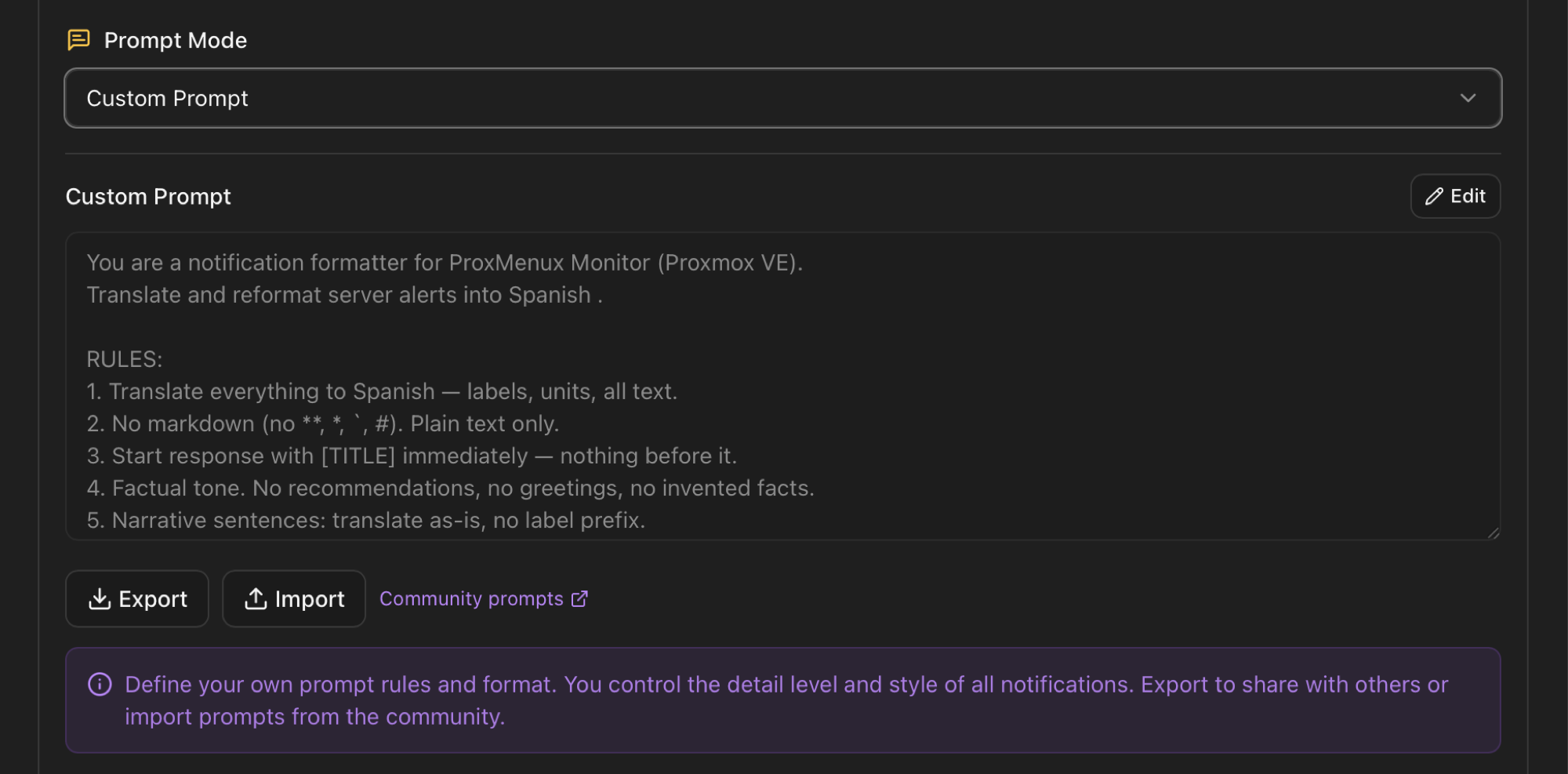
Switching the prompt mode to Custom swaps the entire default system prompt for one you write yourself. The custom prompt is stored in the Monitor's SQLite settings and sent verbatim on every AI rewrite call. It's the right escape hatch when you want a completely different voice, structure or focus than the bundled prompt offers.
What changes when Custom is on
- The default prompt is replaced entirely. The Proxmox mappings, the context-handling rules and the emoji instructions are all gone. If you want to keep any of them, paste them into your prompt — the bundled
EXAMPLE_CUSTOM_PROMPTshown below is a starting point. - The Language selector is ignored. The default prompt has a
{language}placeholder; the custom prompt does not. If you want output in a specific language, declare it inside your prompt ("Translate to Spanish", "Output everything in French"). - Detail level still applies in the sense that it's available as a setting per channel, but the cap on output tokens becomes a fixed 500 in custom mode (vs the 500 / 1500 / 3000 ramp of the default prompt). If your custom prompt asks for a long report, raise the cap by editing the prompt or split the request.
- The Output Format markers are still mandatory. The Monitor parses the response by looking for
[TITLE]and[BODY]on their own lines. A custom prompt that doesn't emit those markers will break the parser and fall back to the original templated body. - Rich messages emoji rules are not auto-injected. If you want emojis, tell the prompt to use them. If you want plain text, tell it not to. The toggle only gates the bundled blocks of the default prompt, not your custom string.
Starter prompt
The Custom Prompt textarea ships pre-filled with a minimal example you can adapt:
Show starter custom prompt
You are a notification formatter for ProxMenux Monitor.

Your task is to translate and format server notifications.

RULES:
1. Translate to the user's preferred language
2. Use plain text only (no markdown, no bold, no italic)
3. Be concise and factual
4. Do not add recommendations or suggestions
5. Present only the facts from the input
6. Keep hostname prefix in titles (e.g., "pve01: ")

OUTPUT FORMAT:
[TITLE]
your translated title here
[BODY]
your translated message here

Detail levels:
- brief: 2-3 lines, essential only
- standard: short paragraph with key details
- detailed: full technical breakdown
Sharing prompts with the community
The Export button writes your current custom prompt to a file (.txt / .md) you can keep as a backup or hand to someone else. Import pulls one back in. The third button next to them links to a public community gallery on GitHub:
Browse the discussion to see what other operators have built — terse pager-style alerts, verbose technical reports, language-specific variants. If you tweak yours and like the result, post it there: even a one-paragraph description of what your prompt optimises for helps people pick a good starting point. Feedback on what works and what doesn't is equally welcome.
AI Suggestions (BETA)
AI Suggestions is an opt-in addon that lets the LLM append one short, actionable tip at the end of the body. It only activates when the prompt mode is Default, the master AI toggle is on, and the AI Suggestions switch is flipped — and even then, the prompt instructs the model to skip the tip whenever the cause or solution is unclear.
When a tip is added, it follows this exact format:
💡 Tip: Run 'pvecm status' to check quorumThe rules baked into the addon (visible in the collapsible block under the Default prompt section above):
- The tip is included only if the journal context or the Known Errors database clearly points to a specific fix.
- The tip is capped at 100 characters.
- It must be specific (concrete command or path) — generic advice is rejected by the prompt itself.
- If a Known Error provides a solution, the LLM must use that solution, not invent a new one.
- If nothing in the input gives the LLM enough certainty to suggest a concrete fix, the tip is skipped — no guessing.
Why BETA
Detail level per channel
Each of the four channels (Telegram, Discord, Gotify, Email) has its own detail-level dropdown. Three values are available, mapped to specific output token caps and to specific instructions in the default prompt:
| Level | UI label | Output cap | What the prompt asks the LLM to produce |
|---|---|---|---|
brief | 2-3 lines, essential only | 500 tokens | "What happened + where". Nothing else. |
standard | Concise with basic context | 1500 tokens | 3-6 lines: what, where, cause, affected devices. |
detailed | Complete technical details | 3000 tokens | Full report: what, where, cause, affected, logs, SMART data, history. |
Defaults the Monitor applies on first install:
- Telegram, Discord, Gotify —
standard. - Email —
detailed. Email is the channel where you typically want the full picture for archival.
Email detail level appends the original
detailed and the original templated body has substantial content (more than 50 characters), the dispatcher appends the original message at the bottom of the AI rewrite, separated by a 40-dash divider and an Original message: label. This means a detailed email always carries both the AI-friendly version and the machine-friendly raw template — useful when you want to grep an old alert later.Language
Twelve languages are wired in. The dropdown sets ai_language in the config and the value is interpolated into the system prompt at the place where the prompt says "translate alerts into {language}". The full list:
English (en), Spanish (es), French (fr), German (de), Portuguese (pt), Italian (it), Russian (ru), Swedish (sv), Norwegian (no), Japanese (ja), Chinese (zh), Dutch (nl).
Two important rules taken straight from the prompt:
- Translate: labels, descriptions, status words, units (e.g. GB → Go in French).
- Do not translate: hostnames, IPs, paths, VM/CT IDs, device names like
/dev/sdX, technical identifiers. These stay verbatim regardless of language.
Custom prompt mode does not use the Language selector. If you switch to Custom and want a specific output language, declare it inside your prompt.
A note on templates
The body the AI receives is not raw event data — it's a pre-rendered template. Each event type (backup_complete, vm_start, auth_fail, health_degraded, etc.) has a template in notification_templates.py that knows how to format that specific event into a structured plain-text body. The AI rewrites that body, it doesn't replace the templating step.
Two practical implications: the AI never sees a hostname or VMID it has to invent — those fields are placed by the template before the rewrite. And if AI is disabled, the templated body is what gets dispatched directly. The Notifications page documents the dispatch pipeline in full and is the right cross-reference for everything that happens to an event before it reaches this layer.
Privacy & data flow
With AI rewrite enabled, the Monitor sends the rendered notification body plus the enriched context blocks to the configured provider. That can include hostnames, IPs, usernames, device paths, journal log lines and SMART attributes for the affected device. Whether that leaves the host depends on which provider you chose:
| Provider | Data destination |
|---|---|
| Ollama | Stays on the Ollama host. If Ollama runs on the same Proxmox node, nothing leaves the network at all. |
| OpenAI | api.openai.com (or your custom Base URL endpoint). Subject to OpenAI's data-handling policy at the time of the call. |
| Anthropic | api.anthropic.com. |
| Google Gemini | generativelanguage.googleapis.com. |
| Groq | api.groq.com. |
| OpenRouter | openrouter.ai, which forwards to the underlying model provider chosen in the model field. Two hops instead of one. |
If event content cannot leave the network
Where to next
- Notifications — the dispatch pipeline, channels, per-event toggles and the PVE webhook integration that surrounds this layer.
- Health Monitor — the largest single producer of events the AI ends up rewriting, with its own per-category suppression durations.
- Architecture — where the AI Enhancer fits into the wider Monitor process (it's a module, not a separate service).
- Community prompts on GitHub — browse, share, ask.