
Apply Available Updates
When a post-install optimization (Log2Ram, Memory Settings, System Limits, Logrotate…) gets a newer version on disk than the one currently registered on the host, ProxMenux surfaces it as an available update. You can apply it from the Post-Install menu (Scripts side) or from the Monitor dashboard — both paths re-run the same post-install function and refresh the registry.
What this is
Log2ram SSD Protection v1.2), and the host keeps a registry of which optimizations are active and at which version in /usr/local/share/proxmenux/installed_tools.json. When a new ProxMenux release ships an updated version of any optimization, ProxMenux detects the mismatch and offers to re-apply just that one — without re-running the whole post-install.Why this exists
Post-install optimizations occasionally get improvements — a better sysctl tuning, a stricter Logrotate limit, a new Log2RAM size heuristic, a fix for an edge case reported by a tester. Without an update path the operator had only two options: manually re-run the post-install script (which re-applies every optimization) or skip the improvement entirely. Apply Available Updates is the middle ground: a per-optimization, opt-in re-run that lifts only the versions that actually moved.
How updates are detected
Versioned scripts on disk
Every post-install function declares its version inside the script (scripts/post_install/auto_post_install.sh and scripts/post_install/customizable_post_install.sh). A scanner extracts these versions from the source on disk.
Versioned registry on the host
When the operator applied each optimization, the corresponding register_tool call wrote the active version into /usr/local/share/proxmenux/installed_tools.json. That file is the source of truth for "what is active on this host right now".
Monitor compares both sides
On startup and every 24h, the Monitor compares disk versions against registry versions. Any mismatch produces an entry in /usr/local/share/proxmenux/updates_available.json. That file drives both the Post-Install menu entry and the Monitor dashboard card.
One notification per new version
When at least one optimization has a pending update, the Monitor emits a single grouped notification — for example "4 ProxMenux optimization update(s) available" — with one line per tool in the same name (vX → vY) format used for Proxmox package updates. The notification is anti-cascade so it does not repeat day after day for the same set; only a new version (or a fresh tool entering the list) re-triggers it.
Path A — From the Post-Install menu
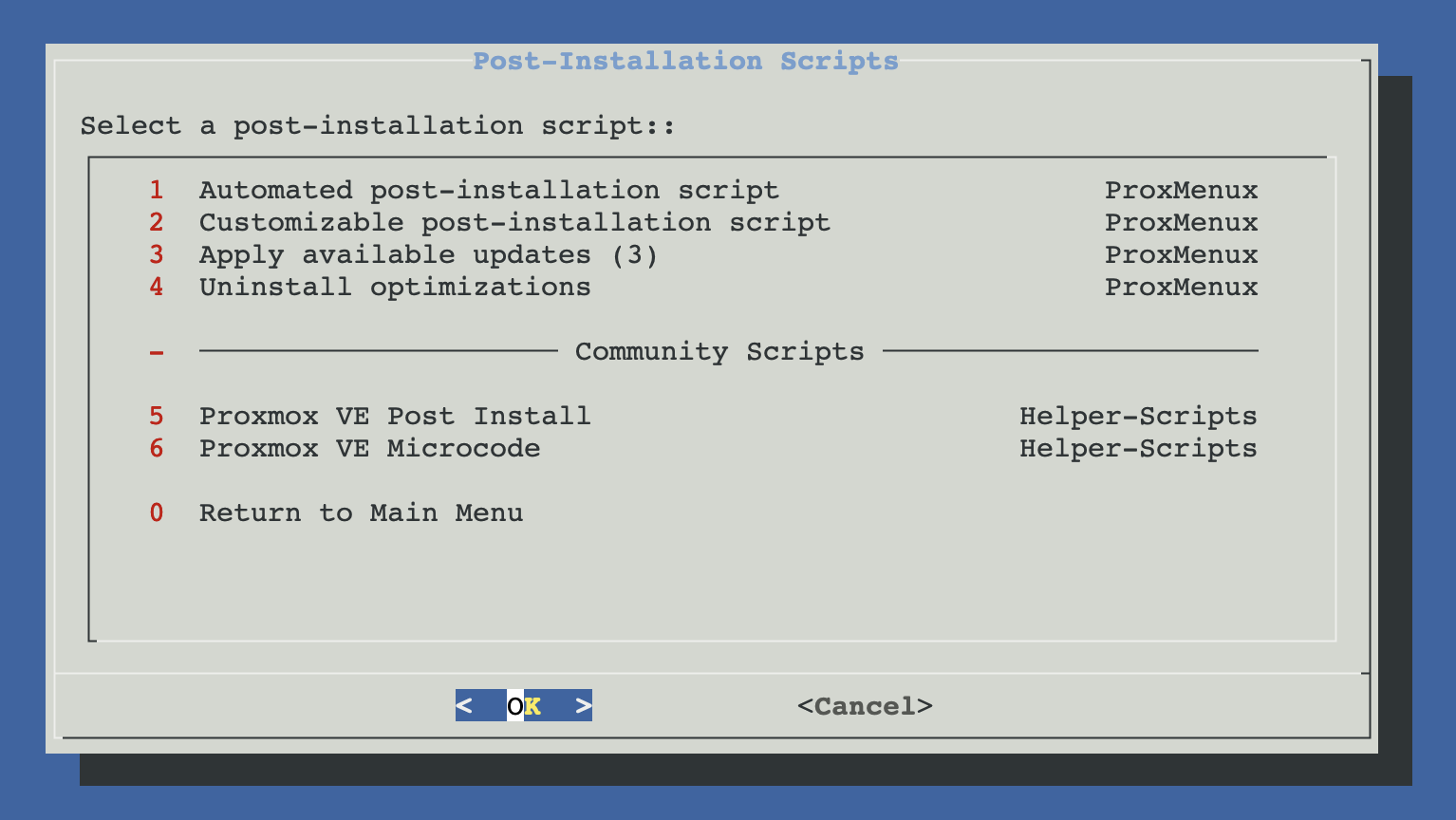
From ProxMenux's main menu, open Settings post-install Proxmox. When there are pending updates, a new entry Apply available updates (N) appears right above Uninstall optimizations. The number reflects how many optimizations have a newer version on disk than what the host currently has registered. When everything is up to date the entry simply does not appear, so the menu stays clean.
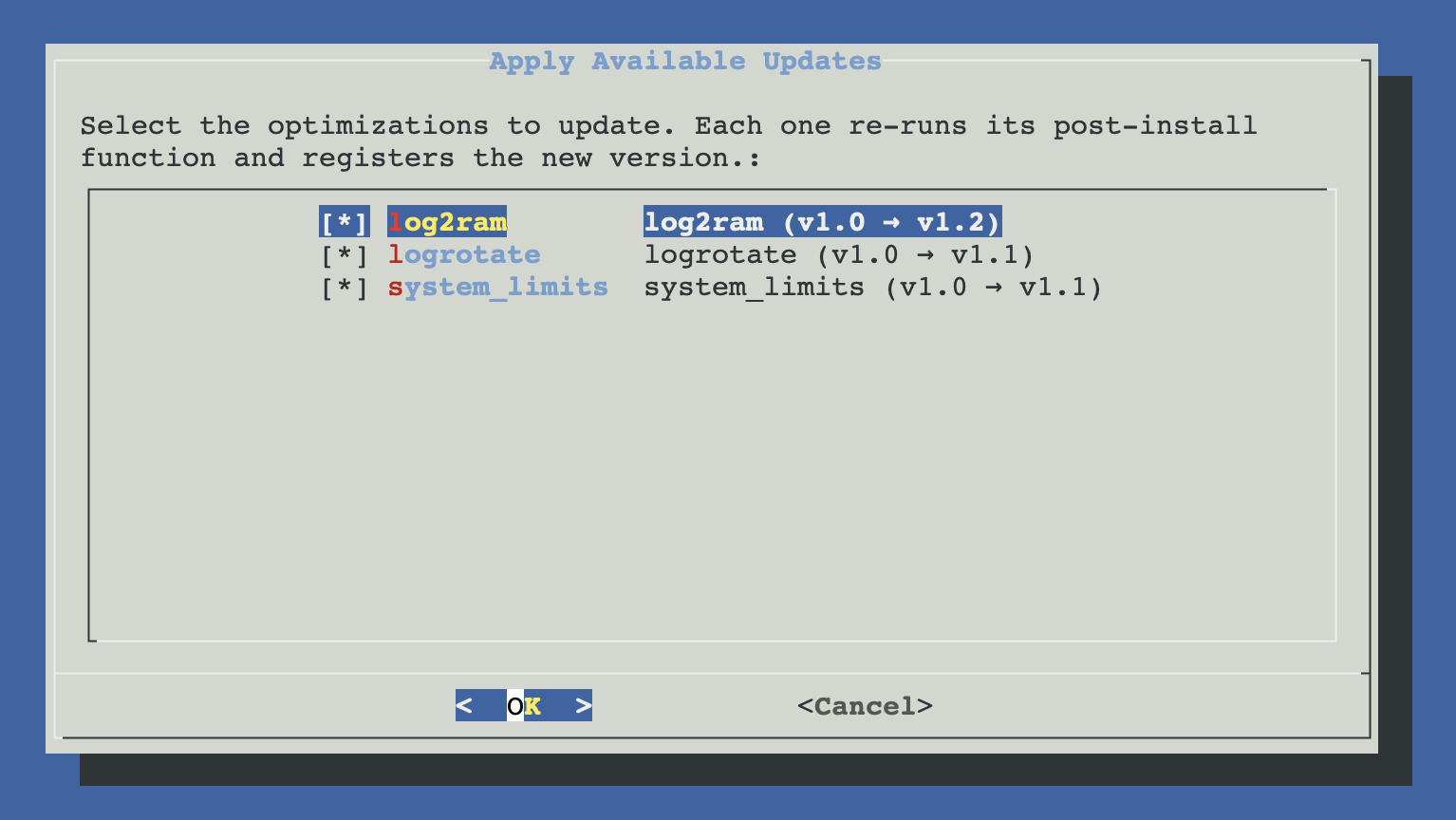
Selecting the entry opens a checklist with every pending update, each row formatted as name (vX → vY). All rows are pre-checked by default; uncheck any you don't want to apply this round.
Path B — From the Monitor dashboard
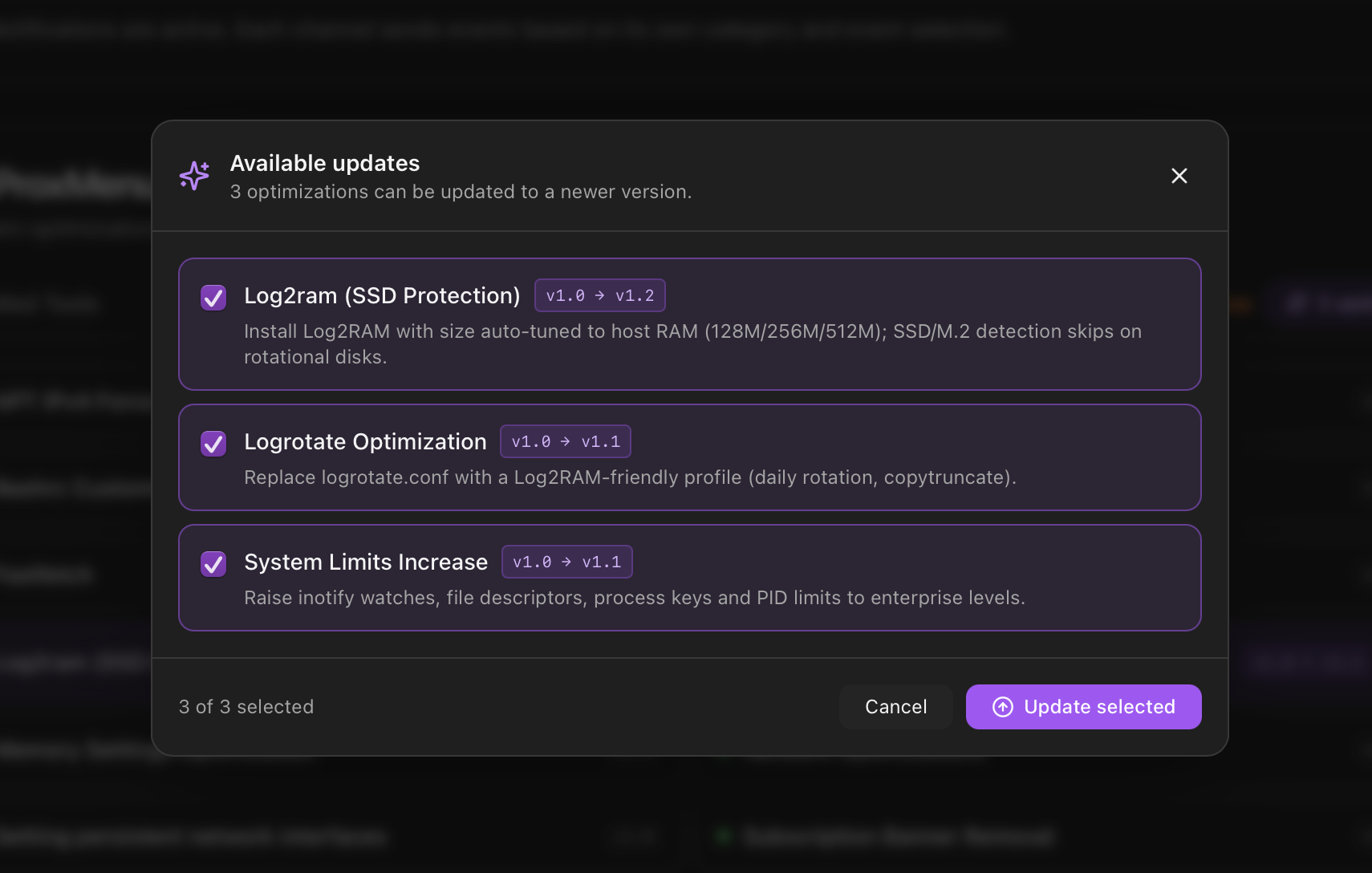
The same updates appear in the Monitor under Settings → ProxMenux Optimizations. When pending updates are detected the card shows an "Updates available" banner with the count and an Apply action that opens the same per-optimization picker.
What happens when you apply
Re-runs the post-install function
The picked optimization's function is re-executed against the host. Because every post-install function is idempotent, re-running it doesn't duplicate config — it overwrites the previous version with the new one (sysctl files, drop-ins, service units, etc.).
Refreshes the registry
The register_tool call inside the function writes the new version into installed_tools.json. The next scan no longer sees a mismatch and the update entry disappears from both the menu and the Monitor card.
No reboot unless the function says so
Most updates take effect immediately. Updates that touch kernel modules, persistent interface names, or VFIO show the same reboot prompt as a fresh install would.
Registry refresh sent to the Monitor
Once the batch finishes, the menu POSTs to http://127.0.0.1:8008/api/updates/post-install/scan to rebuild /usr/local/share/proxmenux/updates_available.json. That is what makes the Monitor's Optimizations card and the shell menu entry disappear immediately after the update, without waiting for the next scheduled scan.
jq is required
jq to parse the pending-updates JSON. If jq is missing, the flow exits silently — you would see the menu entry with a count but nothing would happen after picking rows. On any modern Proxmox install jq is present; if in doubt run apt install -y jq.How it differs from the other paths
| Path | Scope | When it makes sense |
|---|---|---|
| Automated | Re-applies every optimization in the bundle. | Fresh host, or full re-baseline of a fully-managed node. |
| Customizable | Pick from the full catalogue. | Cherry-pick which optimizations are active on the host. |
| Apply available updates | Only the optimizations whose version bumped on disk. | Keep already-installed optimizations current without touching the rest. |
| Uninstall optimizations | Reverse the optimization and remove its registry entry. | Roll back a specific change. |
Notification gate