
Disk Manager
The Disk Manager menu groups the ProxMenux tools for handling physical disks on a Proxmox host: attach disks to VMs and LXC containers, import disk images, pass through a whole controller or NVMe device, wipe disks safely and run SMART health tests.
What this menu is for
Opening the menu
From ProxMenux's main menu, select Disk Manager. You will see this:
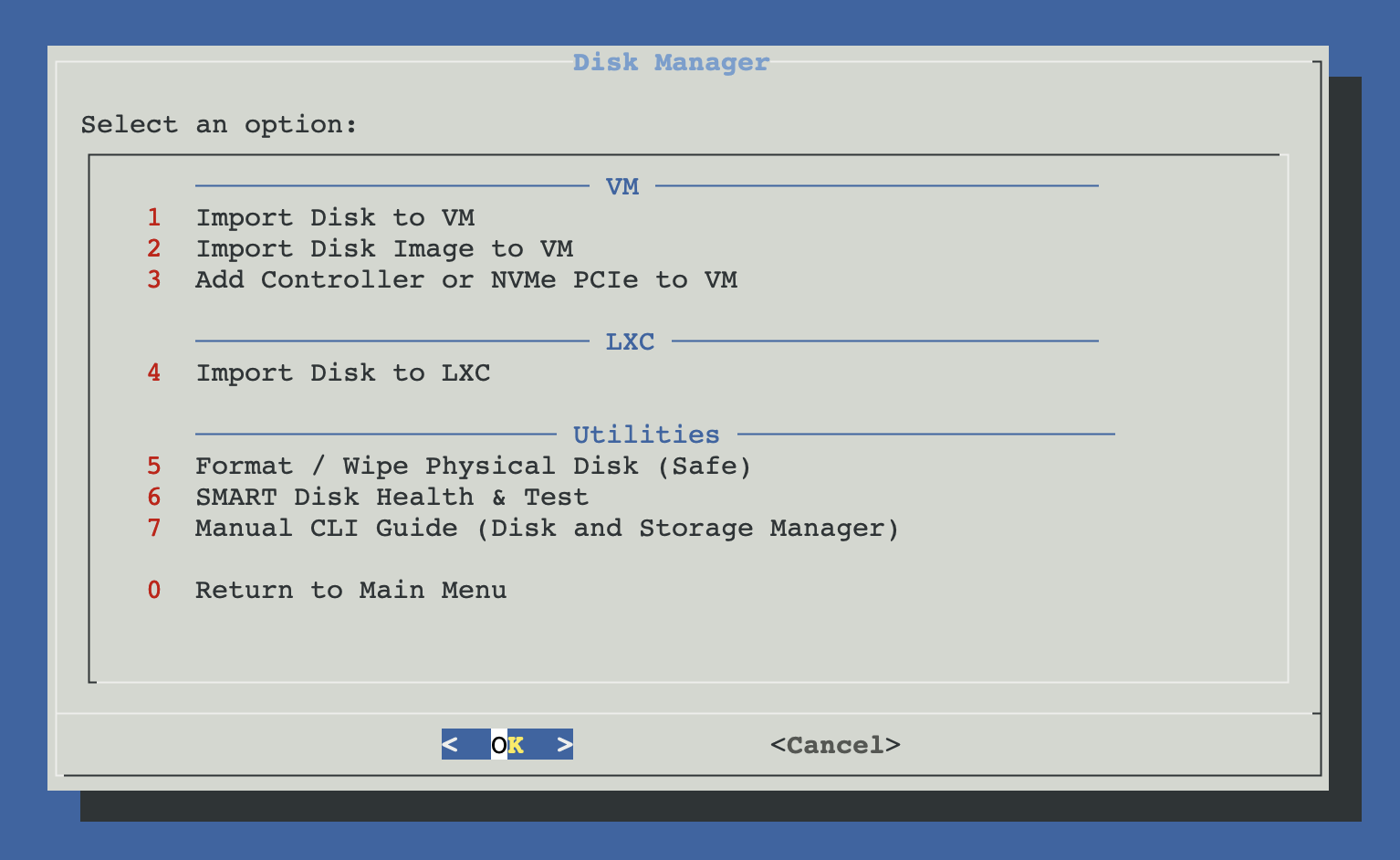
Three tool groups
The Disk Manager menu is organised in three groups — VM, LXC and Utilities. Click a card to jump straight to the tools in that group.
VM
Tools that operate on existing virtual machines. The VM must be powered off; ProxMenux validates this before touching the config.
- Import Disk to VM
- Import Disk Image to VM
- Add Controller or NVMe to VM
LXC
Tools that operate on existing containers. Direct device passthrough needs a privileged container; the script offers to convert it if necessary.
- Import Disk to LXC
Utilities
Host-side tools that operate on the disks themselves, independently of any VM or container.
- Format / Wipe Physical Disk
- SMART Disk Health & Test
VM
Tools that operate on existing virtual machines. The VM must be powered off; ProxMenux validates this before touching the config.
LXC
Tools that operate on existing LXC containers. Direct device passthrough requires a privileged container; the script offers to convert the container if needed.
Utilities
Host-side tools that operate on the disks themselves, independently of any VM or container.
Safety rules shared by every option
- The system disk (root pool, swap, active ZFS / LVM / RAID members) is always hidden.
- Disks mounted anywhere on the host are hidden or blocked at execution.
- Disks referenced by a running VM or LXC cannot be reassigned or wiped.
- Operations that can change the host state (IOMMU enable, wipe) require explicit confirmation.
Related
- Storage & Share Manager — register storage in Proxmox itself (NFS / Samba / iSCSI / local) and share folders between host and CTs.
- Storage and Disks commands — block devices, LVM, pvesm, SMART reference.
- ZFS Management commands — for ZFS pools and datasets.
- Add GPU to VM (Passthrough) — same IOMMU / VFIO concepts applied to GPUs.