
Import Disk to LXC
Attach a physical disk to an existing LXC container on the Proxmox host. ProxMenux detects free disks, optionally formats them with a supported filesystem, and wires the partition to a mount point inside the container using persistent device paths.
VM passthrough vs LXC passthrough
How the script runs
The flow has two phases with clear separation between "collecting information and decisions" and "actually changing the container config". Until the final confirmation, nothing is mounted into the CT.
┌─────────────────────────────────────────────┐
│  PHASE 1 — Pick CT, detect disk, plan       │
│  (nothing touched yet)                      │
└──────────────────┬──────────────────────────┘
                   ▼
      pct list — user picks target CT
                   │
                   ▼
      Privileged check
      ├─ unprivileged: 1 in config
      │    → offer to convert now
      │      (edits /etc/pve/lxc/<CTID>.conf,
      │       writes unprivileged: 0)
      │      ├─ accept   → continue
      │      └─ cancel   → abort
      └─ privileged → continue
                   │
                   ▼
      Detect disks on host (lsblk)
                   │
                   ▼
      Visibility filter
      ├─ Hidden: root / swap / system-mounted
      ├─ Hidden: active ZFS / LVM / RAID members
      ├─ Hidden: already in any VM/CT config
      ├─ Shown: free disks
      └─ Shown with ⚠ label: stale metadata
                   │
                   ▼
      User selects ONE disk
      (only a single disk per run)
                   │
                   ▼
      Filesystem probe on the first partition
      ├─ ext4 / xfs / btrfs  → reuse as-is
      │                        (data is preserved)
      └─ empty / unsupported → offer to format
                               ├─ pick fs: ext4 / xfs / btrfs
                               └─ mkfs.<fs> will run in Phase 2
                   │
                   ▼
      User types mount point path
      (e.g. /mnt/data  /mnt/disk_passthrough)
                   │
                   ▼
      Summary: disk → mount point
                   │
   ┌──────── Cancel   OR   Confirm ────┐
   ▼                                   ▼
Exit, nothing        ┌─────────────────┴─────────────────┐
was changed          │  PHASE 2 — Apply                   │
                     └─────────────────┬─────────────────┘
                                       ▼
                       If conversion was accepted:
                       └─ rewrite CT config line:
                          unprivileged: 1  →  0
                                       │
                                       ▼
                       If formatting was chosen:
                       └─ mkfs.<fs> /dev/disk/by-id/…-part1
                                       │
                                       ▼
                       Resolve best persistent partition
                       path (/dev/disk/by-id/...-partN)
                                       │
                                       ▼
                       Find next free mpN index
                       (scans pct config output)
                                       │
                                       ▼
                       pct set <CTID> -mpN \
                          <persistent-part-path>, \
                          mp=<mount-point>, \
                          backup=0,ro=0[,acl=1]
                                       │
                                       ▼
                       Verify: pct config <CTID> shows
                       the new mpN entry
                                       │
                                       ▼
                       Container sees the directory at
                       the chosen mount point path
ProxMenux filters out the root disk, mounted disks, and disks already referenced by any VM/LXC config. Disks with active ZFS/LVM/RAID membership are hidden; stale signatures show a ⚠ label so you can wipe them before formatting.
Prerequisites
- At least one LXC container defined on the host.
- The container is privileged, or you accept the script's offer to convert it.
- At least one physical disk not in use by the host or any other guest.
Privileged container required
unprivileged: 1 in the config it offers to convert it in place (edits /etc/pve/lxc/<CTID>.conf). Cancel if you cannot accept the security trade-off of a privileged container.Step-by-step
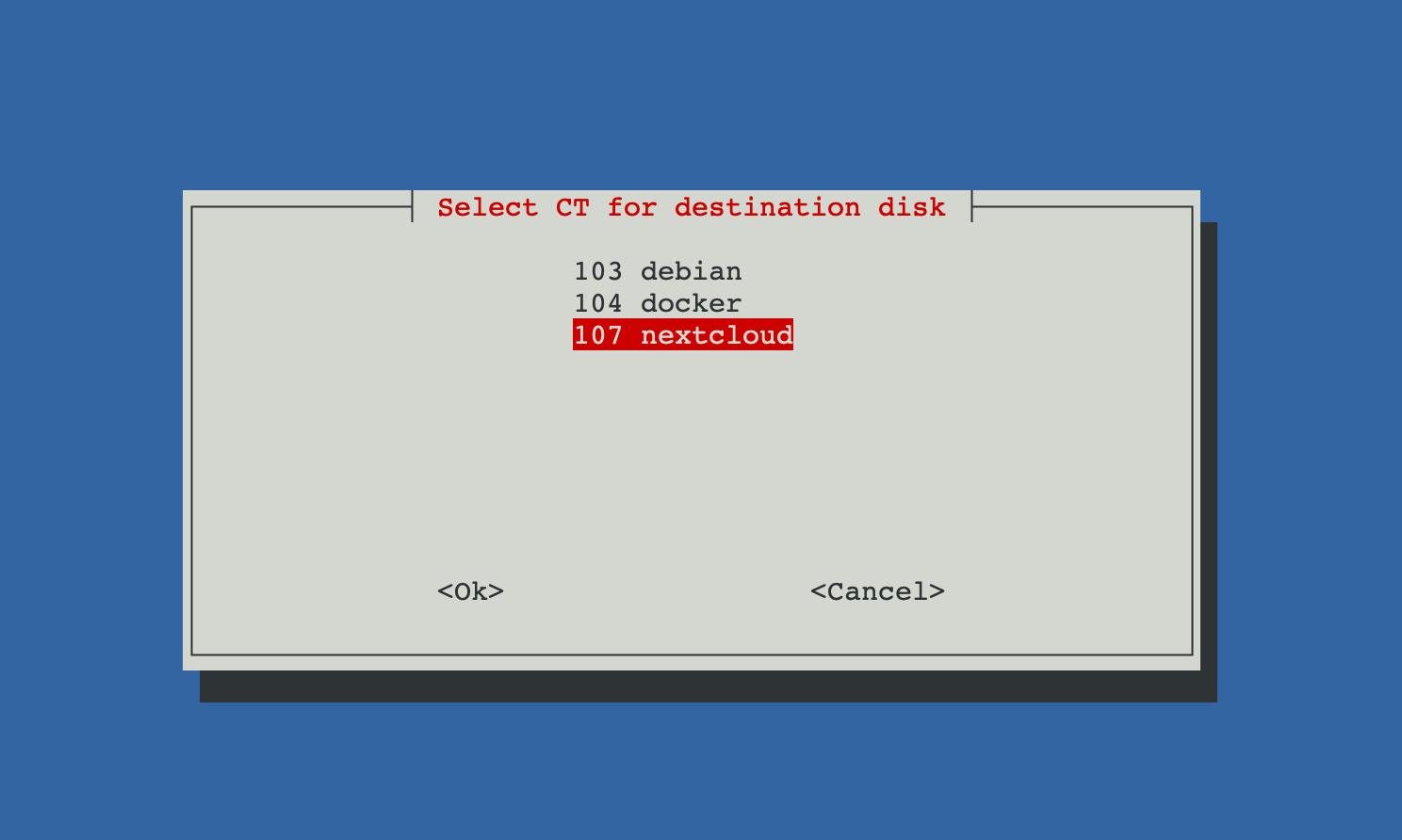
Pick the target container
ProxMenux lists every LXC container on the host (pct list). Pick the one that will receive the disk. If the container is unprivileged you are offered to convert it now.
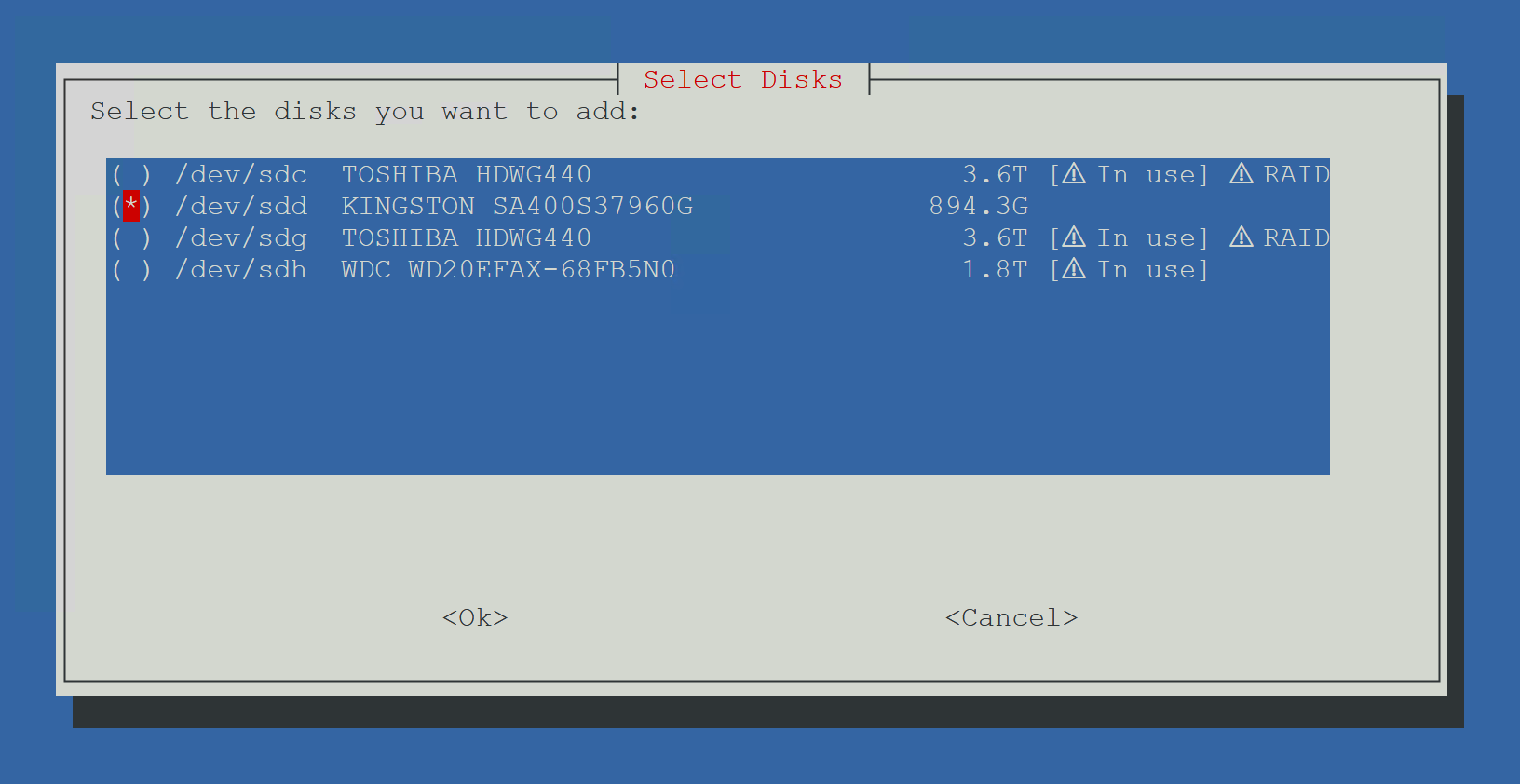
Pick the physical disk
Only safe candidates are shown. Unlike the VM flow, this script attaches one disk per run — run it again for each extra disk you want to add.
Format or reuse
The script inspects the disk:
- If it already carries a supported filesystem (ext4 / xfs / btrfs) you can reuse it as-is (existing files are preserved).
- If it has no supported filesystem you are offered to format it. Pick ext4 / xfs / btrfs.
Pick the mount point
Type the path where the container should see the disk, e.g. /mnt/data or /mnt/disk_passthrough. This is the path inside the container; the host already sees the partition under /dev/disk/by-id/….
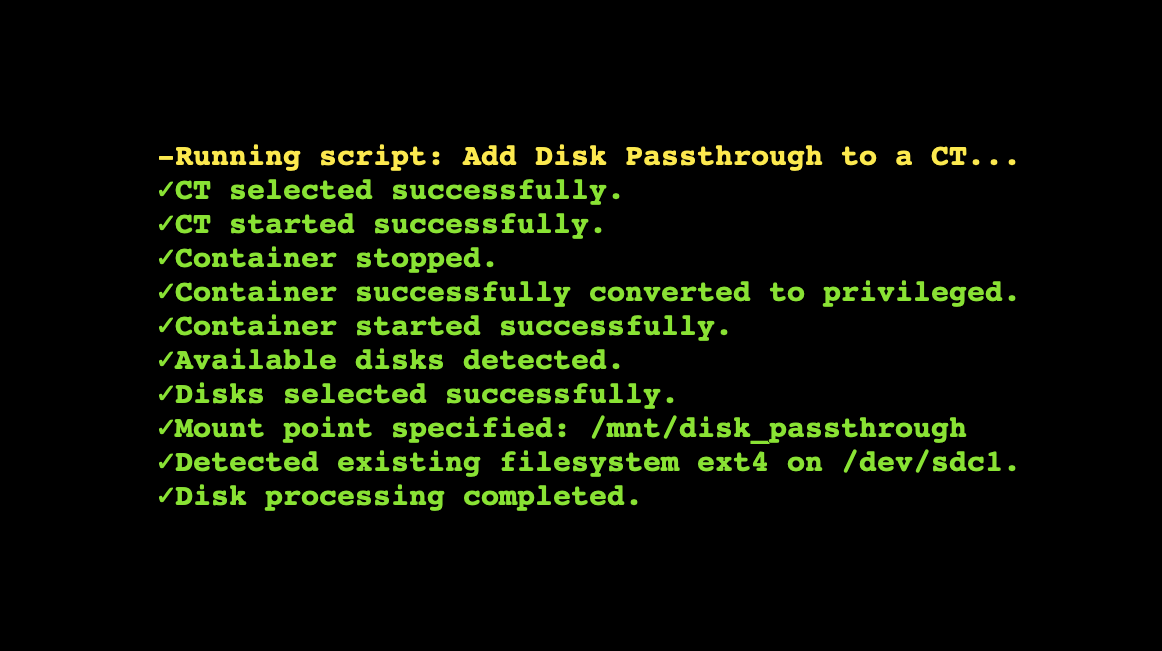
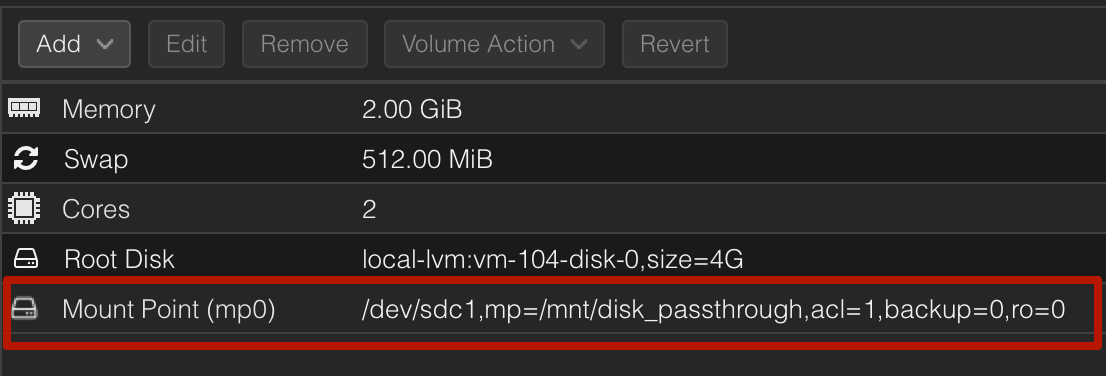
Attach and verify
ProxMenux appends a fresh mpN: entry to the container config, skipping indexes already in use, and re-reads the config to confirm. If the container is running the mount is exec'd live; otherwise it takes effect on the next start.
Manual equivalent
The script wraps pct set. A direct invocation for a single disk looks like:
# find the partition's persistent path
ls -l /dev/disk/by-id | grep part1 | grep sdb

# format (only if the disk is new or unreadable)
mkfs.ext4 /dev/disk/by-id/ata-WDC_WD40EFAX-68JH4N0_WD-WX11D1234567-part1

# attach to CT 101 as mp0 at /mnt/data
pct set 101 -mp0 /dev/disk/by-id/ata-WDC_WD40EFAX-68JH4N0_WD-WX11D1234567-part1,mp=/mnt/data,backup=0,ro=0

# verify
pct config 101 | grep -E '^mp[0-9]+:'
Important considerations
- One disk per run. Re-run the script for each additional disk.
- Do not attach the same partition to several containers that might mount it simultaneously — concurrent writes corrupt the filesystem.
- Old metadata (RAID / ZFS / LVM signatures) must be cleared manually before the script will let you format, otherwise
mkfsrefuses to overwrite. Use the Format / Wipe Physical Disk tool for that.
Troubleshooting
"Cannot continue with an unprivileged container"
/etc/pve/lxc/<CTID>.conf and replacing unprivileged: 1 with unprivileged: 0. You can also rebuild the container as privileged if you prefer not to convert in place.Permissions inside the container are wrong
root:root. If the service inside the CT runs as a different user (e.g. www-data for Nextcloud), chown/chmod inside the container to match its UID/GID after the first mount.Related
- Import Disk to VM — equivalent flow for VMs.
- LXC Mount Points (Host ↔ CT) — share host directories with a CT instead of attaching a whole disk.
- VM and CT Management commands — pct config / push / pull reference.
- Disk Manager overview.