
Dashboard: Terminal tab
A real shell session in the browser, on the Proxmox host. Up to four terminals at once, mobile-friendly keyboard helpers, an integrated commands cheatsheet — all in the same theme as the rest of the dashboard.
A real PTY in the browser
flask_terminal_routes, pipes it over a WebSocket to xterm.js in the browser, and runs as root (the systemd unit's user). Anything you can do in ssh root@<host> works here — including vim, tmux, ncurses tools and Proxmox CLIs (qm, pct, pvesh, pvecm). Every PTY started from this tab exports the environment variable PROXMENUX_TERMINAL=monitor, which is inherited by every child bash process — including a subsequent menu launch — so ProxMenux flows can tell when they are running inside the Monitor's browser terminal.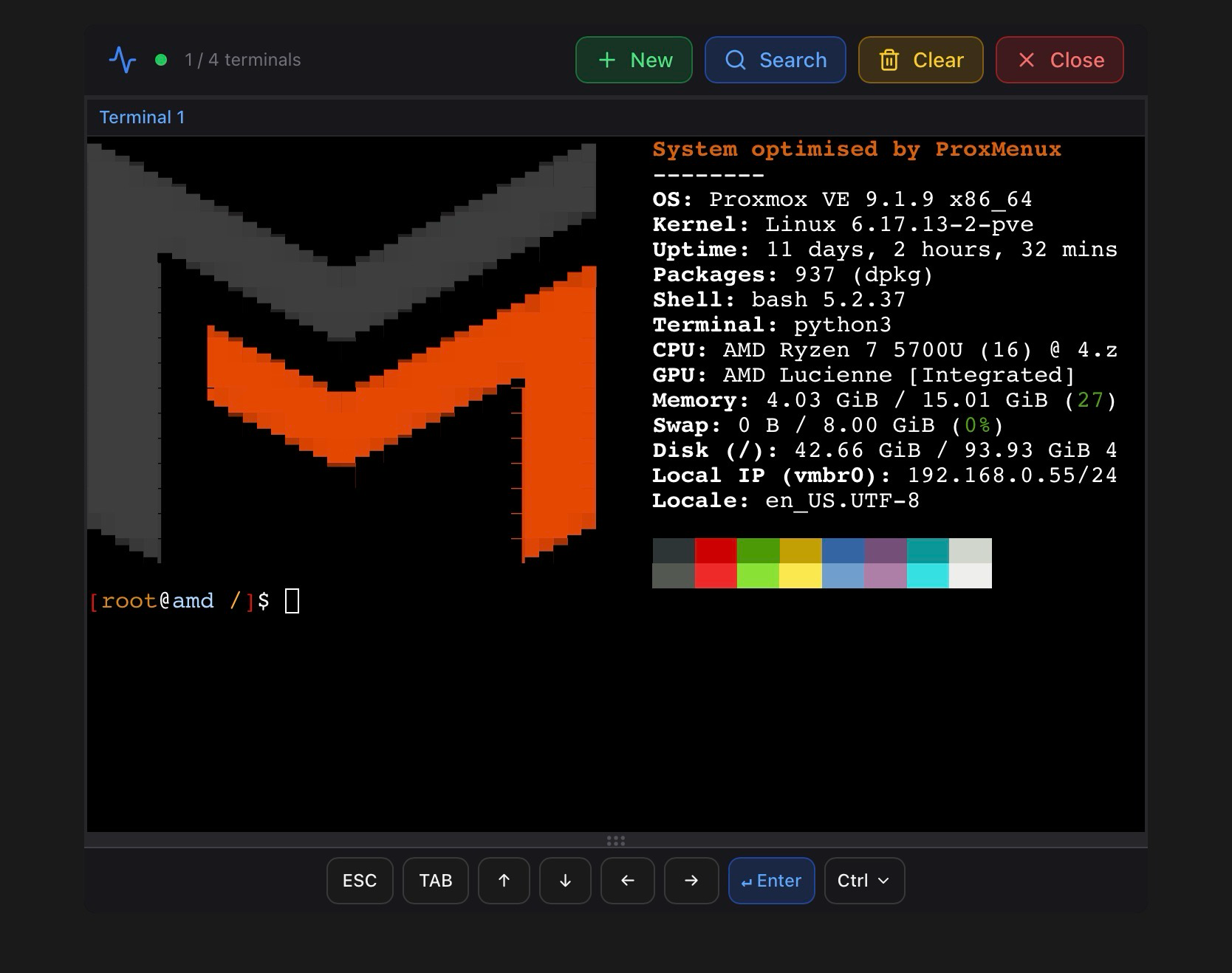
Connection target
The Terminal tab opens a shell on the Proxmox host itself — the same login you would get over SSH. Each tab opens a brand-new host terminal.
To reach an LXC container from the browser, use the dedicated Console button on every running CT card in the VMs & LXCs tab. It opens a modal that runs pct enter <vmid> and reuses the same mobile-friendly toolbar described below.
Self-update guard when menu runs inside this terminal
ProxMenux's menu self-updates in place: accepting the prompt replaces its own script tree and reloads. That works cleanly over SSH or the Proxmox console, but the browser terminal cannot survive it — the update tears down the very PTY the shell is running in, and the WebSocket drops mid-flight. To avoid stranding the session, the internal handlers check_updates_stable, check_updates_beta and apply_release_channel read PROXMENUX_TERMINAL and detect the Monitor context.
When they detect it, the classic yes / no dialog is replaced by an informational msgbox with the canonical one-line installer — bash -c "$(wget -qLO - https://raw.githubusercontent.com/MacRimi/ProxMenux/main/install_proxmenux.sh)" for stable, and the equivalent install_proxmenux_beta.sh URL for beta. The update itself is deferred to an SSH session or the Proxmox host console; the browser terminal is used only to acknowledge and read the command.
Up to four terminals at once
The tab lets you open up to four host terminals simultaneously. Each one gets its own PTY and its own WebSocket — they are fully independent sessions. Two layouts switch with the icons next to the "New" button:
- Tabs view — one terminal visible at a time, the others as named tabs at the top (Terminal 1, Terminal 2…). Best for working on one task with the rest as background.
- Grid view — all open terminals visible at once in a 2×2 grid. Useful for watching
htopon one panel,iftopon another, and editing on a third without switching back and forth.
The toolbar shows the current count (1/4 terminals, 4/4 terminals). New tabs open with + New and individual ones close from the small × on the tab header. The big red Close button at the top tears down all terminals at once.
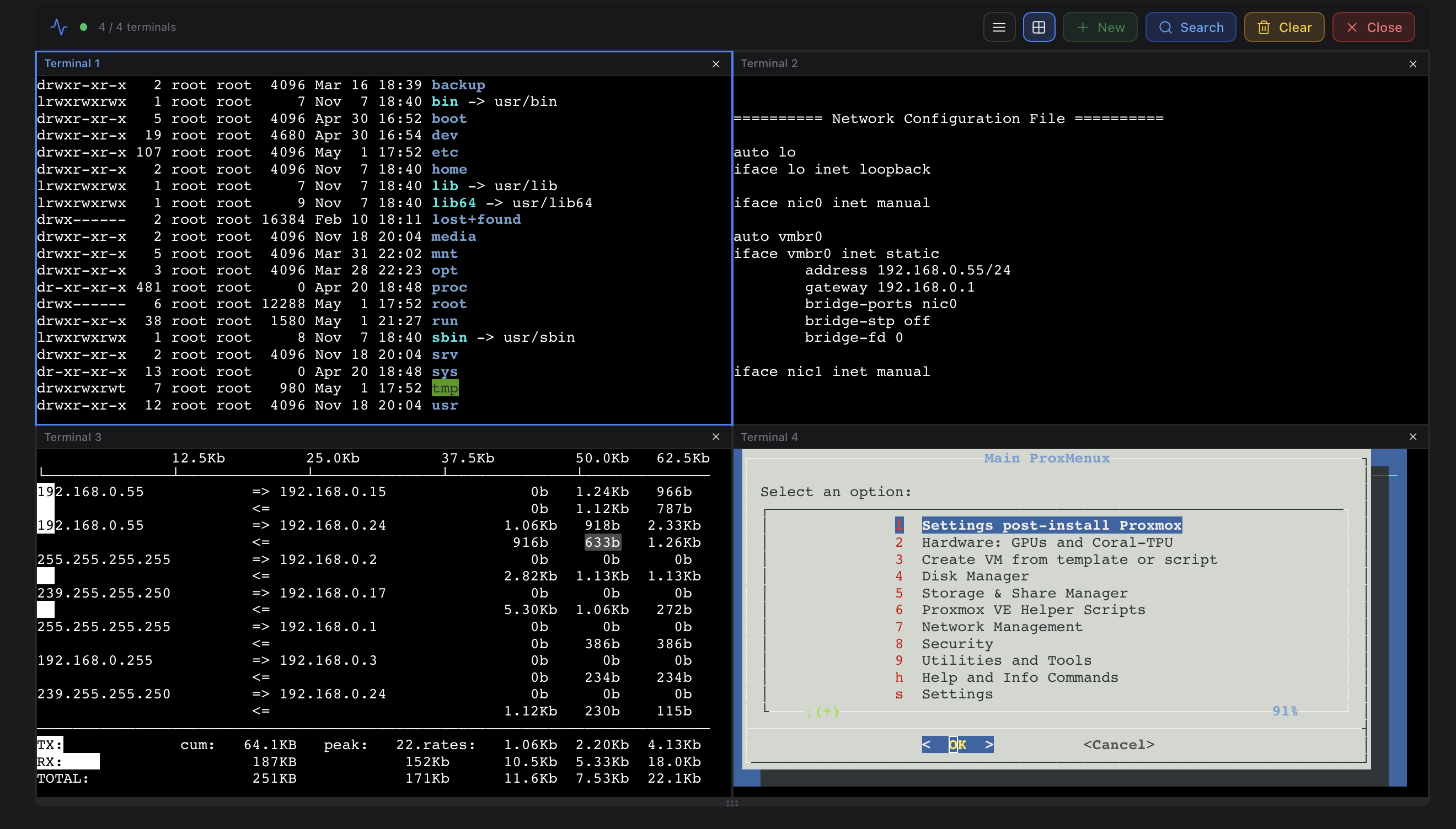
/etc/network/interfaces on one side, iftop on another, and the ProxMenux main menu on the fourth. Switch between grid and tabs with the layout toggle in the toolbar.Mobile-friendly keyboard helpers
Phone and tablet keyboards usually don't expose ESC, TAB, the arrow keys or modifier combinations. Without them, navigating vim, nano, htop or any TUI menu is impossible. The Terminal tab solves that by rendering a row of touch-friendly buttons under the terminal whenever the device is small enough or touch-capable:
| Button | Sends | Typical use |
|---|---|---|
| ESC | \x1b | Exit insert mode in vim, cancel a TUI dialog, leave a search. |
| TAB | \t | Path autocompletion, field navigation in dialog/whiptail. |
| ↑ ↓ ← → | \x1bO[ABCD] | Shell history, cursor movement, menu navigation. |
| ↵ Enter | \r | Confirm. Some on-screen keyboards swap Enter for Go/Done — this button is unambiguous. |
| Ctrl ▾ | Dropdown | Three control sequences:
|
Same toolbar in the LXC console modal
pct enter <vmid> on connect, so you land directly inside the container.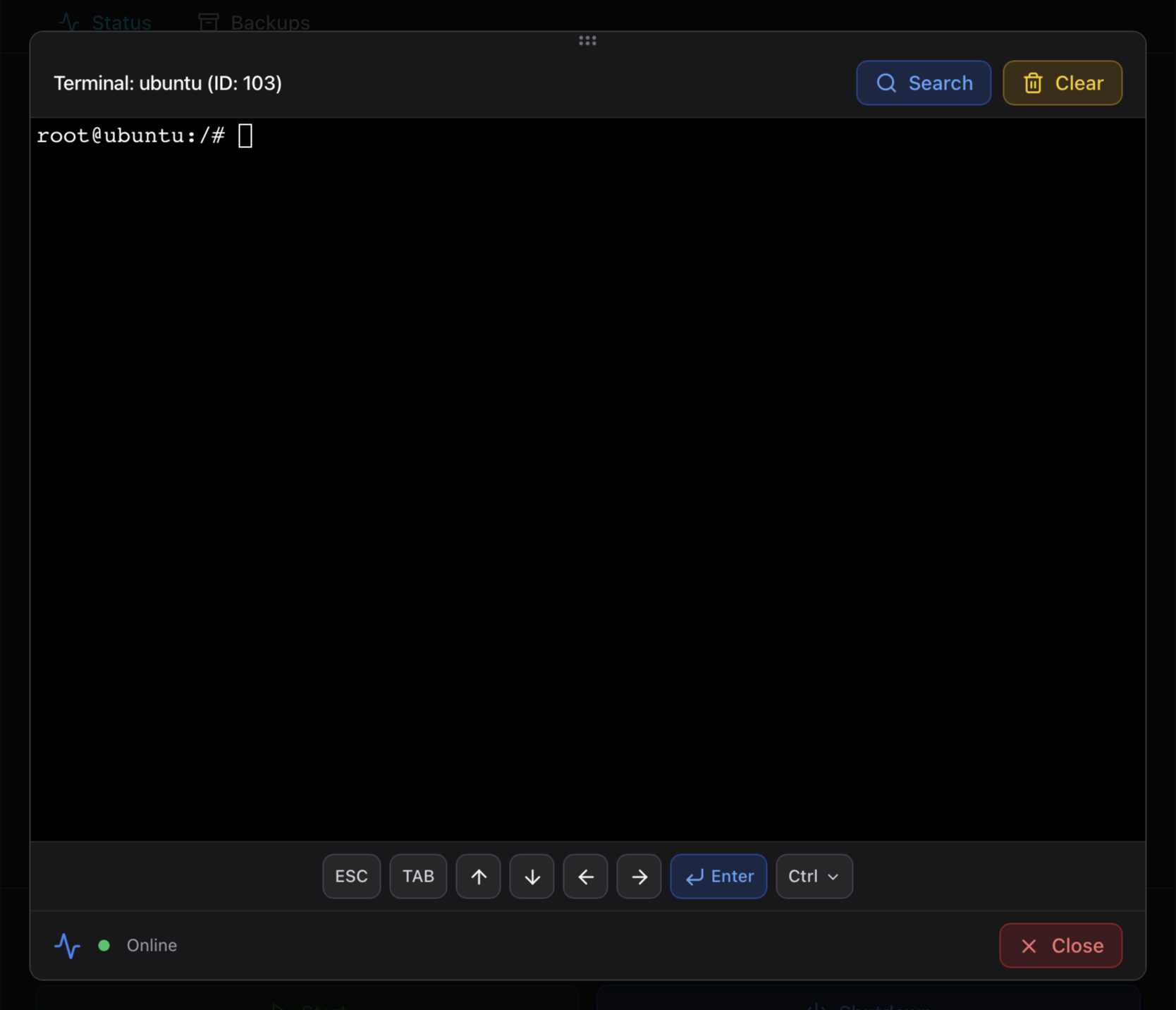
Search Commands — integrated cheatsheet
The blue Search button in the toolbar opens a modal with a fuzzy command lookup. Type a few letters of any Linux or Proxmox command (ls, tar, qm, pct, zpool, systemctl…) and the modal lists usage examples with one-tap Send to active terminal. It removes the "wait, what flag was that" round-trip to a separate browser tab.
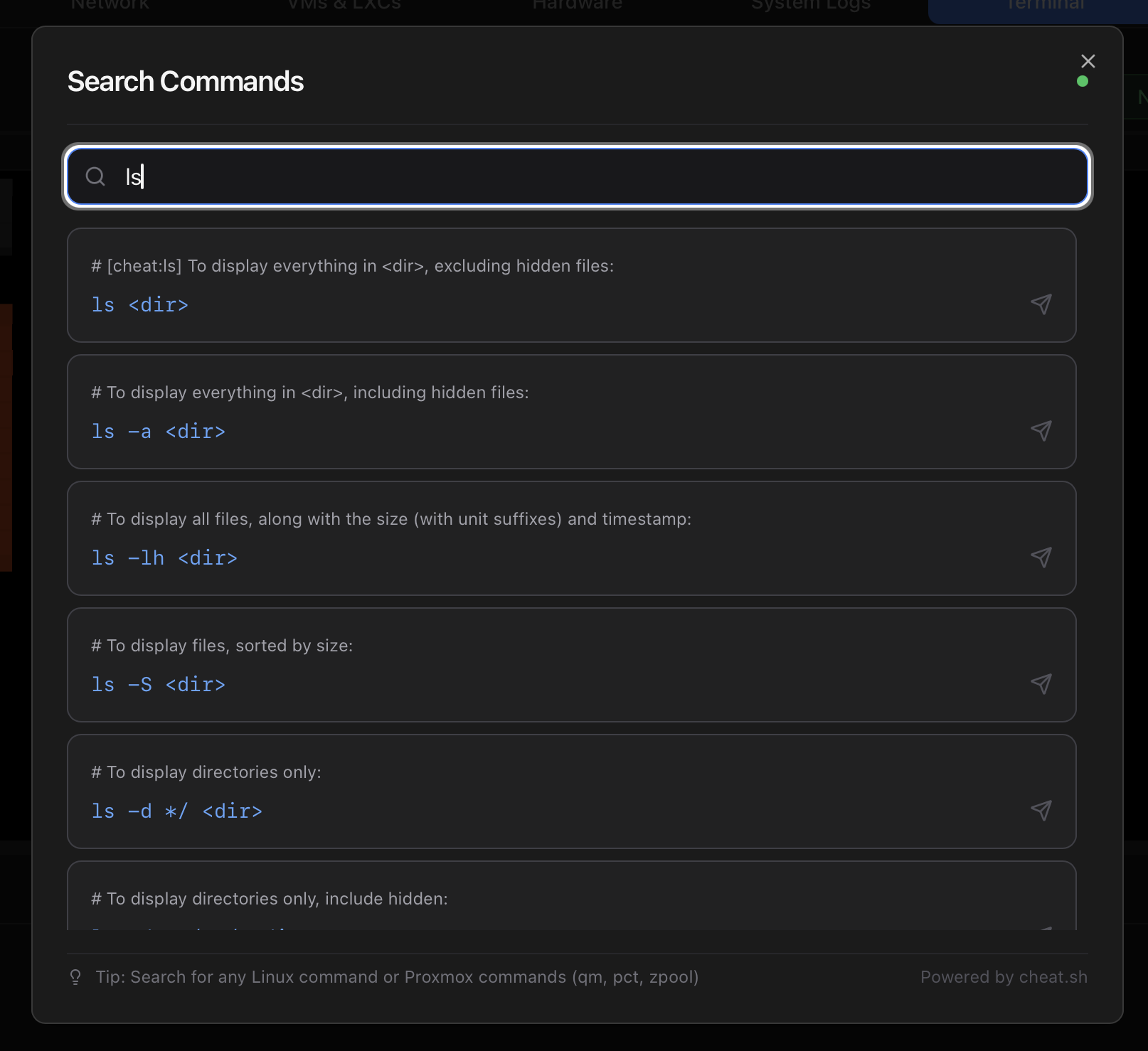
ls — each result shows the command, its description and a small "send" arrow that pipes it to the active terminal. Bottom-right corner indicates the data source (Powered by cheat.sh).About cheat.sh: cheat.sh is a community-curated, open-source unified cheatsheet that aggregates short, practical usage examples for hundreds of Linux commands, sysadmin tools and programming languages. Originally designed to be queried from a terminal with curl cheat.sh/<command>, it's also reachable from any browser. ProxMenux Monitor proxies the queries server-side so the modal keeps working under the same origin as the dashboard.
| Source | When it's used | What you see |
|---|---|---|
| cheat.sh (online) | When the host has internet access and the cheat.sh proxy responds. | Several real-world examples per command, typed with their description on top. The status dot in the modal header is green. |
| Local fallback | When cheat.sh is unreachable (offline host, restrictive firewall, cheat.sh outage). | A bundled list of common Linux + Proxmox commands. Smaller catalogue but always available. The status dot is red. |
How sending works: clicking the small "send" arrow next to a result forwards the command text to whichever terminal is currently active (the focused tab, or the one you last clicked in grid view). The modal closes automatically so you can hit Enter immediately.
Authentication
- The WebSocket upgrade carries the JWT in the
Authorizationheader. If auth is enabled and the token is missing or expired, the connection is rejected with HTTP 401 before a PTY is allocated. - If the Monitor sits behind a reverse proxy, the proxy must forward WebSocket upgrades. See the Access & Authentication page for Nginx / Caddy / Traefik snippets.
Clipboard, scrollback and resize
- Copy / paste — uses the browser's native clipboard. Select text with mouse / trackpad and use the OS shortcut (
Cmd+Con macOS,Ctrl+Shift+Con Linux/Windows). Linux desktops also support middle-click paste. - Scrollback — wheel / two-finger scroll. xterm.js keeps the last several thousand lines in memory.
- Resize — the terminal re-negotiates the PTY window size when you resize the dashboard pane, so
htopandvimrender properly. - Reconnect on tab focus — if you switch apps on a phone or tablet (a common iPad behaviour), the WebSocket would normally drop. The Terminal tab detects the visibility change and reconnects automatically when you come back, with a 15-second timeout for slow VPN paths.
Disconnect causes
The most common reasons a session ends and what to do about each:
| Cause | Fix |
|---|---|
| Session JWT expired (24 h window). | Refresh the page and log in again. The terminal isn't designed for unattended sessions, so the JWT lifetime matches the regular dashboard login. |
| Reverse proxy idle timeout. | Bump proxy_read_timeout on Nginx or the equivalent on Caddy / Traefik (snippets in Access & Authentication). |
| Phone or tablet sleep. | When the device wakes back up the tab auto-reconnects (15 s timeout for VPN paths). If it doesn't, reload the tab. |
| Service restart on the host. | Any restart of proxmenux-monitor.service drops every PTY. Open new terminals after the dashboard finishes reloading. |
The terminal is a root shell on the host
root) and therefore has full privileges over the Proxmox host. Configure a username, password and 2FA in Access & Authentication before exposing the dashboard beyond your local network: anyone who reaches port 8008 without authentication would land directly in a root shell — no extra prompts, no SSH credentials. For access from outside the LAN, route the dashboard through Secure Gateway (Tailscale) or a reverse proxy with HTTPS, instead of opening the port to the public internet.Where to next
- Access & Authentication — reverse-proxy snippets including the WebSocket upgrade lines required for the terminal.
- Architecture — the WebSocket transport (HTTP via flask-sock vs HTTPS / WSS via gevent).
- API Reference — the /ws/terminal and /ws/script/<sid> WebSocket endpoints alongside the rest of the API.
- Integrations → Secure Gateway — when you want terminal access from outside the LAN without exposing port 8008.
- Dashboard index — the other tabs.