
Dashboard: VMs & LXCs tab
The full inventory of guests on the node. Four headline metrics across the top, a sortable list of every VM and LXC below, and a drill-in per guest with config, resources, backups, logs and the four lifecycle controls (Start / Shutdown / Reboot / Stop).
The control surface for guests
POST /api/vms/<vmid>/control with an explicit confirmation and the response is reflected back in the guest's row. There is no force-shutdown without going through the dedicated Stop button.Top row: four stat cards
Opening the VMs & LXCs tab lands you on a four-card summary of guest state — totals, CPU utilisation, memory commitment vs host capacity, and disk allocation.
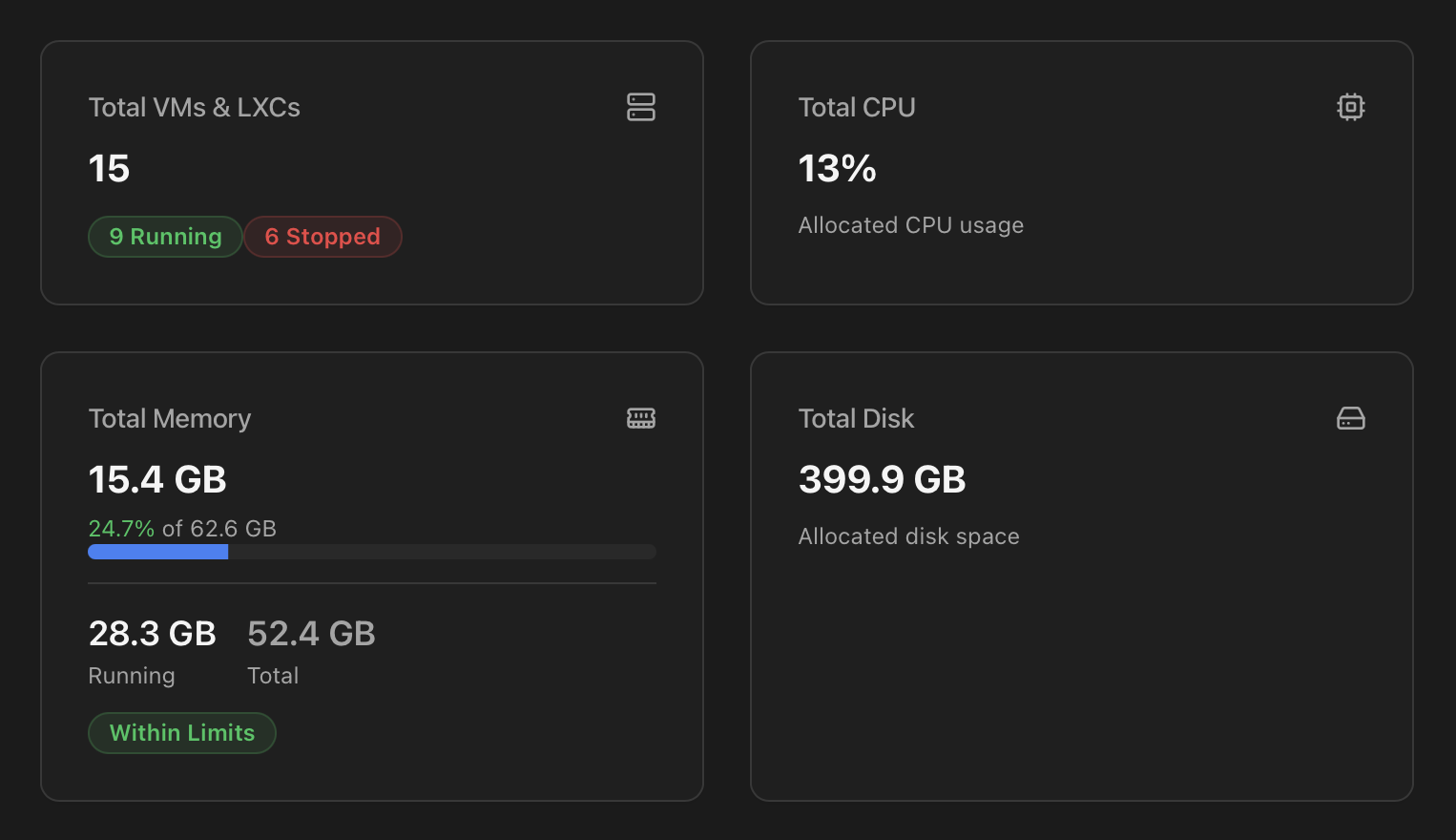
| Card | What it shows |
|---|---|
| Total VMs & LXCs | Total count with two badges — X Running (green) and Y Stopped (red, only when > 0). The number you watch when something didn't come back up after a reboot. |
| Total CPU | Aggregate live CPU utilisation across all guests as a percentage of the host's physical CPU, with a footer line "Allocated CPU usage". |
| Total Memory | Three readings stacked vertically:
|
| Total Disk | Sum of disk space allocated across all guests, in the appropriate unit (GB / TB), with the footer line "Allocated disk space". |
Virtual Machines & Containers list
One row per guest. The list is single-sourced from /api/vms, which consolidates qm list + pct list + pvesh /cluster/resources on the host.
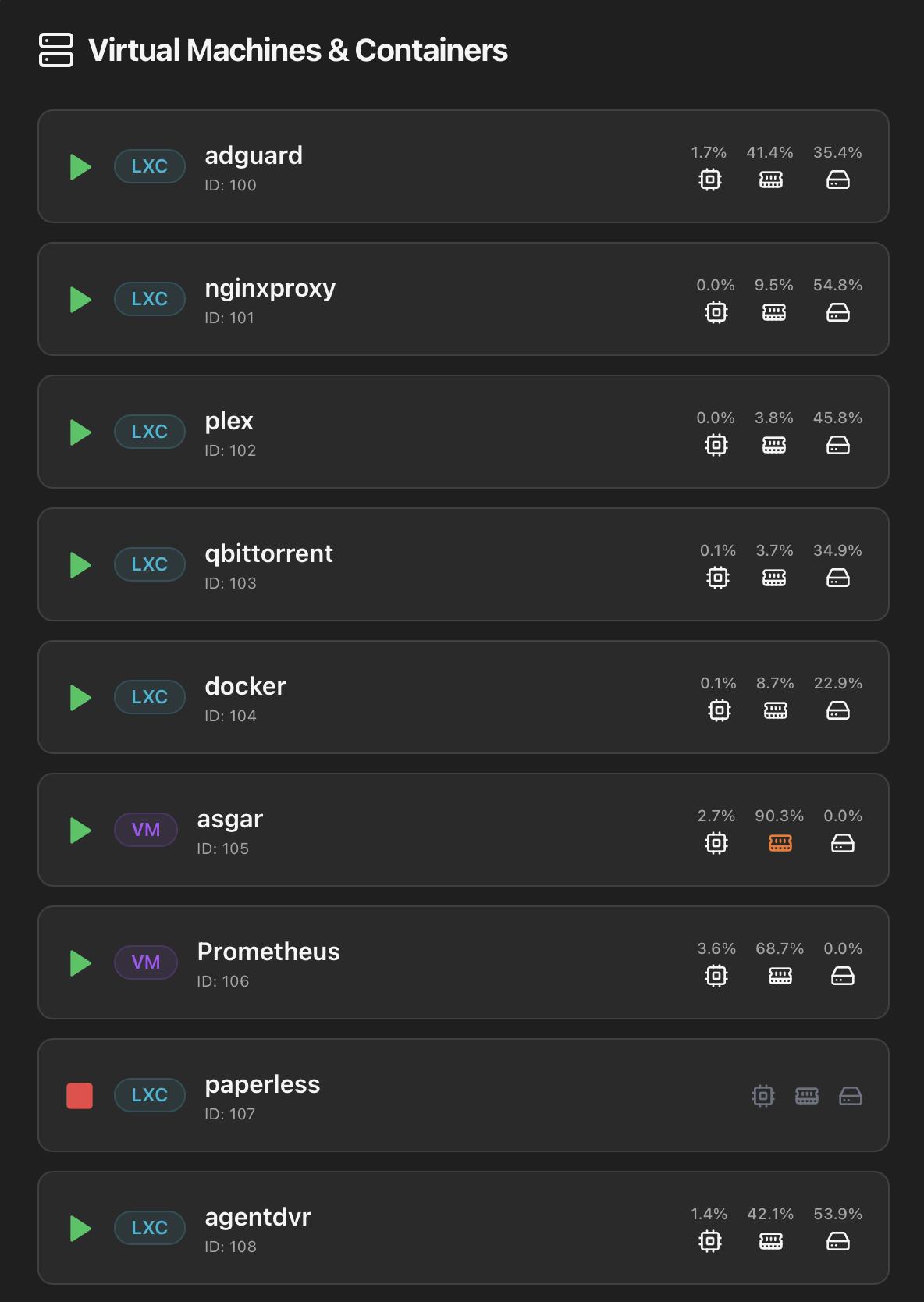
Each row shows:
- Status icon — green play (running) or red square (stopped). For stopped guests, the rest of the row dims so you instantly see what's offline.
- Type badge — LXC (cyan) for containers, VM (purple) for virtual machines.
- Name — guest hostname / display name.
- VMID — the Proxmox numeric ID below the name.
- Inline metrics — three percentages with their icon (CPU %, Memory %, Disk %). Each icon turns orange when the metric crosses an attention threshold (e.g. memory above 90 %), so a quick scan tells you which guest is under pressure without opening it.
Clicking any row — running or stopped — opens the drill-in modal described below.
The list is built mobile-first
Per-guest drill-in modal
The modal opens with the guest name, VMID, type, state and uptime. Its navigation adapts to the guest: Status, App and Updates for LXC application management, Mounts when an LXC has mount points, plus Backups and Firewall. The fixed action bar keeps the lifecycle controls and the LXC terminal available from every tab.
Tab 1 — Status
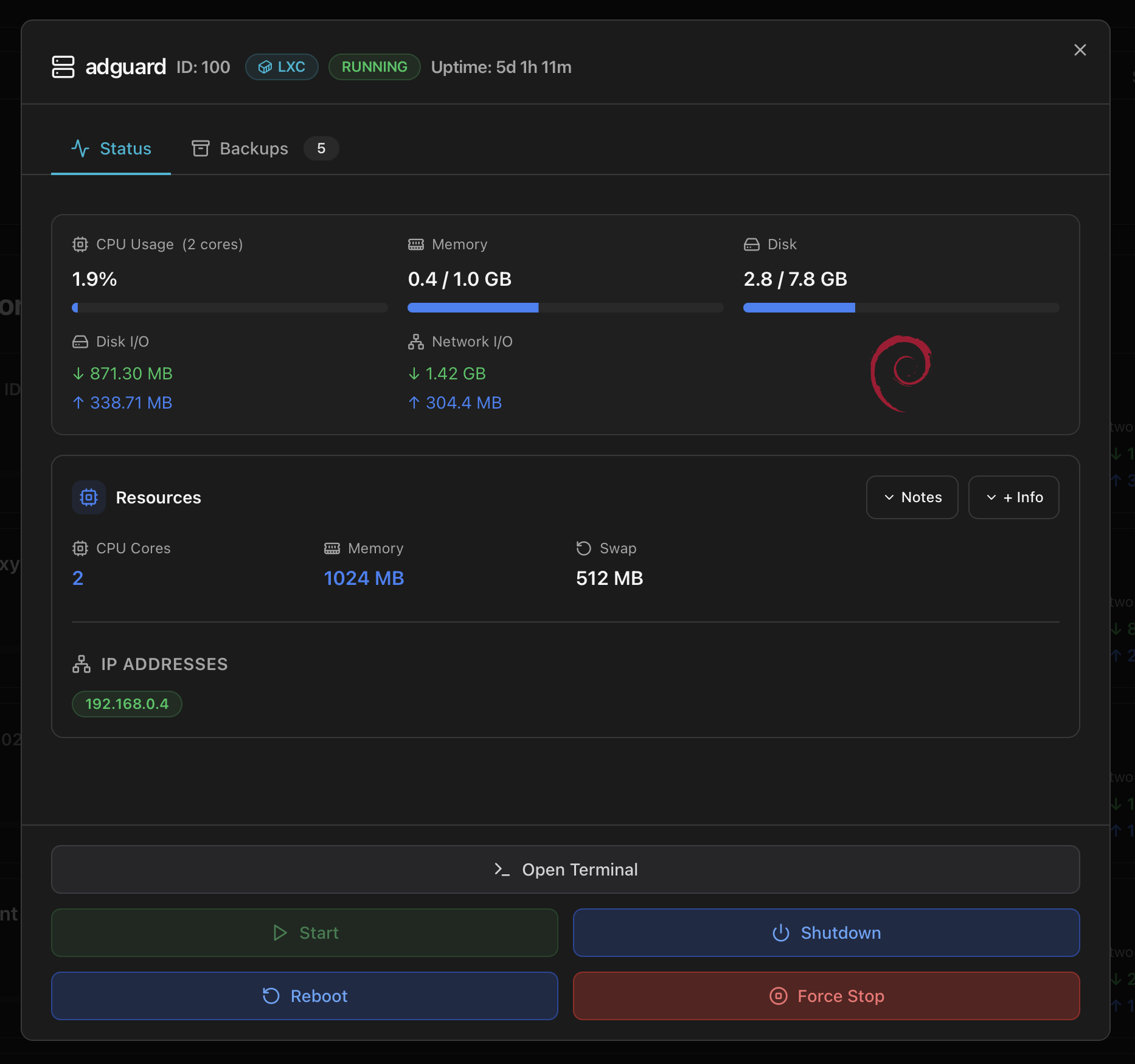
The default tab — the "is this guest behaving?" view. Three blocks:
1. Live metrics row
- CPU Usage (X cores) — current percentage with a progress bar. The header shows the configured core count so you know what 100 % would mean.
- Memory — used / max in GB with a progress bar.
- Disk — used / max across the guest's primary disk image, same shape.
2. I/O totals + OS logo
- Disk I/O — accumulated read (↓) and write (↑) totals since boot. Useful to spot a guest that's suddenly become I/O-heavy compared to its baseline.
- Network I/O — accumulated download (↓) and upload (↑). Same idea on the network side.
- OS distro logo — the Debian / Ubuntu / Alpine / Windows / etc. icon detected from the guest's OS type. A quick visual cue when scrolling several modals open.
3. Resources block
The configuration of the guest as Proxmox sees it — CPU Cores, Memory (configured maxmem), Swap. Two collapsible buttons in the block header:
- Notes — the guest's description field. Editable: typing here and saving calls
PUT /api/vms/<vmid>/configand writes back to/etc/pve/qemu-server/<vmid>.confor/etc/pve/lxc/<vmid>.conf. - + Info — extra fields that are too verbose for the default view: bios mode, machine type, agent state, hostpci passthrough entries, mount points (CT), boot order.
4. IP Addresses
Pill list of every IPv4 / IPv6 address the guest currently exposes — green pill per address. Empty when the guest is stopped or when the QEMU agent isn't installed in a VM (LXCs always report addresses directly).
Tab 2 — App (LXC only)
Registers applications that belong to the LXC, saves web links and optionally compares installed and available versions. Suggestions come from the startup cache; Find applications explicitly refreshes discovery for this LXC after new software is installed.
See the dedicated App page for cached discovery, catalog-assisted registration, Docker web links and version detectors.
Tab 3 — Updates (LXC only)
Keeps OS packages, registered applications, Docker Engine and Docker images as separate targets. Each target can run independently; an optional bulk action and a schedule can select the exact methods that should run together.
See the dedicated Updates page for integrated and custom updaters, Docker recreation, bulk selection, safety options and scheduling.
Tab 4 — Mounts (LXC only, when present)
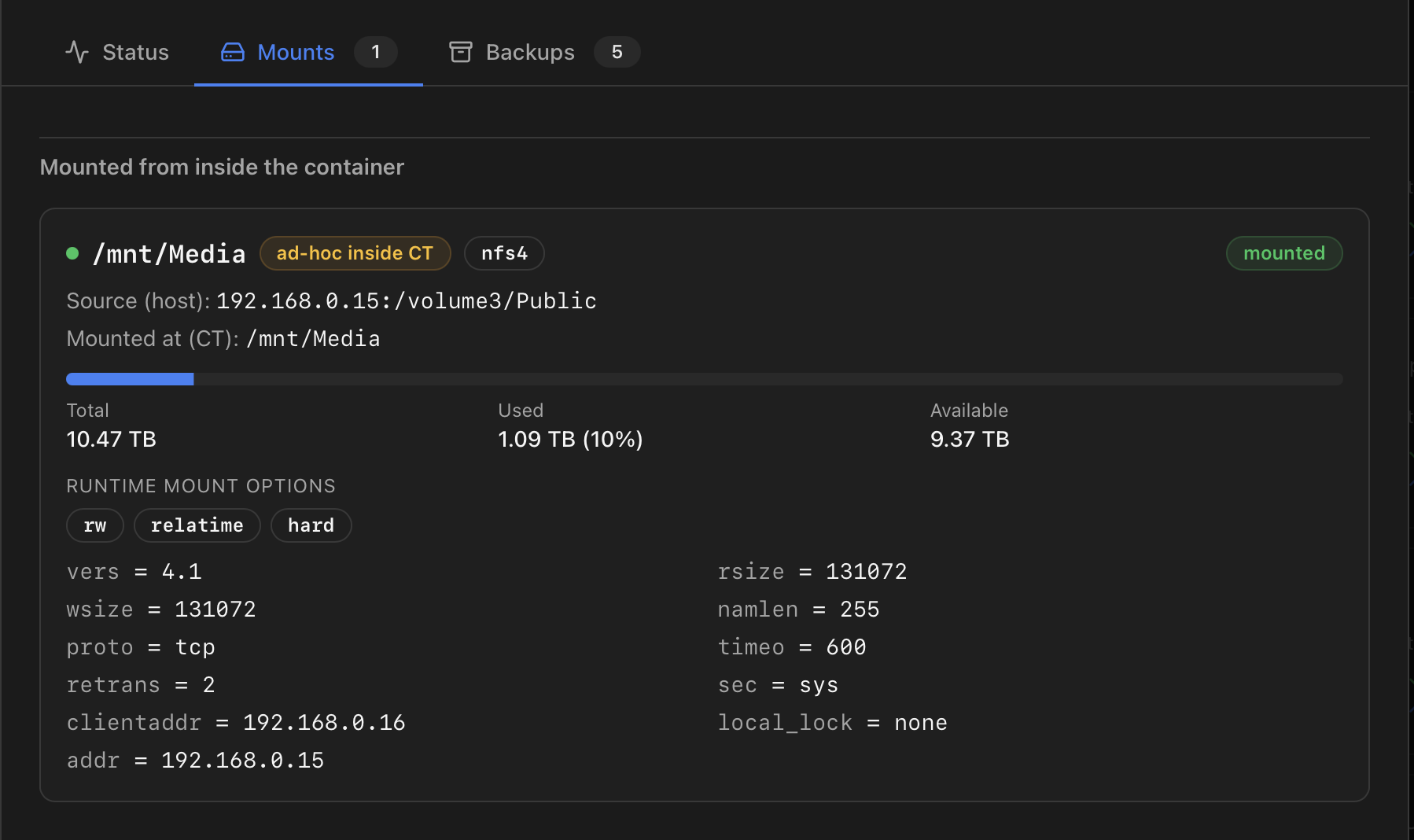
Proxmox's own UI shows the mount-point entries defined in the container config (mpX) but stops there — anything you mount from inside the CT later (mount.cifs, NFS via autofs, …) is invisible. This tab merges both views: the configured mounts and the runtime mounts ProxMenux probes from inside the container, with a per-mount health status and a capacity bar wherever the backend can resolve one.
Types of mount detected
- PVE volume — backed by a Proxmox-managed storage (a ZFS subvol, a directory entry, a Ceph RBD, …). Capacity comes from the PVE storage stats so the bar matches what Proxmox itself shows.
- Bind from PVE storage —
mpXentry pointing at a path on a PVE-known storage. - Bind from host —
mpXentry pointing at an arbitrary host path (/mnt/something). Capacity is thedfof that host path. - Ad-hoc inside CT — mount that only exists in the container's mount namespace (e.g. an NFS share that the CT mounts on its own). Capacity is read via
pct exec <vmid> df, which is the only way to see it —/proc/<pid>/rootfrom the host doesn't expose the remote mount's real stats.
Per-card state dot and warnings
- <green/> Green — mount is healthy and reachable.
- <amber/> Amber — divergent (configured but not actually mounted), read-only, or zombie bind (the host source was removed but the CT still sees the bind as mounted — typical when a USB drive was unplugged or a manual
umounthappened on the host). - <red/> Red — stale: the runtime probe couldn't reach the mount (common with NFS exports whose server is down).
What this gives you over the native UI
Tab 5 — Backups
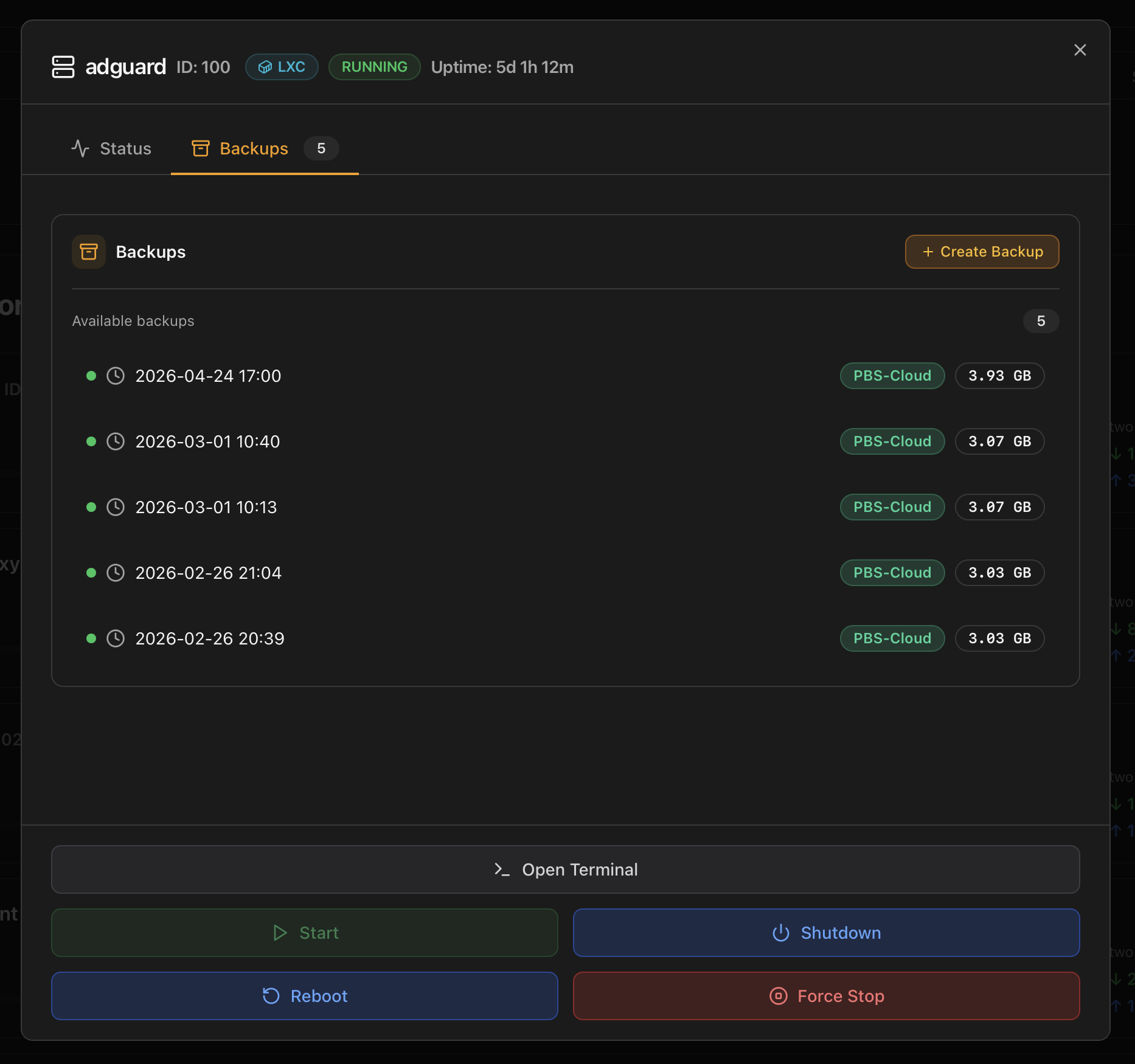
Lists every backup stored across configured Proxmox storages for this guest, sorted newest first. The tab title carries a count badge so you see at a glance whether the guest is backed up. Per row:
- Timestamp — date and time of the run.
- Destination tag — the storage where it lives (PBS-Cloud, PBS-Local, NFS-Backup, …) coloured by status.
- Size — final on-disk size of the backup.
The + Create Backup button at the top right kicks off a new run on the storage marked as "Backup target" in the Proxmox storage config. Restore lives in the Proxmox web UI — the Monitor exposes the "is this guest backed up recently?" view, not the recovery flow.
Tab 6 — Firewall
Reads the per-guest Proxmox firewall log straight from the host (no extra service, no polling). The tab is always present in the navigation strip; the panel decides what to render depending on whether the firewall is enabled for that guest and whether any rule is actually logging:
- Firewall disabled — an amber notice explains exactly where to enable it in the Proxmox UI (<Container|VM> → Firewall → Options) and reminds you that at least one rule needs
log: info(or higher) before packets show up. - Firewall enabled, no events yet — empty-state hint with the same logging requirement, useful when you just turned the firewall on.
- Events present — a scrollable monospace pane with the raw entries coloured by action: ACCEPT (green), REJECT (orange), DROP (red). A count badge in the header shows how many entries are currently loaded.
A Refresh button at the top right of the panel pulls the latest entries on demand — there is no auto-refresh inside the modal, so the list is a snapshot of the moment you opened the tab or pressed refresh. The data comes from the per-guest log file that Proxmox writes under /var/log/pve-firewall.log filtered by VMID, exposed via GET /api/vms/<vmid>/firewall/log.
Why have it here when the Proxmox UI already shows it?
Bottom action bar
Always visible at the foot of the modal regardless of which tab is active:
- Console (LXC only, running) — opens a modal that runs
pct enter <vmid>and lands you inside the container. Same xterm.js + WebSocket plumbing as the standalone Terminal tab, including the mobile-friendly toolbar with ESC, TAB, arrow keys, Enter and the Ctrl combos (Ctrl+C / Ctrl+X / Ctrl+R) under the terminal — making the modal usable from a phone or tablet keyboard. VMs do not expose a Console button here; use the Proxmox web console (noVNC) for guest access.
Below it, four lifecycle buttons in a 2×2 grid. Each fires POST /api/vms/<vmid>/control with the matching action; enabled state depends on whether the guest is currently running:
| Button | Enabled when | Action sent to host |
|---|---|---|
| Start | Guest is stopped. | qm start / pct start |
| Shutdown | Guest is running. | qm shutdown / pct shutdown — graceful, ACPI |
| Reboot | Guest is running. | qm reboot / pct reboot — graceful restart |
| Force Stop | Guest is running. | qm stop / pct stop — hard power-off |
Force Stop is the kill switch, not the polite option
How the data is collected
| Section of the tab | Endpoint | Source |
|---|---|---|
| Inventory list | /api/vms | pvesh get /cluster/resources --type vm for VMs and CTs. |
| Detail panel (config, network, disks) | /api/vms/<vmid> | qm config <id> for VMs / pct config <id> for CTs. |
| Per-guest metrics chart | /api/vms/<vmid>/metrics | PVE RRD data (pvesh get /nodes/<node>/qemu/<id>/rrddata) condensed to a chart-friendly shape. |
| Recent task logs (modal) | /api/vms/<vmid>/logs | Tasks for that vmid from /var/log/pve/tasks/index. |
| Backups available for guest | /api/vms/<vmid>/backups | pvesm list <storage> filtered by VMID. |
| Per-guest firewall log (Firewall tab) | /api/vms/<vmid>/firewall/log | /var/log/pve-firewall.log filtered by VMID. |
| Power buttons (Start / Stop / Reboot / Shutdown) | /api/vms/<vmid>/control | qm start|stop|reboot|shutdown or pct equivalents. |
# Cross-check what the dashboard sees against PVE
pvesh get /cluster/resources --type vm --output-format=json | jq

# Inspect a specific guest's config exactly as the modal sees it
qm config 100   # VM
pct config 100  # CT
Where to next
- Health Monitor — the VMs & Containers category (failed boot, QMP timeouts, CT shutdown failures).
- Notifications — what the
vm_*,ct_*,migration_*andbackup_*events trigger downstream. - API Reference — the VM and backup endpoints.
- Dashboard index — the other tabs.
- ProxMenux → Create VM — provisioning side: System NAS templates (Synology and others), Linux / Windows VMs, defaults tailored for Proxmox.