
Host: Mount NFS share on Host
Mount an external NFS export (from a NAS, another server, a homelab share…) on the Proxmox host. Pick one or both methods: register it as Proxmox storage (visible in Datacenter > Storage) and/or add a plain /etc/fstab mount at a path you choose (useful for bind-mounting the share into LXC containers without exposing it as a Proxmox storage).
What this does
pvesm add nfs — the share shows up in Datacenter > Storage and Proxmox manages the mount at /mnt/pve/<id>; (2) Host fstab mount at a path you pick — persistent via /etc/fstab, NOT visible as Proxmox storage, ideal for bind-mounting to LXC containers (Proxmox UI stays clean). You can run one method, the other, or both.Opening the tool
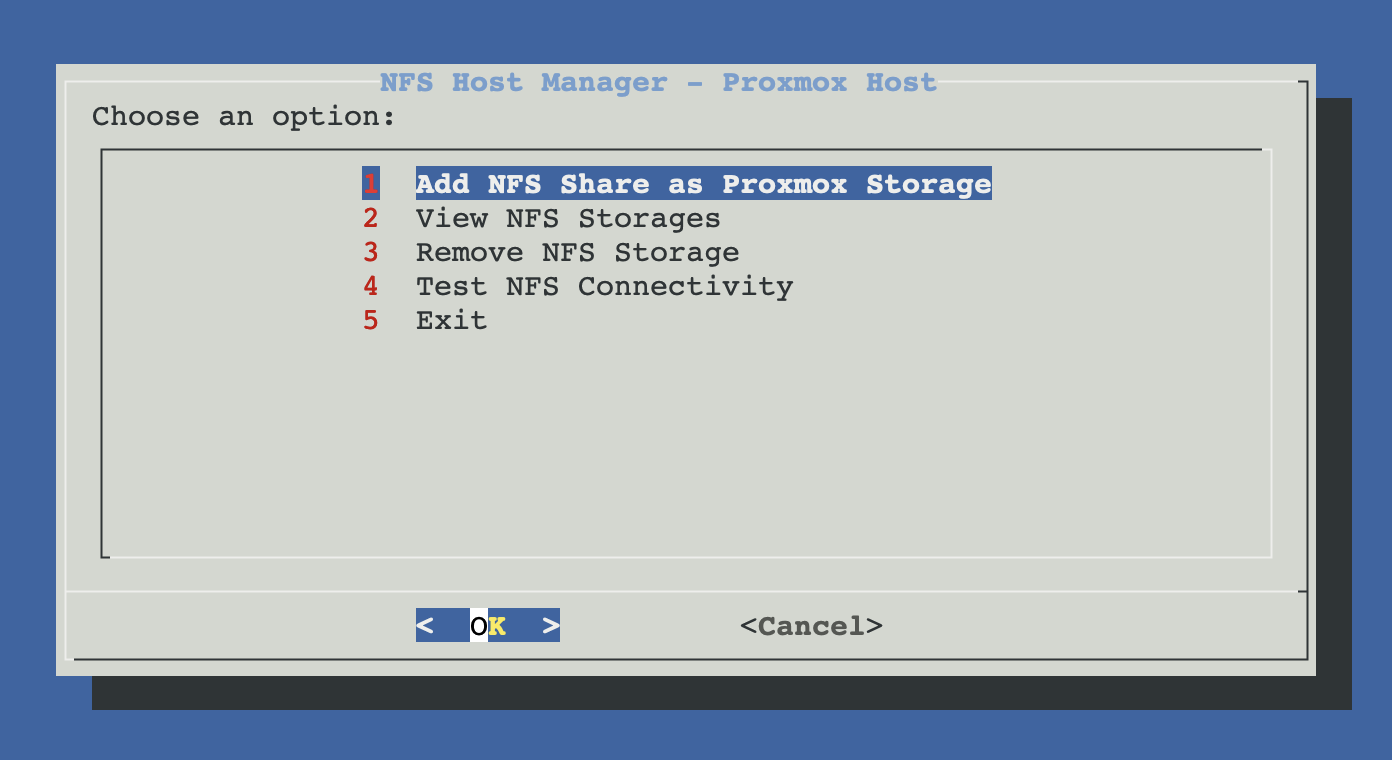
From ProxMenux's main menu, open Storage & Share Manager → Mount NFS Share on Host. You will see this sub-menu with four options:
How the script runs
The flow has two phases with clear separation between "discovering, validating and choosing" and "actually mounting / writing config". After selecting an export, you pick mount method(s) via a checklist; the rest of the dialogs only ask for params for the methods you selected. Until the final confirmation, neither /etc/pve/storage.cfg nor /etc/fstab are touched.
┌─────────────────────────────────────────────┐
│  PHASE 1 — Discover, validate, choose       │
│  (nothing touched yet)                      │
└──────────────────┬──────────────────────────┘
                   ▼
      Dependency check
      └─ nfs-common present? (showmount)
         If missing → apt-get install nfs-common
                   │
                   ▼
      Server selection
      ├─ Auto-discover  (nmap -p 2049 on /24)
      └─ Manual         (type IP or hostname)
                   │
                   ▼
      Reachability + showmount validation
                   │
                   ▼
      Export selection
                   │
                   ▼
      ╔═════════════════════════════════════╗
      ║   MOUNT METHOD PICKER  (checklist)  ║
      ║   [ ] As Proxmox storage  (pvesm)   ║
      ║   [ ] As host fstab mount only      ║
      ║   (mark one or both — re-prompts    ║
      ║    if you press OK without marks)   ║
      ╚════════════════╤════════════════════╝
                       │
        ┌──────────────┴──────────────┐
        ▼                             ▼
   pvesm branch                  fstab branch
   ├─ storage ID                 ├─ mount path
   ├─ content types              └─ mount options
   ▼                             ▼
   ┌─────────────────────────────────────────┐
   │  PHASE 2 — Apply (only marked methods)  │
   └──────────────────┬──────────────────────┘
                      ▼
   pvesm add nfs <id> ...    +  mkdir -p <path>
   (auto-mount at            mount -t nfs ...
    /mnt/pve/<id>)           append /etc/fstab
                             systemctl daemon-reload
                             chmod 1777 + setfacl
                             (best-effort, NFS server-side)
                      ▼
              Summary printed
Mount method picker (two options, mark one or both)
After selecting and validating the export, ProxMenux shows a checklist with the two mount methods. You can mark either, or both. If you press OK without marking anything, the dialog re-appears until you choose at least one option or press Cancel to exit the flow.
| Method | Mount path | Visible in Datacenter > Storage | Typical use case |
|---|---|---|---|
| As Proxmox storage (pvesm) | /mnt/pve/<storage-id> (managed by Proxmox) | Yes | VM disk images, backups, ISOs, LXC templates — anything that needs to appear in the Proxmox UI. |
| Host fstab only | /mnt/<path> (you pick the path) | No | Bind-mounting the share into one or more LXCs without exposing it as a Proxmox storage. Keeps the Datacenter UI clean. |
| Both | Both paths above (two independent NFS connections to the server) | Yes | You want UI integration AND a stable host-side path with open permissions for LXC bind-mounts. Server sees two connections from the host. |
"Both" creates two independent NFS mounts
/mnt/pve/<id>, fstab mounts at /mnt/<path>. The server sees two TCP connections from the Proxmox host. This is intentional: it lets you keep the pvesm storage clean (default Proxmox options) while having a separate host-side mount with open permissions for LXC bind-mounts.Method A — As Proxmox storage (pvesm)
If As Proxmox storage is marked, ProxMenux runs the original pvesm flow:
- Storage ID — what Proxmox will call this storage. Default is
nfs-<server-ip-with-dashes>. Only letters, digits,-and_are accepted. - Content types — Proxmox ties content categories to storage volumes; pick what this NFS is allowed to hold:
| Content type | What it allows |
|---|---|
| import | Disk image imports (selected by default). Needed for Import Disk Image to VM. |
| backup | VM and CT backup files (vzdump). |
| iso | Installation ISO images. |
| vztmpl | LXC templates. |
| images | Live VM disk images (this turns the NFS into a VM disk store). |
| rootdir | LXC root filesystems (rare for NFS — read the note below). |
| snippets | Hook scripts and cloud-init snippets. |
images and rootdir on NFS
images on an NFS storage lets Proxmox place live VM disks there. It works, but NFS latency + its lock semantics make this noticeably slower than local storage (and a network outage pauses every VM backed by that store). Marking rootdir means you will host LXC root filesystems over NFS, which historically has trouble with unprivileged containers (overlay / chown interactions). Prefer keeping images / rootdir on local or iSCSI storage and using NFS for backup / iso / vztmpl.The result is pvesm add nfs <id> --server <srv> --export <path> --content <csv> and Proxmox auto-mounts at /mnt/pve/<id>.
Method B — Host fstab mount only
If As host fstab mount only is marked, ProxMenux asks for a host mount path and persistent options, then mounts and writes the entry to /etc/fstab:
- Host mount path — default
/mnt/<export-basename>. Must be an absolute path. If something is already mounted there, or a fstab entry exists for the same path, ProxMenux warns you and offers to replace it. - Mount options — pick Read/Write (default with
rw,hard,nofail,_netdev,rsize=131072,wsize=131072,timeo=600,retrans=2), Read-only, or Custom (type your own option string).
Once you confirm, the script:
mkdir -pthe mount path.mount -t nfs -o <opts> <srv>:<export> <path>.- Writes a one-line entry to
/etc/fstab:<srv>:<export> <path> nfs <opts> 0 0. - Runs
systemctl daemon-reloadso systemd picks up the new fstab entry. - Attempts
chmod 1777+setfacl o::rwxon the mount point (silent best-effort — only succeeds if the NFS server allows it; many NAS exports already serve world-writable paths).
Using the fstab mount from an LXC
pct set command at the end to bind-mount the path into a container, e.g. pct set <ctid> -mp0 /mnt/<path>,mp=/mnt/<ct-path>,shared=1,backup=0. Or use the LXC Mount Manager, which detects the fstab mount automatically. No changes are made inside the container — for unprivileged LXCs to read/write the NFS data, the script relies on server-side world-writable export semantics (typical for Synology, TrueNAS, OMV defaults). If your NFS server squashes root or restricts perms, see Troubleshooting.The fstab mount is NOT a Proxmox storage
Manual equivalent
Method A (pvesm) maps to:
apt-get install -y nfs-common    # one-time: NFS client tools
pvesm add nfs mynfs \
  --server 10.0.0.50 \
  --export /export/proxmox \
  --content import,backup,iso

pvesm status mynfs                # verify it's active
ls -la /mnt/pve/mynfs              # Proxmox auto-mounts here
Method B (fstab) maps to:
apt-get install -y nfs-common    # one-time

mkdir -p /mnt/data
mount -t nfs -o "rw,hard,nofail,_netdev,rsize=131072,wsize=131072,timeo=600,retrans=2" \
      10.0.0.50:/export/proxmox /mnt/data

# Persist
echo "10.0.0.50:/export/proxmox /mnt/data nfs rw,hard,nofail,_netdev,rsize=131072,wsize=131072,timeo=600,retrans=2 0 0" \
  >> /etc/fstab
systemctl daemon-reload

# Best-effort open perms for LXC bind-mount writes (server permitting)
chmod 1777 /mnt/data 2>/dev/null || true
setfacl -m o::rwx /mnt/data 2>/dev/null || true

# Bind into an unprivileged LXC (host-side perms only — no changes inside CT)
pct set <ctid> -mp0 /mnt/data,mp=/mnt/data,shared=1,backup=0
pct reboot <ctid>
View configured NFS storages
Lists every NFS entry in Proxmox (pvesm status | awk '$2 == "nfs"') with server, export, content types, mount path and live status. Note: this view only shows pvesm-registered storages — fstab-only mounts are not listed here. Check those with findmnt -t nfs or grep nfs /etc/fstab.
Remove NFS storage
Runs pvesm remove <storage-id> after a confirmation that shows the server / export / content. Only the Proxmox-side registration is removed — the remote NFS server itself is never touched, no files are deleted. To remove a fstab-only mount, edit /etc/fstab by hand and run umount <path>.
Back up dependencies first
Test NFS connectivity
Runs a diagnostic pass over every NFS storage registered in Proxmox: checks that showmount is available, that rpcbind is running, pings each server, probes port 2049, calls showmount -e, and finally reports Proxmox's own view (pvesm status). Good first stop when a storage shows as inactive in the Proxmox UI.
Troubleshooting
"No NFS servers found on the network"
nmap -p 2049 --open <subnet>/24. The server may not respond if: it is on a different VLAN / subnet, its firewall blocks nmap probes (many do) or port 2049 is intentionally closed on that interface. Use the Manual option with the server's IP or hostname instead."NFS port (2049) is not accessible"
nc -z -w 3 <server> 2049 failed. Check the NFS service is running on the server (systemctl status nfs-server on Linux, Control Panel → File Services on Synology, NFS plugin on OMV / TrueNAS), and that the firewall allows 2049 from the Proxmox host."Failed to connect" from showmount
rpcbind is not running on the server, or the server exposes only NFSv4 with showmount disabled. The export path can still be added manually if you know it.Storage shows as inactive in the Proxmox UI
journalctl -u pvestatd on the Proxmox node; intermittent DNS or slow NFS mounts on boot can leave storages in an inactive state until pvesm set <id> --disable 0 is re-applied.fstab mount works but unprivileged LXC can't write through a bind-mount
uid=, file_mode=) that work for CIFS do not apply to NFS. If your unprivileged LXC (root inside CT = UID 100000 on host, mapped to NFS as "others") cannot write, the NFS server is either squashing root or has restrictive perms. Fix on the server: change the export to no_root_squash if you trust the host, or set the export world-writable (Synology, TrueNAS, OMV all expose this in the UI). The script tries chmod 1777 on the mount but that only succeeds when the server permits it.fstab mount does not come up after reboot
nofail,_netdev so a missing share at boot does not block startup. If the mount never comes up: confirm the network is reachable (ping <server>), check journalctl -u remote-fs.target, and verify the entry is valid with mount -fav | grep nfs. mount -a after boot mounts everything that is currently missing.Related
- Samba / CIFS as Proxmox storage — same flow pattern (Method A pvesm + Method B fstab) for SMB/CIFS shares.
- LXC Mount Manager — bind-mount the fstab-only path
/mnt/<path>into one or more containers. - NFS client in LXC — alternative: mount NFS directly from inside a privileged container (skips the host).