
NFS client in LXC
Mount NFS shares directly from inside a Proxmox LXC container. The container becomes a real NFS client — talks to the NFS server over the network, runs mount.nfs, writes to /etc/fstab. ProxMenux installs nfs-common for you, helps you find servers and exports, and applies safe boot defaults.
Privileged container required
mount.nfs client needs capabilities (SYS_ADMIN at minimum) that unprivileged LXC containers do not expose. The script enforces this — it asks you to pick a CT and aborts if it is unprivileged. If you need the share inside an unprivileged CT, mount it on the Proxmox host first (with NFS share as Proxmox storage) and bind-mount it into the CT with the LXC Mount Manager.What this does
Unlike the LXC Mount Manager — which makes the CT see something via the Proxmox host — this script gives the container its own NFS client: it speaks NFS over the network, mounts shares directly from the NFS server, and stores the mount in the container's /etc/fstab. The Proxmox host is not in the data path.
# Inside the CT — what the script writes:
pct exec <ctid> -- mount -t nfs -o rw,hard,rsize=…,wsize=… \
                         <server>:/export/data /mnt/data

# Persistent (added to /etc/fstab inside the CT):
<server>:/export/data  /mnt/data  nfs  <opts>,_netdev,x-systemd.automount,noauto  0 0
Two ways to give a CT NFS access — pick one
- Bind mount via host (LXC Mount Manager): host mounts the NFS once, every CT bind-mounts the same path. Works with unprivileged CTs. Recommended when several CTs need the same share.
- Direct NFS mount inside the CT (this page): the CT mounts the NFS itself. Requires privileged. Useful when the CT must own its connection / credentials, or for setups where each CT talks to a different server.
Opening the tool
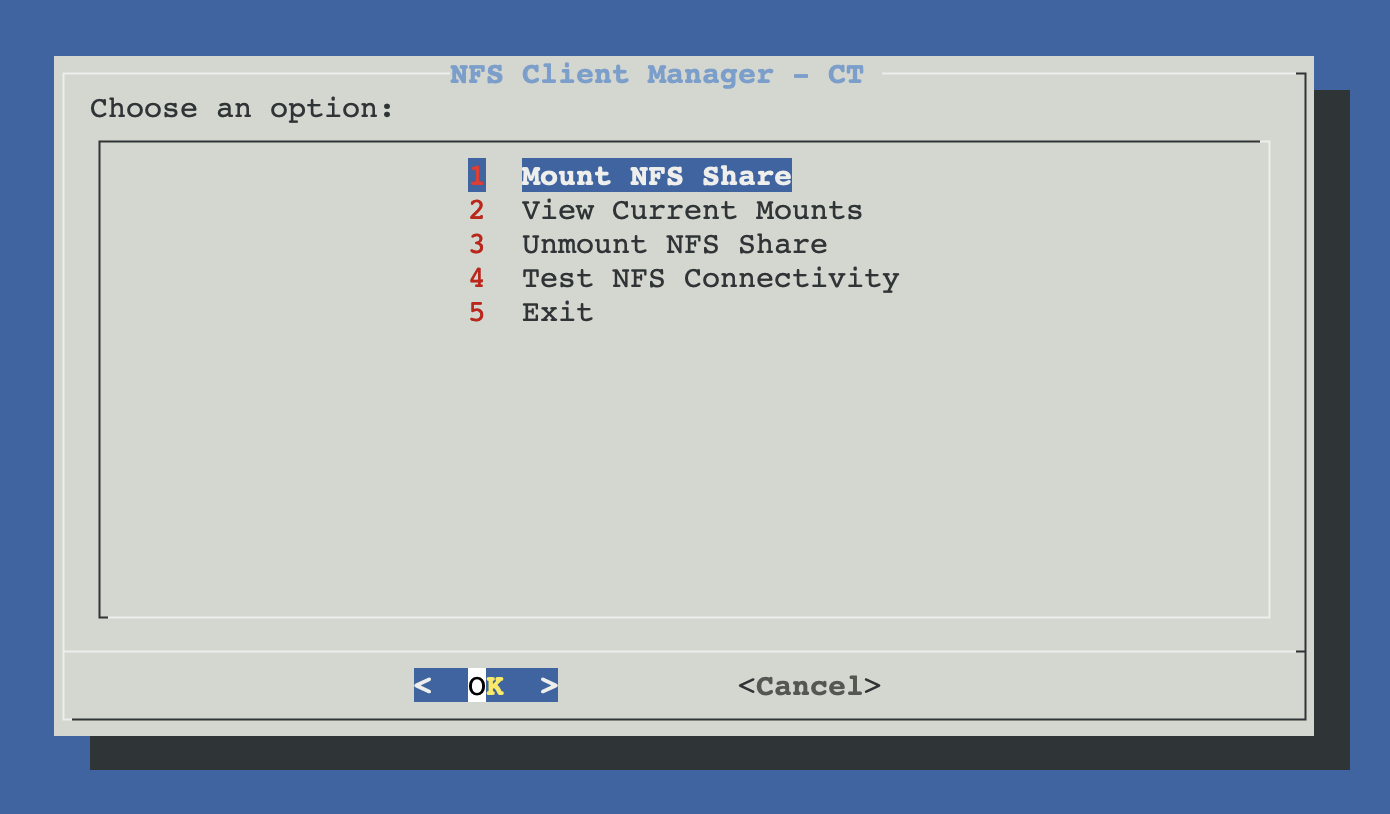
From ProxMenux's main menu, open Storage & Share Manager → Configure NFS Client in LXC (only privileged). ProxMenux first asks you to pick the target CT (and starts it if stopped); aborts if unprivileged. Once the CT is selected, you see this sub-menu:
How the script runs (Mount flow)
┌─────────────────────────────────────────────┐
│  PHASE 1 — Pick CT, server, export, options │
│  (nothing touched yet)                      │
└──────────────────┬──────────────────────────┘
                   ▼
      Privileged-CT gate (share-common.func)
      ├─ pct list — pick CT
      ├─ Auto-start if stopped
      └─ Reads /etc/pve/lxc/<ctid>.conf
         └─ unprivileged: 1  → abort with help message
                   │
                   ▼
      Install NFS client packages (in CT)
      └─ pct exec apt-get install -y nfs-common
         (skipped if nfs-common is already installed)
         Verifies: showmount + mount.nfs both present
                   │
                   ▼
      Server selection
      ├─ Auto-discover (nmap from HOST on /24,
      │    port 2049, then showmount -e per result)
      └─ Manual: type IP or hostname
                   │
                   ▼
      Reachability validation chain (from inside CT)
      ├─ pct exec ping -c 1 -W 3 <server> ── fail → abort
      ├─ pct exec nc -z -w 3 <server> 2049 ── fail → abort
      └─ pct exec showmount -e <server>      ── fail → abort
                   │
                   ▼
      Export selection
      ├─ Server returns exports → checklist with ACL
      └─ No exports / blocked  → manual input
                   │
                   ▼
      Validate the chosen export still exists
      (re-runs showmount -e | grep <export>)
                   │
                   ▼
      Mount-point picker (3 options)
      ├─ 1. Create new folder in /mnt
      │      (default: nfs_<server>_<export-basename>)
      ├─ 2. Select existing folder in /mnt
      │      (warns if folder is not empty —
      │       mounting hides existing files)
      └─ 3. Enter custom path
                   │
                   ▼
      Mount-options preset (3 options)
      ├─ 1. Read/write
      │      rw,hard,rsize=1048576,wsize=1048576,
      │      timeo=600,retrans=2
      ├─ 2. Read-only
      │      ro,hard,rsize=1048576,wsize=1048576,
      │      timeo=600,retrans=2
      └─ 3. Custom — type your own option string
                   │
                   ▼
      Permanent mount? (yes/no)
      └─ yes → write entry to /etc/fstab
                   │
   ┌──────── Cancel   OR   Confirm ────┐
   ▼                                   ▼
Exit, nothing        ┌─────────────────┴─────────────────┐
was changed          │  PHASE 2 — Mount and persist       │
                     └─────────────────┬─────────────────┘
                                       ▼
                       Create mount point if missing
                       (pct exec mkdir -p <path>)
                                       ▼
                       If something is already mounted there,
                       offer to unmount first
                                       ▼
                       pct exec mount -t nfs \
                            -o <chosen options> \
                            <server>:<export> <mount-point>
                                       ▼
                       Smoke test: write a 0-byte file
                       (.test_write) and delete it
                       └─ no write access → "read-only"
                                       ▼
                       If "permanent" was chosen:
                       └─ Append to /etc/fstab inside CT:
                            <srv>:<exp>  <mp>  nfs \
                              <opts>,_netdev,
                              x-systemd.automount,noauto  0 0
                       (any prior entry for this MP is removed first)
                                       ▼
                       Print summary (server / export / mp /
                       options / permanent yes-no)
Why those fstab flags
For permanent mounts the script adds three flags beyond the standard NFS options: _netdev,x-systemd.automount,noauto. Each one solves a real boot-time problem:
| Flag | What it does |
|---|---|
| _netdev | Tells the init system this mount needs the network. Boot does not block waiting for it before networking is up. |
| x-systemd.automount | Creates a systemd auto-mount unit: the mount only happens the first time something accesses /mnt/<path>. NFS server unreachable at boot does not stall the CT. |
| noauto | Skip the eager mount at boot. Combined with the automount unit above, the mount is established lazily on first access. |
Net effect
Manual equivalent
Replicate the whole flow by hand — every command runs inside the CT via pct exec <ctid> -- or directly via pct enter <ctid>:
# 1. install the NFS client (one-time)
apt-get update
apt-get install -y nfs-common

# 2. test reachability
ping -c 1 -W 3 10.0.0.50
nc   -z -w 3 10.0.0.50 2049
showmount -e 10.0.0.50

# 3. mount it (one-shot)
mkdir -p /mnt/data
mount -t nfs -o "rw,hard,rsize=1048576,wsize=1048576,timeo=600,retrans=2" \
      10.0.0.50:/export/data /mnt/data

# 4. make it permanent (safe boot defaults)
cat >> /etc/fstab <<EOF
10.0.0.50:/export/data  /mnt/data  nfs  rw,hard,rsize=1048576,wsize=1048576,timeo=600,retrans=2,_netdev,x-systemd.automount,noauto  0 0
EOF
systemctl daemon-reload
View current mounts
Lists every NFS mount point active inside the CT (mount | grep nfs) plus every NFS line in the CT's /etc/fstab. For each fstab entry, the live mount status is shown — useful to spot permanent mounts that did not come up at boot.
Unmount NFS share
Combines the live mounts and the fstab entries into one list, lets you pick one, and removes the corresponding line from /etc/fstab. The script does not run umount on the live mount — instead it tells you a CT reboot is needed for the unmount to take effect.
The script removes fstab entries, not live mounts
umount on a busy mount fails with "device busy" when something inside the CT is still using it. Removing the fstab entry guarantees the mount disappears cleanly on the next CT start. If you want the mount gone now and you are sure nothing is using it, run pct exec <ctid> -- umount /mnt/<path> by hand after the script finishes.Test NFS connectivity
Diagnostic pass inside the CT: confirms nfs-common is installed, rpcbind is running, lists current NFS mounts, then iterates over every NFS server referenced in fstab and checks ping → port 2049 → showmount -e. Good first stop when a permanent mount fails to come up.
Troubleshooting
Privileged container required (script aborts)
SYS_ADMIN capability that unprivileged CTs do not expose. Either convert the CT to privileged (Disk Manager & conversion is documented in the Import Disk to LXC page) or use the alternative path described in the warning at the top of this page.apt-get install nfs-common fails
apt-get). If the CT runs Alpine / Arch / Rocky / Alma, the install step fails silently. Install the NFS client by hand for that distro:- Alpine:
apk add nfs-utils - Arch:
pacman -S nfs-utils - Rocky / Alma:
dnf install nfs-utils
"NFS port (2049) is not accessible"
nc -z <server> 2049 failed from inside the CT. Check that the NFS service is running on the server, that the firewall allows 2049 from the CT's network, and that the CT actually has a valid network route (try pct exec <ctid> -- ip route).Permanent mount succeeds but does not come up at boot
_netdev,x-systemd.automount,noauto flags fix this — re-add the mount via the script if you wrote the fstab line by hand without those), the server is unreachable at boot (auto-mount waits for first access — that's normal), or DNS is unresolved at boot (use the server's IP, not its hostname).Server squashes root, no write access from inside CT
root_squash (the default) and the CT writes as root. Two options:- Server-side: change the export to
no_root_squash(only if you trust the CT). - CT-side: write as a non-root user that the server accepts, or chown the share appropriately.
Related
- LXC Mount Points (Host ↔ Container) — the alternative for unprivileged CTs: mount on host, bind into CT.
- Samba client in LXC — sibling page, same pattern for SMB / CIFS shares.
- NFS server in LXC — the inverse: expose folders from a CT over NFS.
- NFS share as Proxmox storage — register the share in Proxmox itself instead of inside a single CT.