
Samba client in LXC
Mount Samba (SMB / CIFS) shares directly from inside a Proxmox LXC container. The container becomes a real CIFS client — talks to the Samba server over the network, runs mount.cifs, stores credentials securely, and writes to /etc/fstab. ProxMenux installs cifs-utils + smbclient for you and validates credentials against the server before mounting.
Privileged container required
mount.cifs client needs capabilities (SYS_ADMIN at minimum) that unprivileged LXC containers do not expose. The script enforces this — it asks you to pick a CT and aborts if it is unprivileged. If you need the share inside an unprivileged CT, mount it on the Proxmox host first (with Samba / CIFS as Proxmox storage) and bind-mount it into the CT with the LXC Mount Manager.What this does
The container speaks CIFS over the network and mounts the share on its own. The Proxmox host is just the network bridge — it does not see or manage the mount.
# Credentials stored in the CT (root:0600):
#   /etc/samba/credentials/<server>_<share>.cred

# What the script writes inside the CT:
pct exec <ctid> -- mount -t cifs //<server>/<share> /mnt/share \
                         -o "rw,file_mode=0664,dir_mode=0775,iocharset=utf8,
                             credentials=/etc/samba/credentials/<srv>_<sh>.cred"
Two ways to give a CT a Samba share — pick one
- Bind mount via host (LXC Mount Manager): host mounts the CIFS once, every CT bind-mounts the same path. Works with unprivileged CTs. Recommended when several CTs need the same share.
- Direct CIFS mount inside the CT (this page): the CT mounts the CIFS itself. Requires privileged. Useful when the CT must own its own credentials, or when each CT talks to a different server.
Opening the tool
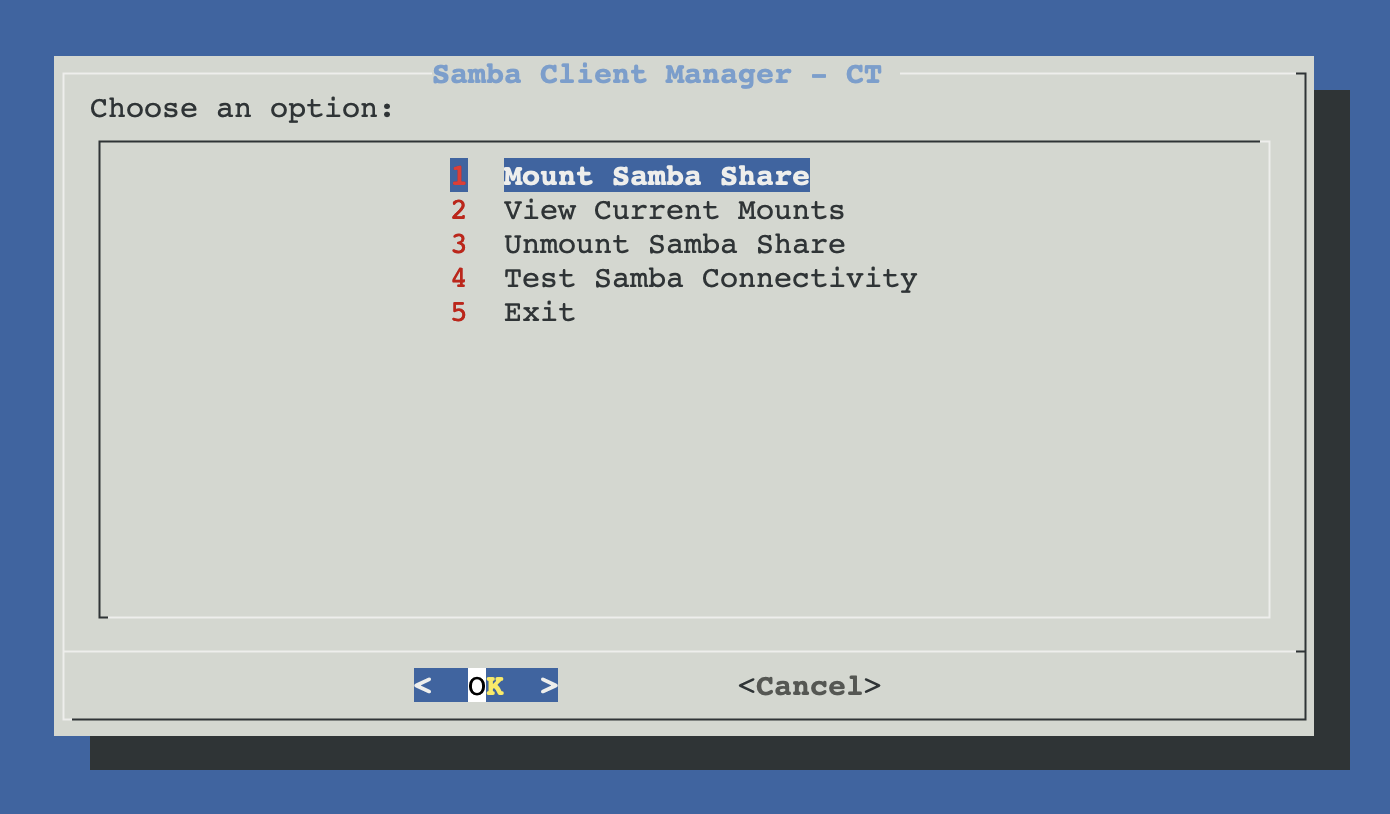
From ProxMenux's main menu, open Storage & Share Manager → Configure Samba Client in LXC (only privileged). ProxMenux first asks you to pick the target CT (and starts it if stopped); aborts if unprivileged. Once the CT is selected you see this sub-menu:
How the script runs (Mount flow)
┌─────────────────────────────────────────────┐
│  PHASE 1 — Pick CT, server, auth, share     │
│  (nothing touched yet)                      │
└──────────────────┬──────────────────────────┘
                   ▼
      Privileged-CT gate (share-common.func)
      ├─ pct list — pick CT
      ├─ Auto-start if stopped
      └─ Reads /etc/pve/lxc/<ctid>.conf
         └─ unprivileged: 1  → abort with help message
                   │
                   ▼
      Install Samba client packages (in CT)
      └─ pct exec apt-get install -y \
                   cifs-utils smbclient
         (skipped if already installed)
         Verifies: smbclient + mount.cifs both present
         Creates /etc/samba/credentials (mode 0700)
                   │
                   ▼
      Server selection (3 modes)
      ├─ Auto-discover (nmap from HOST on /24,
      │    ports 139/445, then nmblookup -A
      │    for NetBIOS names → "NETBIOS (ip)")
      ├─ Manual: type IP or hostname
      └─ Recent: parses /etc/fstab for previously
         used CIFS servers (one-click selection)
                   │
                   ▼
      Authentication (2 modes)
      ├─ User + password
      │   ├─ Username (whiptail inputbox)
      │   ├─ Password (passwordbox, hidden)
      │   ├─ Confirm password
      │   └─ ACTIVE VALIDATION against the server:
      │       creates a temp credentials file,
      │       runs smbclient -L with -A,
      │       distinguishes "guest fallback" from
      │       real auth success, retries on failure
      └─ Guest: validate guest access first
         (smbclient -L -N must succeed)
                   │
                   ▼
      Share selection
      ├─ Server returns shares → menu
      │   (filters out IPC$, ADMIN$, print$;
      │    for guest: only shares the user
      │    confirmed accessible during validation)
      └─ No shares / blocked → manual input
                   │
                   ▼
      Validate the chosen share still exists
                   │
                   ▼
      Mount-point picker (3 options)
      ├─ 1. Create new folder in /mnt
      │      (default: same name as the share)
      ├─ 2. Select existing folder in /mnt
      └─ 3. Enter custom path
                   │
                   ▼
      Mount-options preset (3 options)
      ├─ 1. Read/write
      │      rw,file_mode=0664,dir_mode=0775,
      │      iocharset=utf8
      ├─ 2. Read-only
      │      ro,file_mode=0444,dir_mode=0555,
      │      iocharset=utf8
      └─ 3. Custom — type your own option string
                   │
                   ▼
      Permanent mount? (yes/no)
      └─ yes → write entry to /etc/fstab
                   │
   ┌──────── Cancel   OR   Confirm ────┐
   ▼                                   ▼
Exit, nothing        ┌─────────────────┴─────────────────┐
was changed          │  PHASE 2 — Mount and persist       │
                     └─────────────────┬─────────────────┘
                                       ▼
                       Create mount point if missing
                       (pct exec mkdir -p <path>)
                                       ▼
                       If something is already mounted there,
                       offer to unmount first
                                       ▼
                       For user auth: write credentials file
                       /etc/samba/credentials/<srv>_<sh>.cred
                       (root:0600 inside the CT)
                                       ▼
                       pct exec mount -t cifs \
                            //<server>/<share> <mp> \
                            -o <opts>,credentials=<file>
                       (or  -o <opts>,guest  for guest)
                                       ▼
                       Smoke test: write a 0-byte file
                       and delete it (.test_write)
                       └─ no write access → "read-only"
                                       ▼
                       If "permanent" was chosen:
                       └─ Append to /etc/fstab inside CT:
                            //<srv>/<sh>  <mp>  cifs \
                              <opts>,credentials=…,
                              _netdev,
                              x-systemd.automount,noauto  0 0
                       (any prior entry for this mp is removed first)
                                       ▼
                       Print summary (server / share / mp /
                       auth mode / permanent yes-no)
Where the password lives
ProxMenux never stores the password in plain text in the mount command or in /etc/fstab. Instead it writes a credentials file inside the CT:
Path:    /etc/samba/credentials/<server>_<share>.cred
Owner:   root
Mode:    0600

Content:
    username=<your-username>
    password=<your-password>

Reference in /etc/fstab:
    //<server>/<share>  /mnt/<path>  cifs  rw,...,
        credentials=/etc/samba/credentials/<server>_<share>.cred,
        _netdev,x-systemd.automount,noauto  0  0
Why a separate file rather than fstab
username= / password= options inline in fstab, but anyone who can read /etc/fstab sees the password in clear. Putting credentials in a root-only file and pointing fstab at it (credentials=) keeps the password out of world-readable config.Mount options explained
| Option | What it does |
|---|---|
| rw / ro | Read-write or read-only mode for the whole mount. |
| file_mode=0664 | Permissions reported for files via CIFS. Default lets owner+group write, others read. |
| dir_mode=0775 | Permissions reported for directories. Default lets owner+group enter and create, others traverse. |
| iocharset=utf8 | Force UTF-8 for filenames coming over the wire. Avoids mojibake on non-ASCII names. |
| credentials=file | Read username / password from the file (added automatically for user auth). |
| guest | Authenticate as guest, no credentials needed (added automatically when guest is chosen). |
| _netdev | Tells the init system this mount needs the network. Boot does not block waiting for it. |
| x-systemd.automount | Lazy mount: only mounts on first access. CIFS server unreachable at boot does not stall the CT. |
| noauto | Skip eager mount at boot. Combined with the automount unit, the mount is established lazily. |
Net effect of the fstab flags
Manual equivalent
Replicate the whole flow by hand — every command runs inside the CT via pct exec <ctid> -- or directly via pct enter <ctid>:
# 1. install the Samba client (one-time)
apt-get update
apt-get install -y cifs-utils smbclient

# 2. test reachability
ping -c 1 -W 3 10.0.0.50
nc   -z -w 3 10.0.0.50 445
smbclient -L 10.0.0.50 -U user

# 3. write the credentials file (root-only)
mkdir -p /etc/samba/credentials
chmod 700 /etc/samba/credentials
cat > /etc/samba/credentials/10.0.0.50_share.cred <<EOF
username=user
password=s3cret
EOF
chmod 600 /etc/samba/credentials/10.0.0.50_share.cred

# 4. mount it (one-shot)
mkdir -p /mnt/share
mount -t cifs //10.0.0.50/share /mnt/share \
  -o "rw,file_mode=0664,dir_mode=0775,iocharset=utf8,credentials=/etc/samba/credentials/10.0.0.50_share.cred"

# 5. make it permanent (safe boot defaults)
cat >> /etc/fstab <<EOF
//10.0.0.50/share  /mnt/share  cifs  rw,file_mode=0664,dir_mode=0775,iocharset=utf8,credentials=/etc/samba/credentials/10.0.0.50_share.cred,_netdev,x-systemd.automount,noauto  0 0
EOF
systemctl daemon-reload
Guest variant — no credentials file needed:
mount -t cifs //10.0.0.50/public /mnt/public \
  -o "rw,file_mode=0664,dir_mode=0775,iocharset=utf8,guest"

# fstab equivalent
echo "//10.0.0.50/public  /mnt/public  cifs  rw,file_mode=0664,dir_mode=0775,iocharset=utf8,guest,_netdev,x-systemd.automount,noauto  0 0" \
     >> /etc/fstab
View current mounts
Lists every CIFS mount point active inside the CT (mount -t cifs) plus every CIFS line in the CT's /etc/fstab. For each fstab entry the live mount status is shown — useful to spot permanent mounts that did not come up at boot.
Unmount Samba share
Combines the live mounts and the fstab entries into one list, lets you pick one, and removes the corresponding line from /etc/fstab plus the matching credentials file. The script does not run umount on the live mount — instead it tells you a CT reboot is needed for the unmount to take effect.
The script removes fstab entries, not live mounts
umount on a busy mount fails with "device busy". Removing the fstab entry guarantees the mount disappears cleanly on the next CT start. If you want the mount gone now, run pct exec <ctid> -- umount /mnt/<path> by hand after the script finishes.Test Samba connectivity
Diagnostic pass inside the CT: confirms cifs-utils is installed, lists current CIFS mounts, then for every server referenced in fstab checks ping → ports 139/445 → guest listing. "Requires authentication" on the guest test is normal for any server that doesn't expose public shares.
Troubleshooting
Privileged container required (script aborts)
SYS_ADMIN capability that unprivileged CTs do not expose. Either convert the CT to privileged, or use the alternative path described in the warning at the top of this page.apt-get install fails
apt-get). On Alpine / Arch / Rocky / Alma, install the CIFS client by hand:- Alpine:
apk add cifs-utils samba-client - Arch:
pacman -S cifs-utils smbclient - Rocky / Alma:
dnf install cifs-utils samba-client
"The server connected you as guest instead of the specified user"
"NT_STATUS_ACCESS_DENIED" when mounting
vers=3.0 (or 2.1, 2.0) to the mount options.UTF-8 / non-ASCII filenames are mangled
iocharset=utf8, but some server configurations report an unexpected codepage. If filenames with accents / symbols look wrong, also try nounix (some Linux Samba servers need this when the client is also Linux) or set the server side to unix extensions = no.Permanent mount succeeds but does not come up at boot
_netdev,x-systemd.automount,noauto flags fix this), the server is unreachable at boot (auto-mount waits for first access — that's normal), or DNS is unresolved at boot (use the server's IP, not its hostname).Related
- LXC Mount Points (Host ↔ Container) — the alternative for unprivileged CTs: mount on host, bind into CT.
- NFS client in LXC — sibling page, same pattern for NFS shares.
- Samba server in LXC — the inverse: expose folders from a CT over Samba.
- Samba / CIFS as Proxmox storage — register the share in Proxmox itself instead of inside a single CT.