
NFS server in LXC
Run an NFS kernel server inside a Proxmox LXC container and expose folders to other machines on the network. ProxMenux installs nfs-kernel-server, sets up a universal sharedfiles group convention so multiple privileged CTs can share files cleanly, manages /etc/exports and offers a full uninstall path.
Privileged container required
nfs-kernel-server needs to mount the kernel filesystem nfsd at /proc/fs/nfsd, which requires CAP_SYS_ADMIN in the host kernel namespace — not just in the container's user namespace. Unprivileged LXC does not expose that capability. In practice, the service simply fails to start with rpc.nfsd: Unable to access /proc/fs/nfsd errno 2 (No such file or directory) and systemd marks nfs-server.service as a failed dependency. The script enforces a privileged CT and aborts if it is unprivileged. If you cannot use a privileged CT, run the NFS server inside a VM.What this does
This is the opposite of the NFS client page. The container becomes an NFS server: it exposes a folder of its filesystem to clients on the network. Other CTs, the Proxmox host, VMs or physical machines can then mount that folder.
# /etc/exports inside the CT:
/mnt/data  <network>(rw,sync,no_subtree_check,no_root_squash)
The "sharedfiles" group convention
Before exporting the folder, ProxMenux creates a group called sharedfiles with GID 101000 inside the container, adds every regular user to it, then sets the export directory to root:sharedfiles with mode 2775. The 2 at the front is the SGID bit — every file or folder created inside automatically inherits the sharedfiles group.
Why GID 101000 specifically
sharedfiles at GID 101000 can read / write each other's files cleanly because the GID numbers match end-to-end.The script also creates 'remap_*' users — they are vestigial here
remap_<uid> user with UID = <uid> + 100000, all members of sharedfiles. The +100000 shift mimics the LXC unprivileged idmap, but since this script enforces a privileged CT (no shift), those remap_* users are shadow accounts with no real-world counterpart on the host. They are harmless leftovers from a more ambitious design intent. If you don't see them in getent passwd, nothing breaks.Default export options — read this first
Default options include no_root_squash
rw,sync,no_subtree_check,<strong>no_root_squash</strong>. This means any client root user can write as root on the export — appropriate for a trusted home LAN but never for an untrusted network. If your CT is reachable from an untrusted segment (a public network, a VPS, a hostile VLAN), change the export options to root_squash in the custom-options dialog.Opening the tool
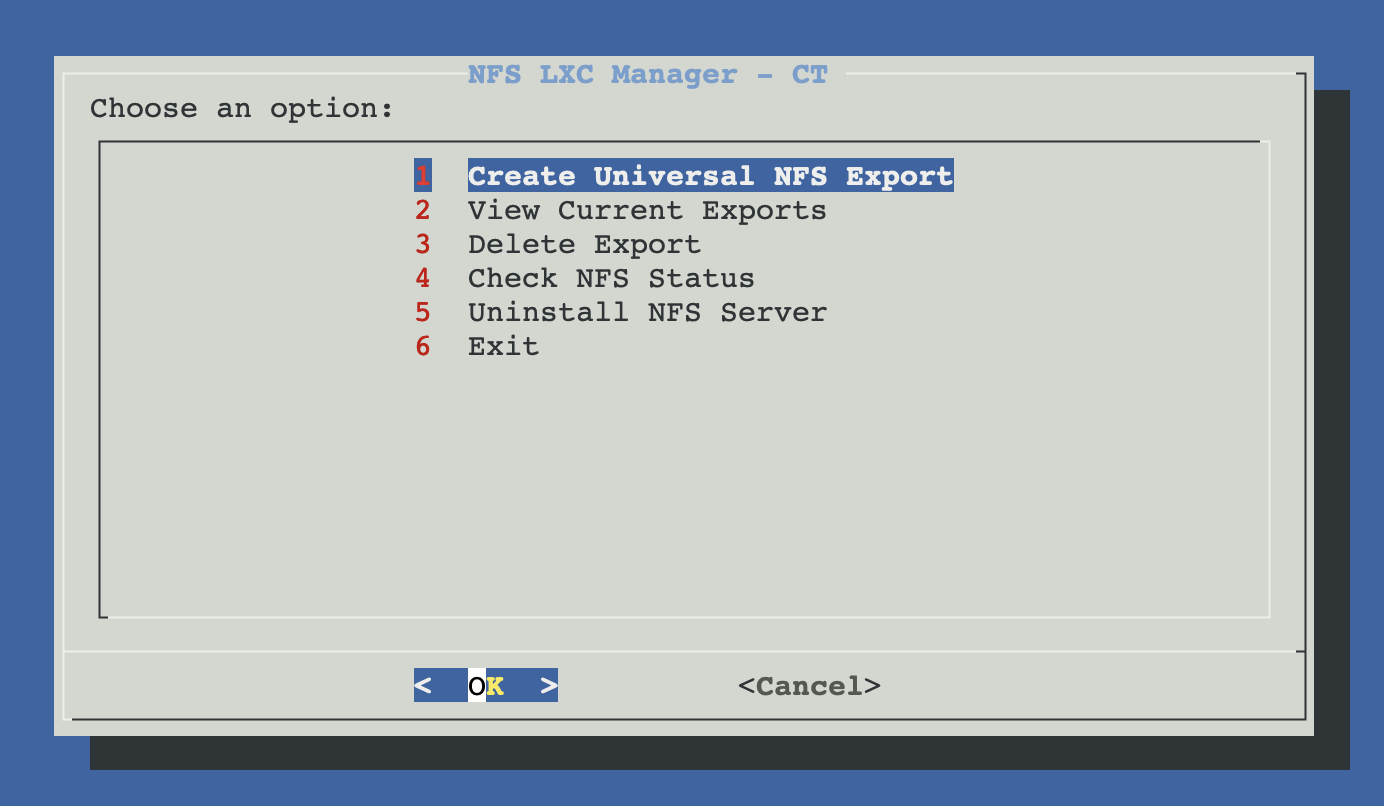
From ProxMenux's main menu, open Storage & Share Manager → Configure NFS Server in LXC (only privileged). ProxMenux first asks you to pick the target CT (and starts it if stopped); aborts if unprivileged. Once the CT is selected you see this sub-menu with five options:
How the script runs (Create flow)
┌─────────────────────────────────────────────┐
│  PHASE 1 — Pick CT, folder, network, opts   │
│  (nothing touched yet)                      │
└──────────────────┬──────────────────────────┘
                   ▼
      Privileged-CT gate (share-common.func)
      ├─ pct list — pick CT
      ├─ Auto-start if stopped
      └─ Aborts if "unprivileged: 1" in CT config
                   │
                   ▼
      Folder selection (2 modes)
      ├─ Auto: choose from existing folders
      │   inside /mnt of the CT
      └─ Manual: enter any absolute path
         (must already exist inside the CT)
                   │
                   ▼
      Network ACL (3 modes)
      ├─ 1. Local network (192.168.0.0/16)
      ├─ 2. Custom subnet (e.g. 192.168.10.0/24)
      └─ 3. Single host IP
                   │
                   ▼
      Export options (3 modes)
      ├─ 1. Read-write — rw,sync,no_subtree_check,
      │                  no_root_squash  (DEFAULT)
      ├─ 2. Read-only  — ro,sync,no_subtree_check,
      │                  no_root_squash
      └─ 3. Custom     — type your own option string
                   │
   ┌──────── Cancel   OR   Confirm ────┐
   ▼                                   ▼
Exit, nothing        ┌─────────────────┴─────────────────┐
was changed          │  PHASE 2 — Install + configure     │
                     └─────────────────┬─────────────────┘
                                       ▼
                       Install NFS server (in CT)
                       └─ pct exec apt-get install -y \
                              nfs-kernel-server
                              nfs-common rpcbind
                          + systemctl enable --now both
                          (skipped if already installed)
                                       ▼
                       setup_universal_sharedfiles_group
                       └─ groupadd -g 101000 sharedfiles
                          (or groupmod if exists at wrong GID)
                          For each regular user (UID >= 1000):
                            ├─ usermod -a -G sharedfiles <user>
                            └─ useradd -u <uid+100000> \
                                       -g sharedfiles \
                                       remap_<uid>
                          Same for common UIDs (33, 1000-1002)
                                       ▼
                       Apply ownership + SGID on the folder
                       └─ chown root:sharedfiles <folder>
                          chmod 2775 <folder>
                            (sticky group: new files inherit
                             the sharedfiles group)
                                       ▼
                       Update /etc/exports
                       └─ If existing entry for the folder:
                              ask "update?", remove + replace.
                          Else:
                              append the new line.
                                       ▼
                       systemctl restart rpcbind \
                                         nfs-kernel-server
                       exportfs -ra
                                       ▼
                       Print connection details:
                       • Server IP (CT hostname -I)
                       • Export path
                       • Mount options chosen
                       • Network ACL
                       • Mount examples (auto / v4 / v3)
Network ACL — who can mount the share
The network field in /etc/exports filters which clients are allowed to mount. ProxMenux offers three modes:
| Mode | Value written to /etc/exports | When to pick it |
|---|---|---|
| Local network | 192.168.0.0/16 | Standard home / SOHO LAN. Covers every 192.168.*.* address. |
| Custom subnet | your CIDR (e.g. 10.0.0.0/24) | When your LAN is not in 192.168.x.x or you want a tighter scope. |
| Single host | your IP (e.g. 10.0.0.42) | Only one specific machine should mount. Most restrictive. |
Export options explained
| Option | What it does |
|---|---|
| rw / ro | Allow read-write or read-only access for connecting clients. |
| sync | Reply to write requests only after the data is on disk. Safer than async at the cost of throughput. |
| no_subtree_check | Skip the per-request check that the file is still inside the exported subtree. Faster and avoids issues when files are renamed mid-flight. |
| no_root_squash | Trust client root. A client mounting as root writes as root on the server. Good for trusted LANs (e.g. backup tooling needs to preserve ownership). Replace with root_squash if you don't fully trust every machine on the network ACL. |
Manual equivalent
Replicate the whole flow by hand — every command runs inside the CT via pct exec <ctid> -- or pct enter <ctid>:
# 1. install the NFS server (one-time)
apt-get update
apt-get install -y nfs-kernel-server nfs-common rpcbind
systemctl enable --now rpcbind nfs-kernel-server

# 2. create the sharedfiles group convention
groupadd -g 101000 sharedfiles
# add each regular user to it
for u in $(awk -F: '$3 >= 1000 && $3 < 65534 {print $1}' /etc/passwd); do
  usermod -a -G sharedfiles "$u"
done

# 3. set ownership + SGID on the folder
mkdir -p /mnt/data
chown root:sharedfiles /mnt/data
chmod 2775            /mnt/data    # SGID: new files inherit group

# 4. add the export line
echo "/mnt/data 192.168.0.0/16(rw,sync,no_subtree_check,no_root_squash)" \
     >> /etc/exports

# 5. apply
systemctl restart rpcbind nfs-kernel-server
exportfs -ra

# verify
exportfs -v
showmount -e localhost
View current exports
Cats /etc/exports from inside the CT (skipping comments / blanks) and prints each export with its network ACL and option string. Useful to check which folders are exposed before sharing the CT's IP with someone.
Delete an export
Lists every line in /etc/exports for selection, removes the chosen one (sed -i), runs exportfs -ra and restarts nfs-kernel-server. The folder itself and its contents are left intact.
Check NFS status
Diagnostic pass: confirms nfs-kernel-server and rpcbind are installed and active, prints exportfs -v output, lists active NFS sessions (showmount -a) and current client connections.
Uninstall NFS server
Full clean-up after confirmation: stops + disables nfs-kernel-server and rpcbind, clears /etc/exports, apt-get purge the NFS packages, removes the sharedfiles group and the remap_* users, kills any leftover processes. The exported folders themselves are not deleted — only the NFS configuration and packages.
The script stops at the export line, not at the data
rm -rf after the script finishes — and back it up first if anyone might still need it.Troubleshooting
Privileged container required (script aborts)
nfs-kernel-server cannot start there because mounting /proc/fs/nfsd needs CAP_SYS_ADMIN in the host kernel namespace, and the nfsd module is not exposed to the container's namespace either (modprobe nfsd from inside returns FATAL: Module nfsd not found). If you bypass the gate, you will see rpc.nfsd: Unable to access /proc/fs/nfsd errno 2 (No such file or directory) in the journal and no NFS ports will ever open. The only workable options are: convert the CT to privileged, or move the NFS server to a VM.apt-get install fails
- Alpine:
apk add nfs-utils - Arch:
pacman -S nfs-utils - Rocky / Alma:
dnf install nfs-utils
Client cannot mount: 'access denied by server'
tcpdump -n port 2049.Files written by the client appear with weird ownership on the server
- With
no_root_squash(default), client root writes as root on the server. Files are owned byroot:sharedfilesthanks to the SGID on the folder. - Non-root client users write as their own UID/GID. If their UID does not exist on the server, files appear with raw numbers (e.g.
1234:1234). Use thesharedfilesgroup on the client too, or align UIDs across the systems that share files.
Server reachable but showmount returns nothing
/etc/exports, you must reload the export table with exportfs -ra and restart nfs-kernel-server — the script does both, but if you edited the file by hand, do it yourself. Also confirm the firewall on the CT (and on the Proxmox host) allows TCP/UDP 2049 and the rpcbind port (111).Related
- NFS client in LXC — the inverse: mount external NFS shares from inside a CT.
- Samba server in LXC — sibling page, same pattern with SMB / CIFS instead of NFS.
- NFS share as Proxmox storage — once your CT is exporting, register that NFS share in Proxmox so it appears under Datacenter → Storage.